If your team uses Searchlook for background checks in Mexico, every check means leaving Journeyfront, placing the order in another system and coming back later to see whether it's done. Nobody else on the team can see which candidates are still waiting. Now you order Searchlook checks right from the candidate in Journeyfront, and each check's status keeps itself up to date while the results stay in Searchlook.
How it works for your team
1. Turn on Searchlook once
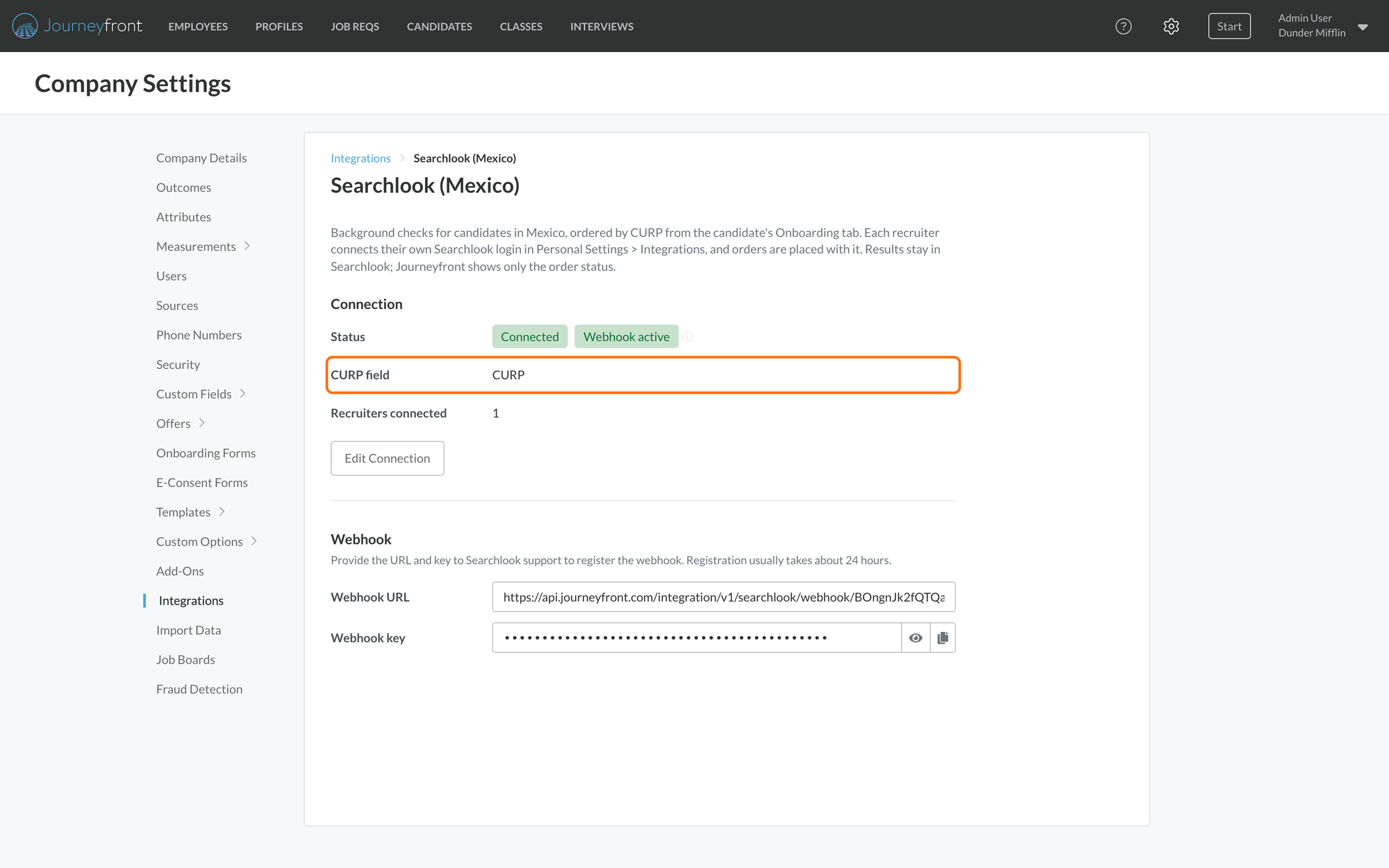
An admin opens Searchlook (Mexico) under Settings, Integrations, and picks the candidate field that holds each candidate's CURP. That's the only setting. There's no shared company login to manage, and the page shows how many recruiters have connected so far.
Pick the field that holds the CURP, and Searchlook is on.
2. Send your webhook to Searchlook
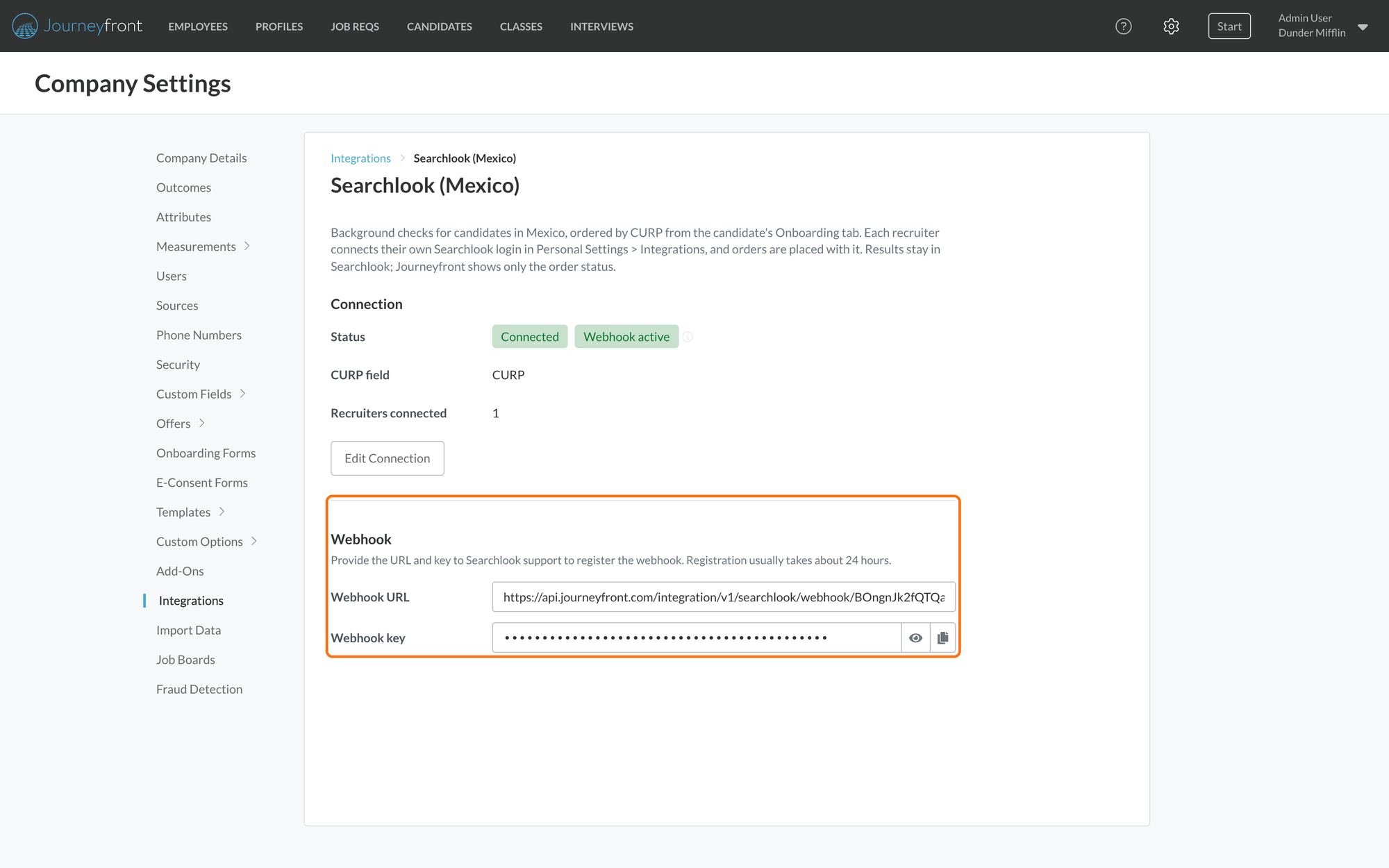
Your company gets its own webhook URL and key. Send them to Searchlook support, and once they're registered (usually within about 24 hours), status updates flow back into Journeyfront on their own. Your team can start ordering in the meantime.
One webhook keeps every check's status current.
3. Recruiters connect their own Searchlook login
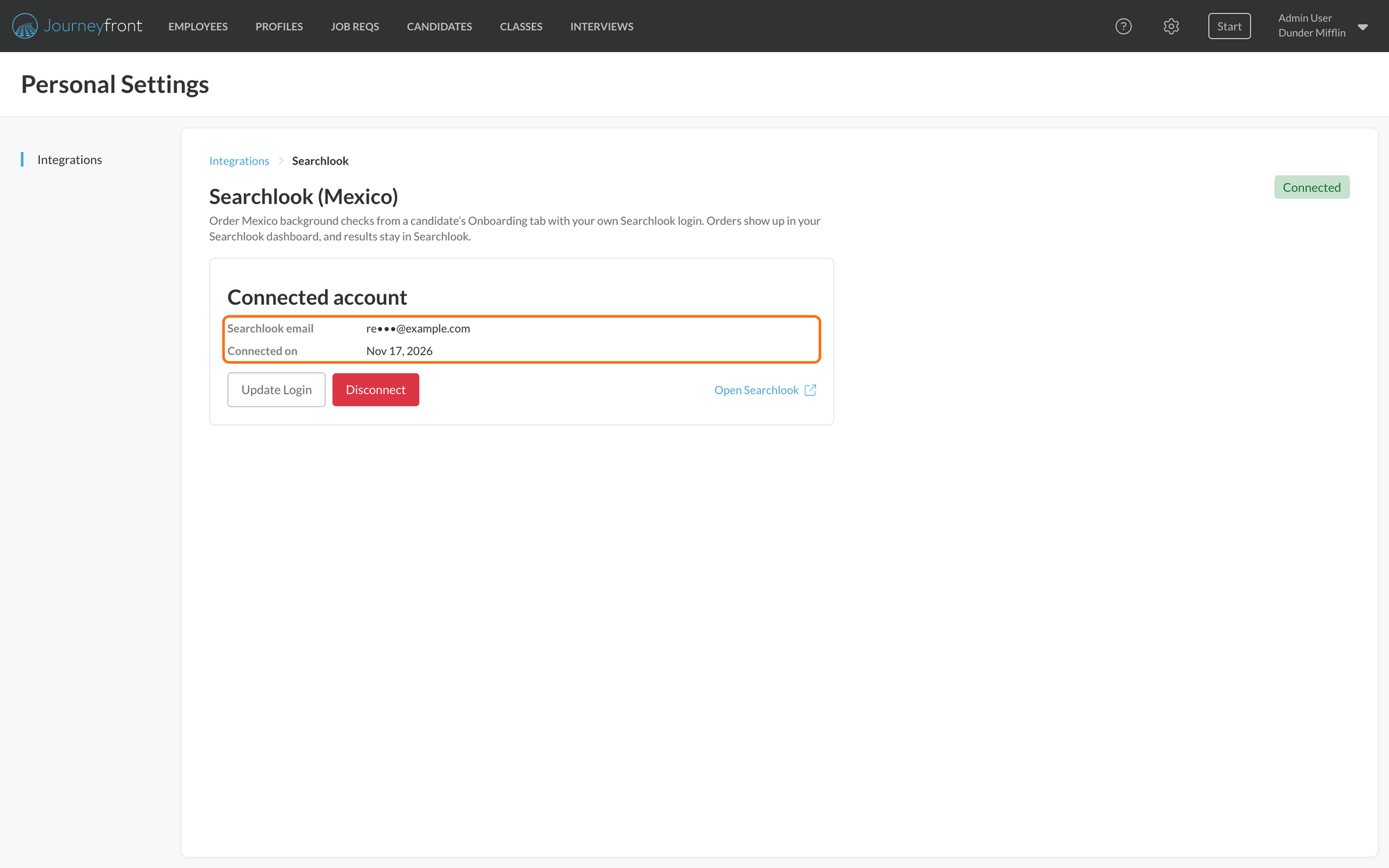
Each recruiter enters their Searchlook email and password once, in Personal Settings. Journeyfront checks the login with Searchlook before saving it, so a typo shows up right away instead of on their first order. Every order then lands in that recruiter's own Searchlook dashboard, just like it does today.
Each recruiter connects the Searchlook login they use.
4. Add Searchlook to your workflow
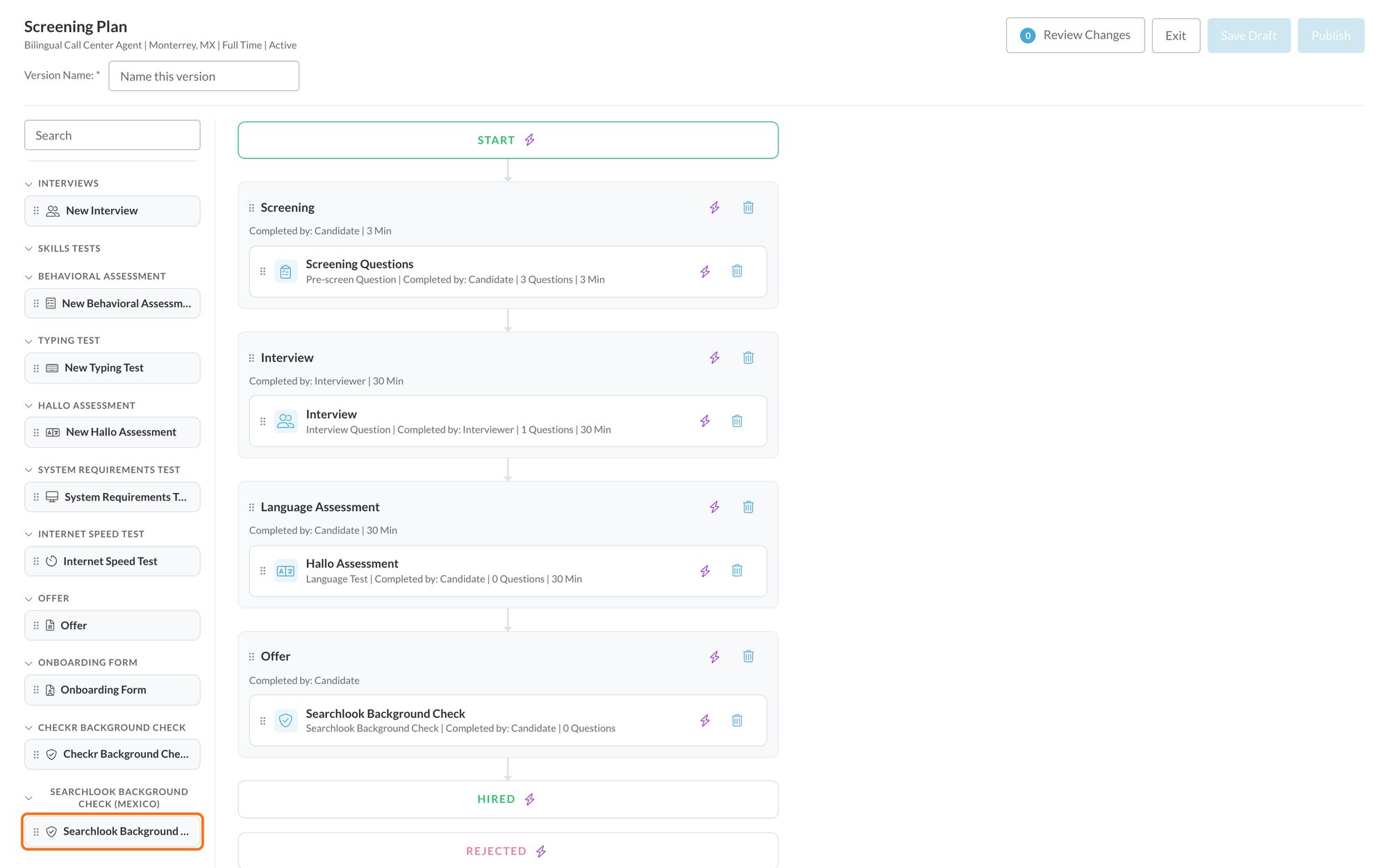
Drag Searchlook Background Check (Mexico) into the step where checks happen, such as onboarding. It needs no other setup.
Add the Searchlook activity to any step.
5. Order from the candidate's profile
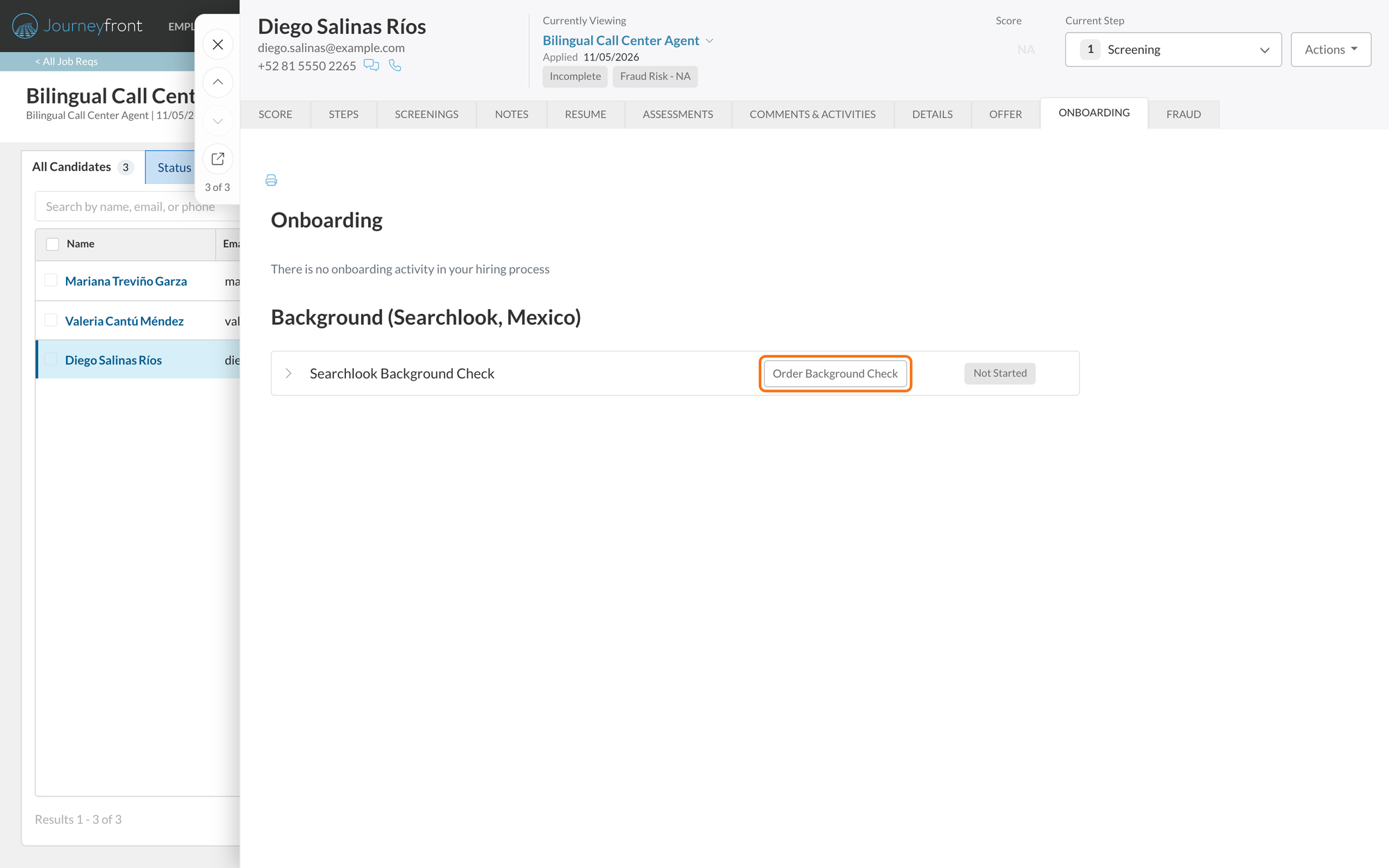
When a candidate is ready, click Order Background Check on their Onboarding tab and confirm. Journeyfront sends Searchlook the candidate's CURP, email and phone number for you, so there's nothing to copy between systems.
Order the check without leaving the candidate.
6. See where every check stands
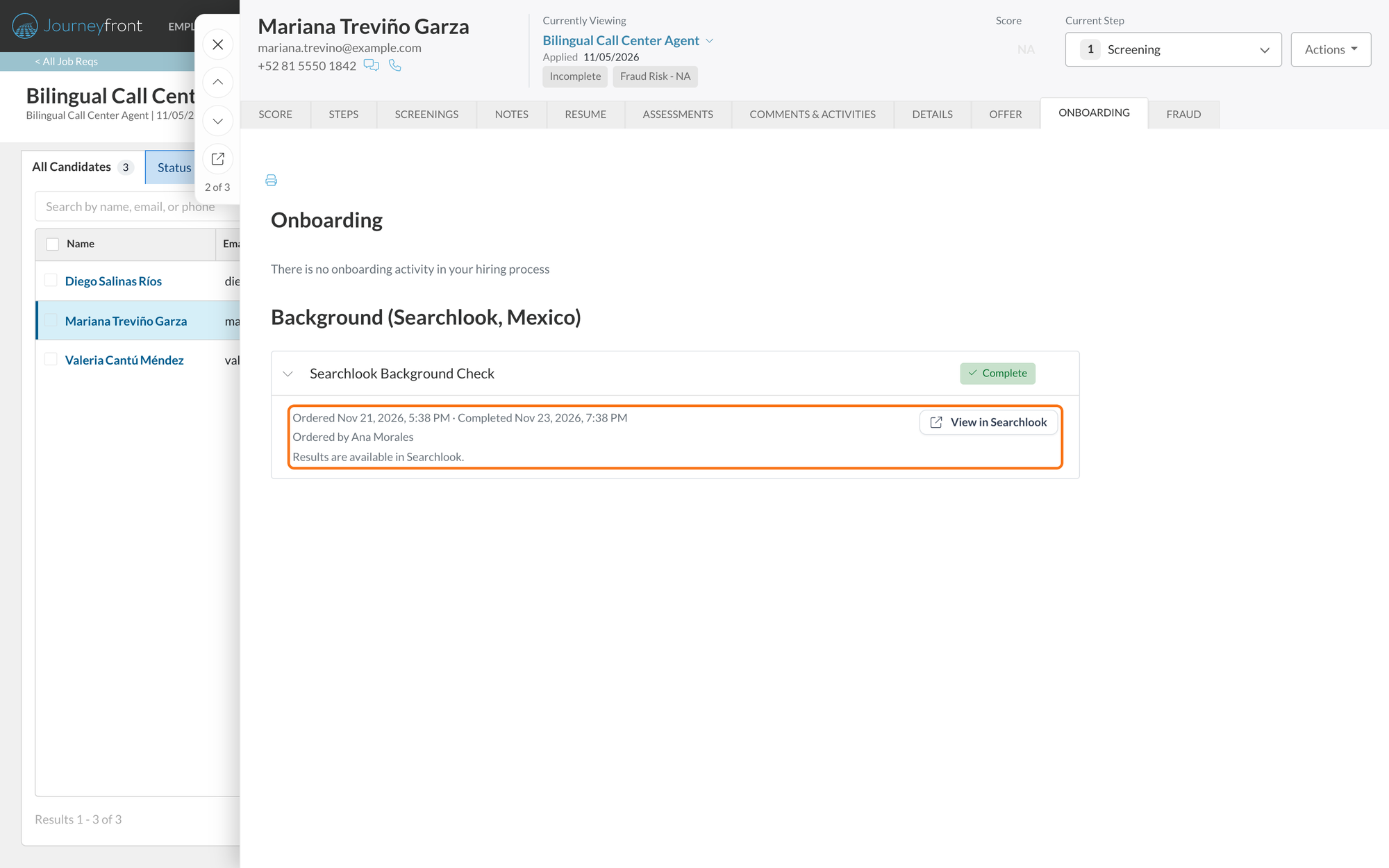
Each check moves from Ordered to In Progress to Complete as Searchlook sends updates, and everyone who can open the candidate sees it. Expand a check to see who ordered it and when Searchlook last sent an update. When it's done, View in Searchlook takes you to the results.
The whole team can see each check's status.
What your team gets
Fewer tabs. Recruiters order checks from the candidate they're already looking at, and Journeyfront fills in the CURP and contact details.
No tracking by hand. Status updates arrive from Searchlook on their own, so nobody keeps a spreadsheet of who's still waiting.
Checks that move candidates forward. A Complete check completes the activity, so your automation rules can take the next step.
Logins that work the first time. Journeyfront checks each recruiter's Searchlook login before saving it and explains what to fix if Searchlook doesn't accept it.
Clear reasons when an order can't go out. Ordering is paused, with the reason shown, when a candidate is missing a CURP or email, or already has a check in progress on that job req.
No double charges from Journeyfront. A failed order is never retried automatically.
Getting set up
An admin turns on Searchlook in Settings, Integrations, and picks the CURP field.
Send the webhook URL and key to Searchlook support to register them.
Each recruiter who orders needs their own Searchlook user and connects it in Personal Settings.
Add the Searchlook activity to a step in your workflow, and pair Complete with an automation rule if you'd like checks to move candidates along.
Good to know
For candidates in Mexico, matched by their CURP.
Results stay in Searchlook. Journeyfront shows each check's status, not the report, and doesn't decide who passes.
Searchlook bills each order to your Searchlook account.
The candidate receives Searchlook's privacy notice.
A candidate can have one open Searchlook check per job req. Checks on different job reqs are allowed.
If Searchlook sends only a final update, a check goes straight from Ordered to Complete.
Your interview scheduling settings now hold for every link you've sent, not just on the page candidates see. Rescheduling off means candidates can cancel with a reason but not pick a new time. Your team can now cancel interviews from the Interviews window and copy a candidate's scheduling link to text them, and a set of scheduling bugs is fixed.
Share saved views with your whole organization or with specific people, so your team works from the same lists. Teammates get a read-only view they can clone, and everyone chooses which views sit on their own tabs.
Move a candidate from one job req to another at the step you choose, instead of rejecting them and asking them to apply again. Their first application closes with a Moved status, and the move reason and notes show on both applications.
BPO hiring shouldn’t be this hard.High-volume hiring shouldn’t be this hard.
Journeyfront makes it easy. See how in a 30-minute demo, and talk through your hiring challenges with our team.