

This update makes interview scheduling do what you set it up to do. The rules you choose for an interview, like whether candidates can reschedule, whether it's taking new bookings and when invite links expire, now hold for every link you've sent, not only on the page candidates see. It also fixes a set of scheduling bugs and adds a few things your team has asked for, like canceling an interview with a reason and copying a candidate's scheduling link to text them.
How it works
1. Rescheduling off means candidates can cancel, not pick a new time
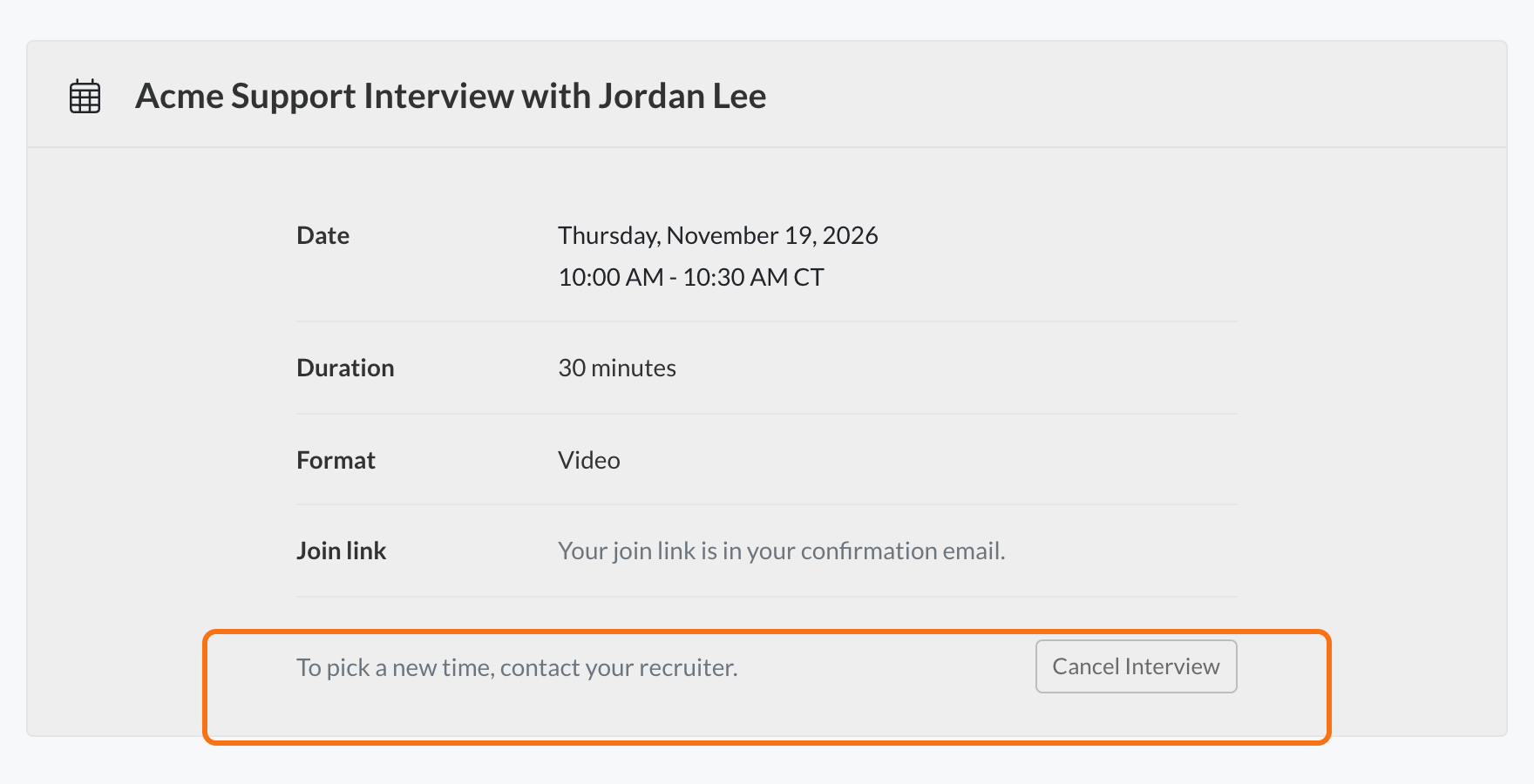
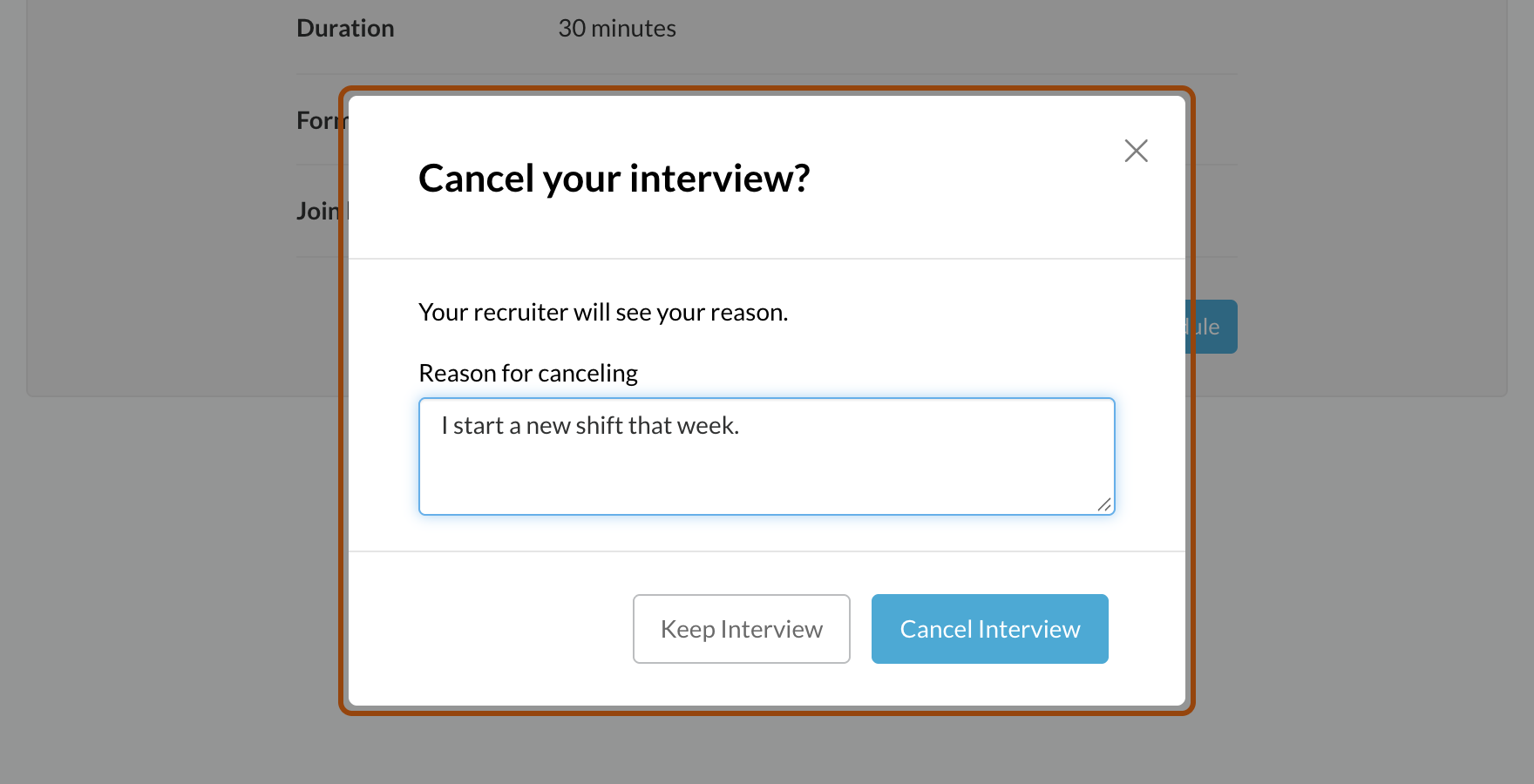
When an interview has rescheduling turned off, a candidate who has booked can still open their link, but they see their booking, a Cancel Interview button and a note to contact their recruiter for a new time. Canceling asks for a reason, and you see it in the candidate's history. Your confirmation and reminder emails say "cancel" instead of "reschedule or cancel", and sending a new invite opens booking again.
2. Cancel an interview or an invite from the Interviews window
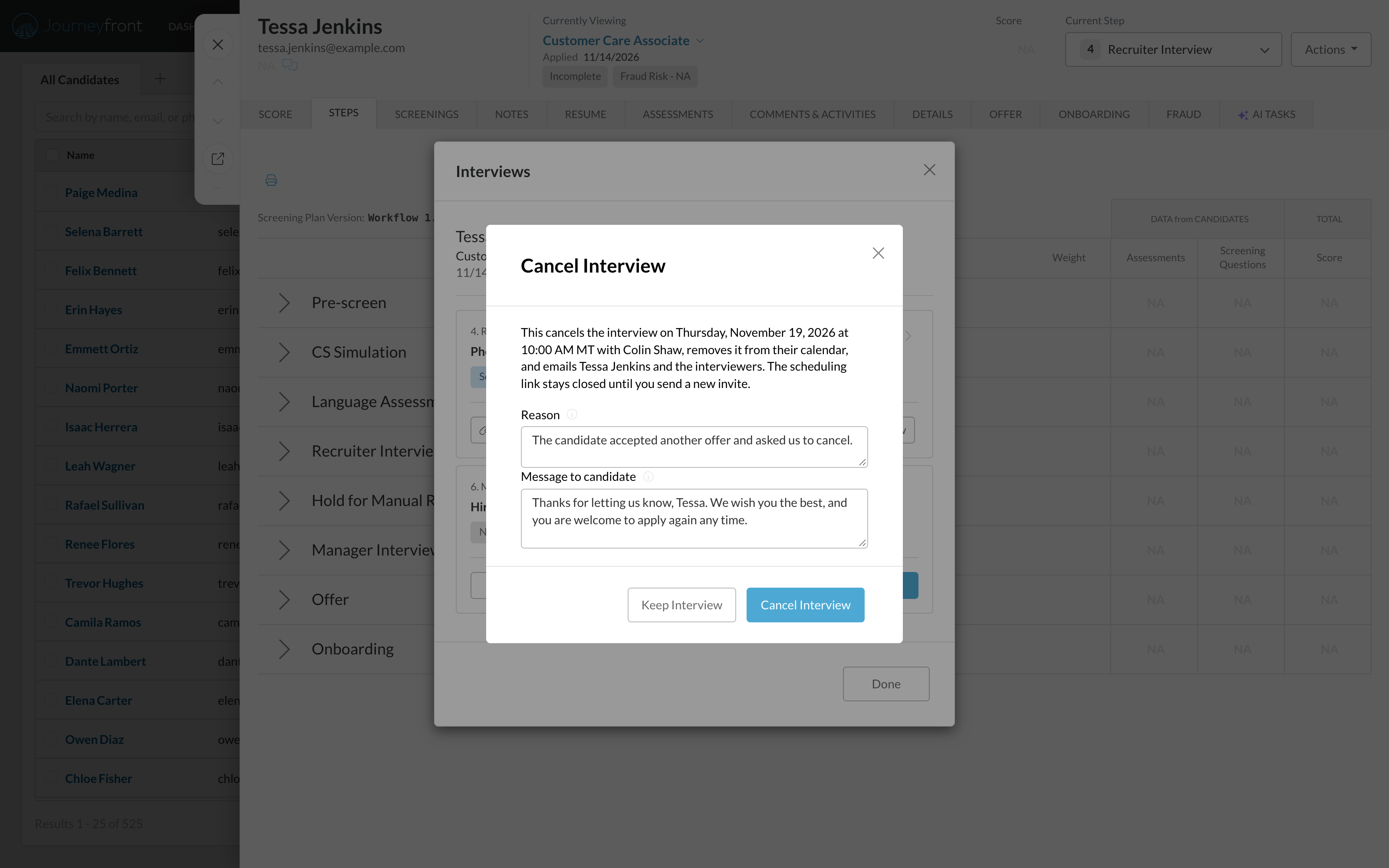
Open a candidate's Interviews window. A booked interview now has Cancel Interview, and an invite that was sent but not booked has Cancel Invite. Both ask for a reason, and you can add a message for the candidate.
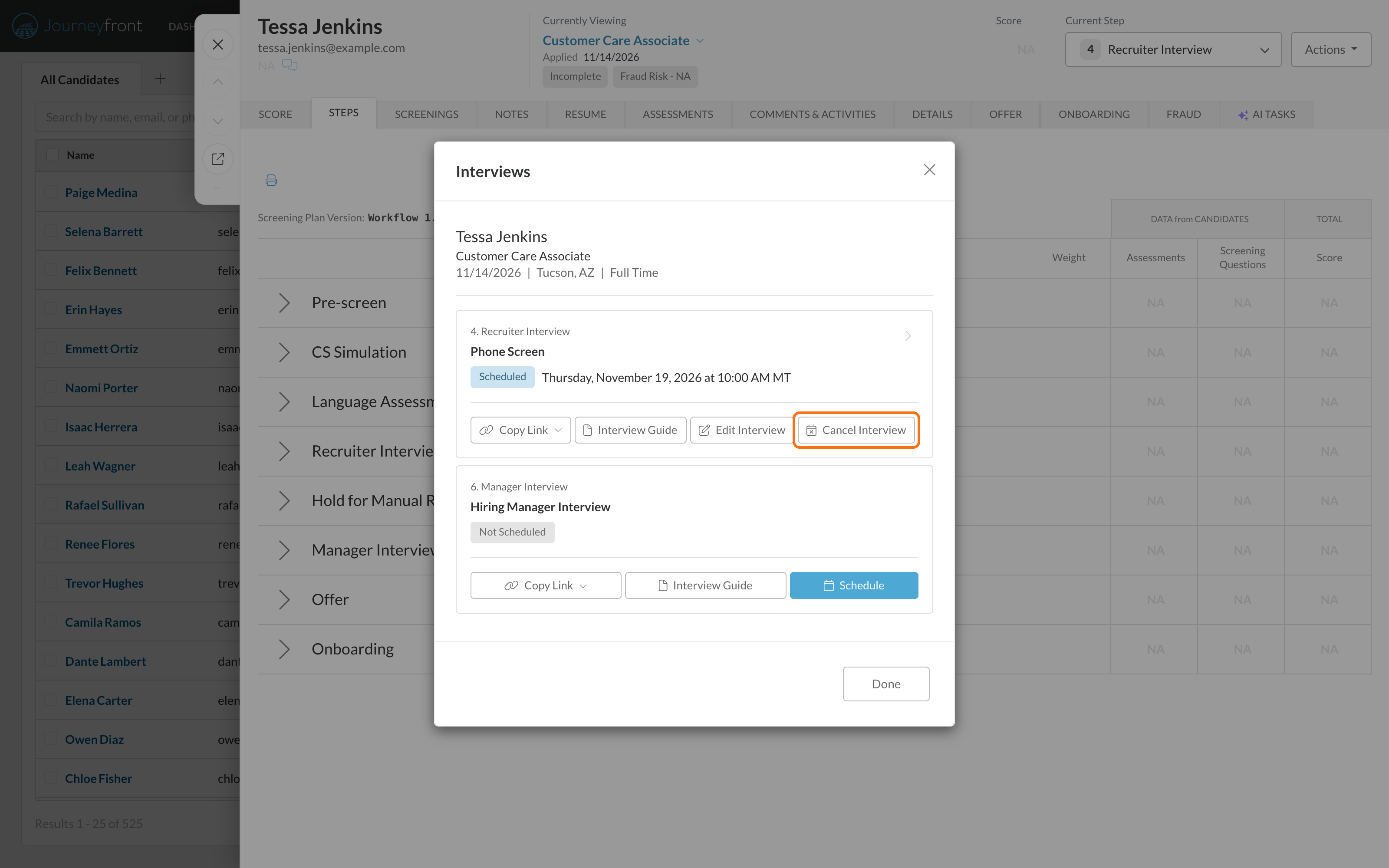
Canceling a booked interview takes it off the interviewer's calendar, emails the candidate and the interviewers on that interview, closes the scheduling link and records who canceled and why.
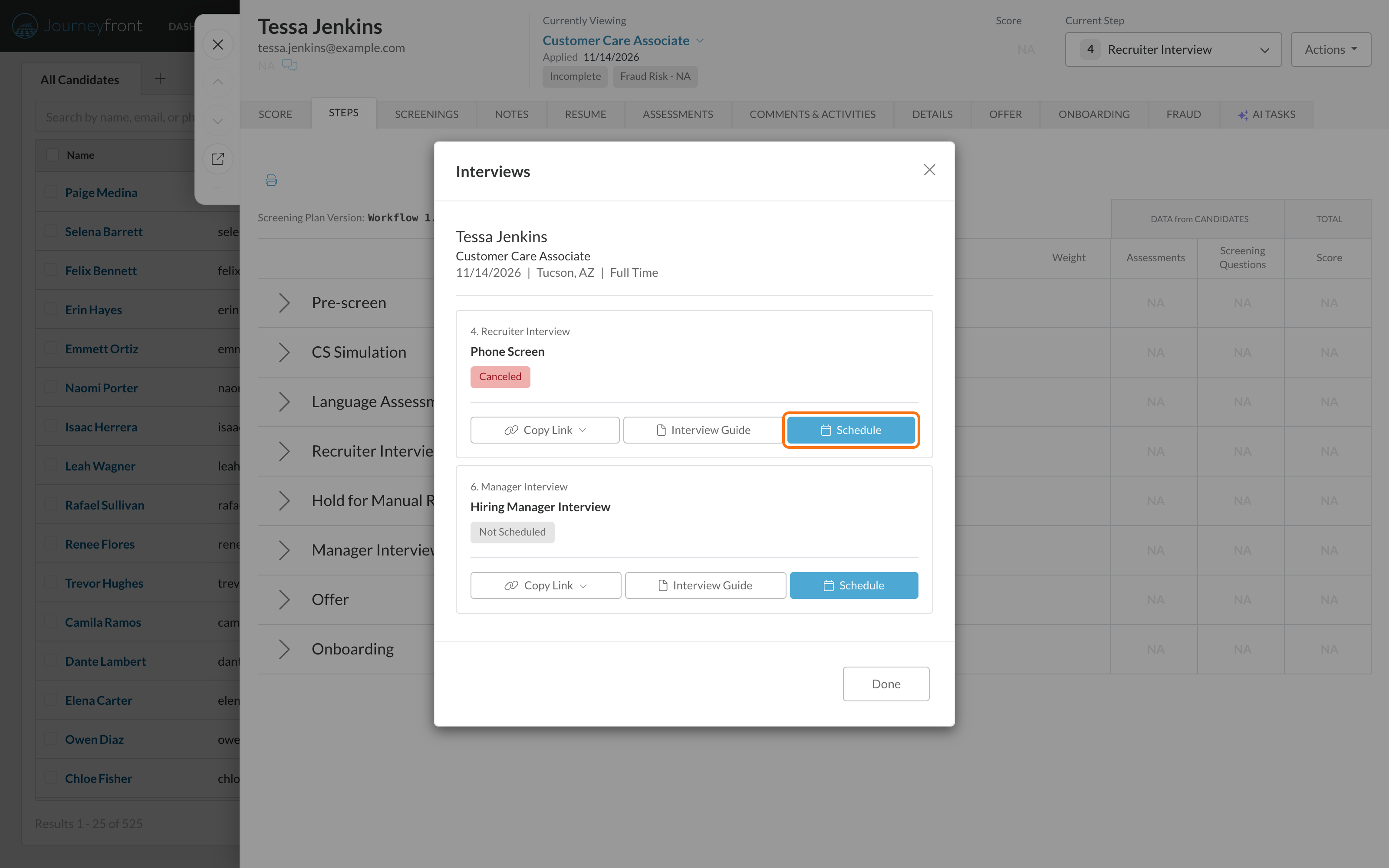
The interview then shows Canceled, and Schedule is there when you want to invite them again.
3. Copy the candidate's scheduling link to text them
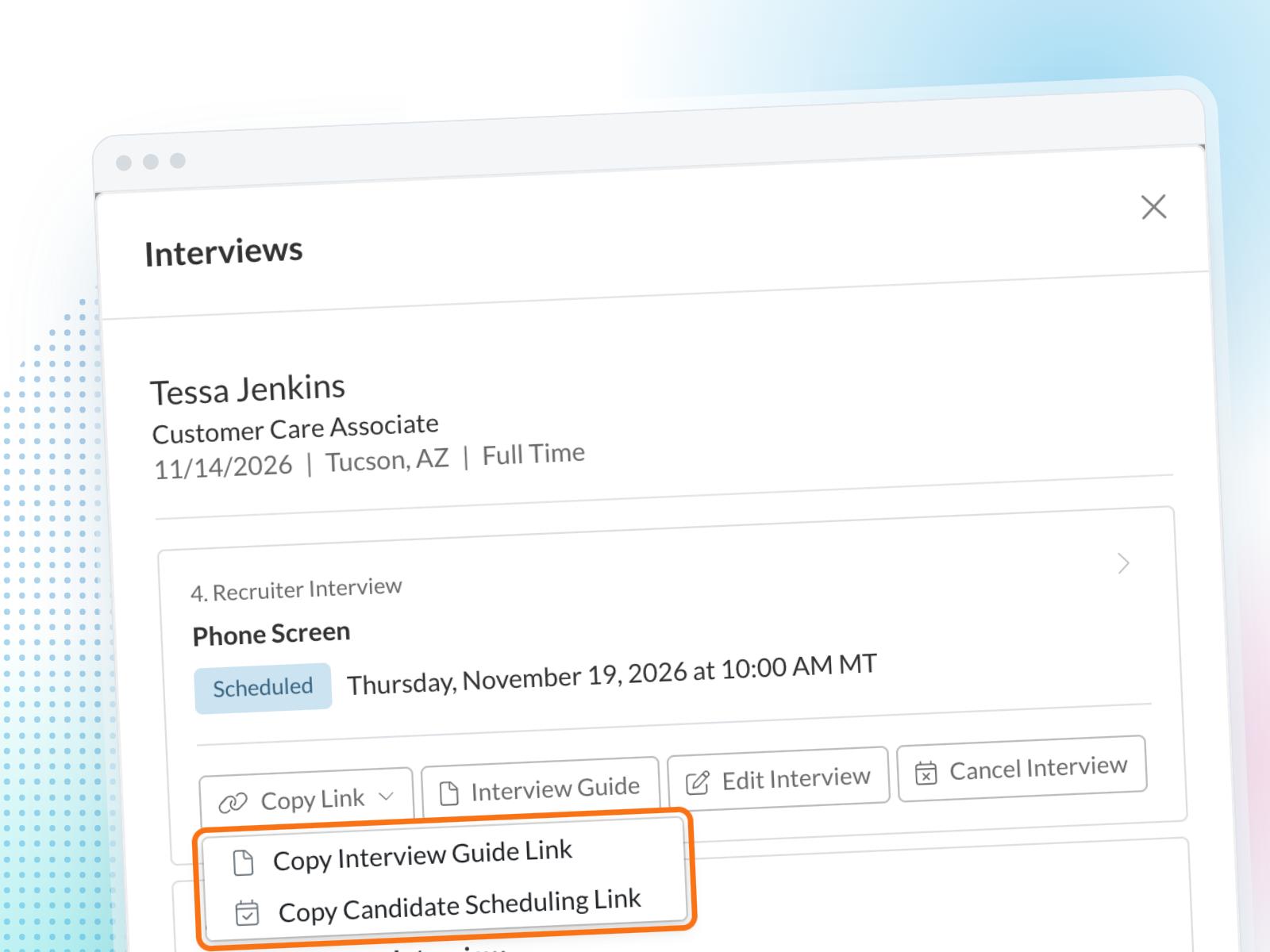
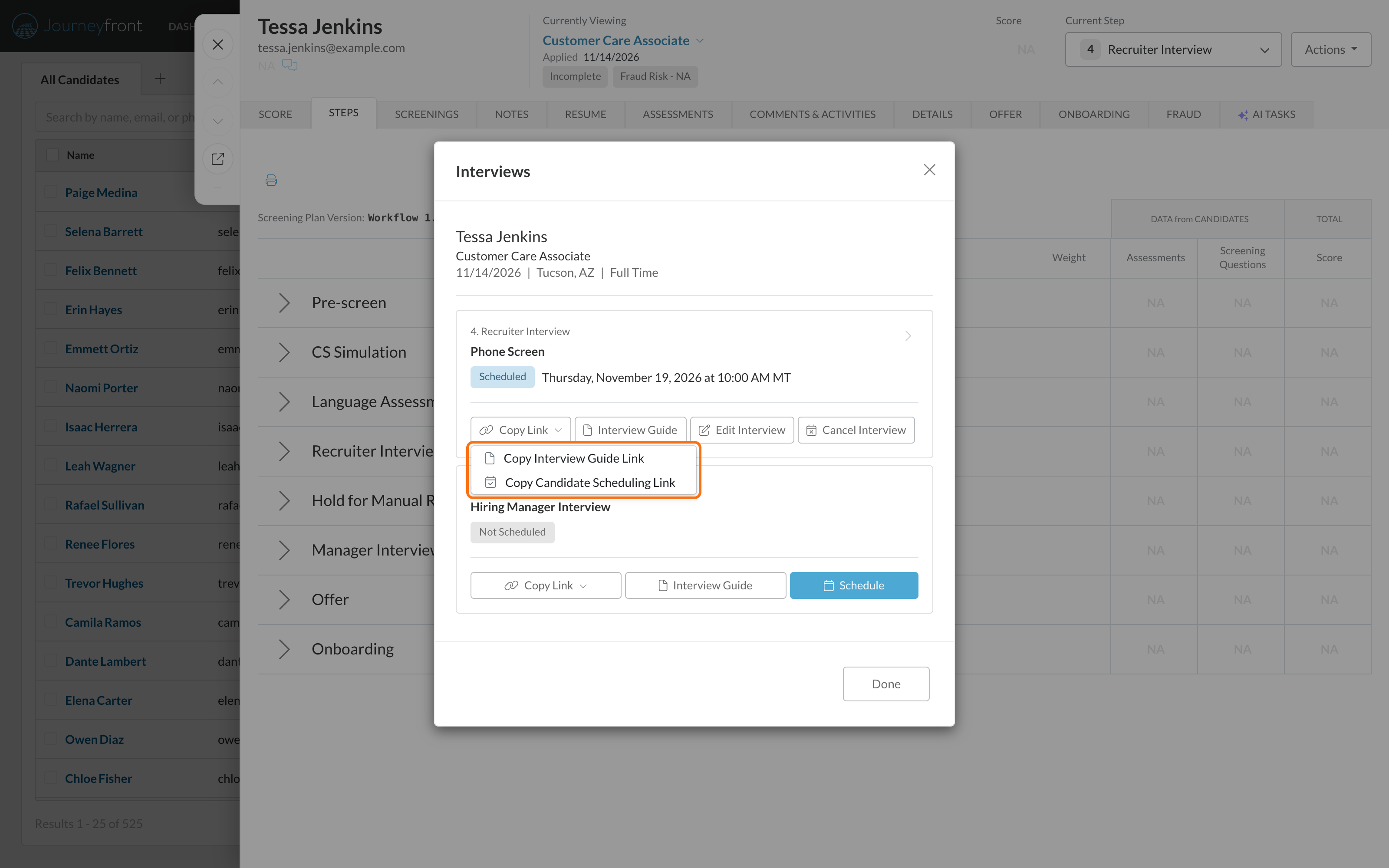
Copy Link on the interview is now a menu with two clearly named options. Copy Interview Guide Link copies the interviewer's guide, which is what Copy Link copied before. Copy Candidate Scheduling Link copies the page where the candidate picks a time, so you can text it or paste it anywhere. It's ready once an invite has been sent, and if the link was canceled or has expired, the option tells you why it isn't available.
4. See who can't be booked before candidates do
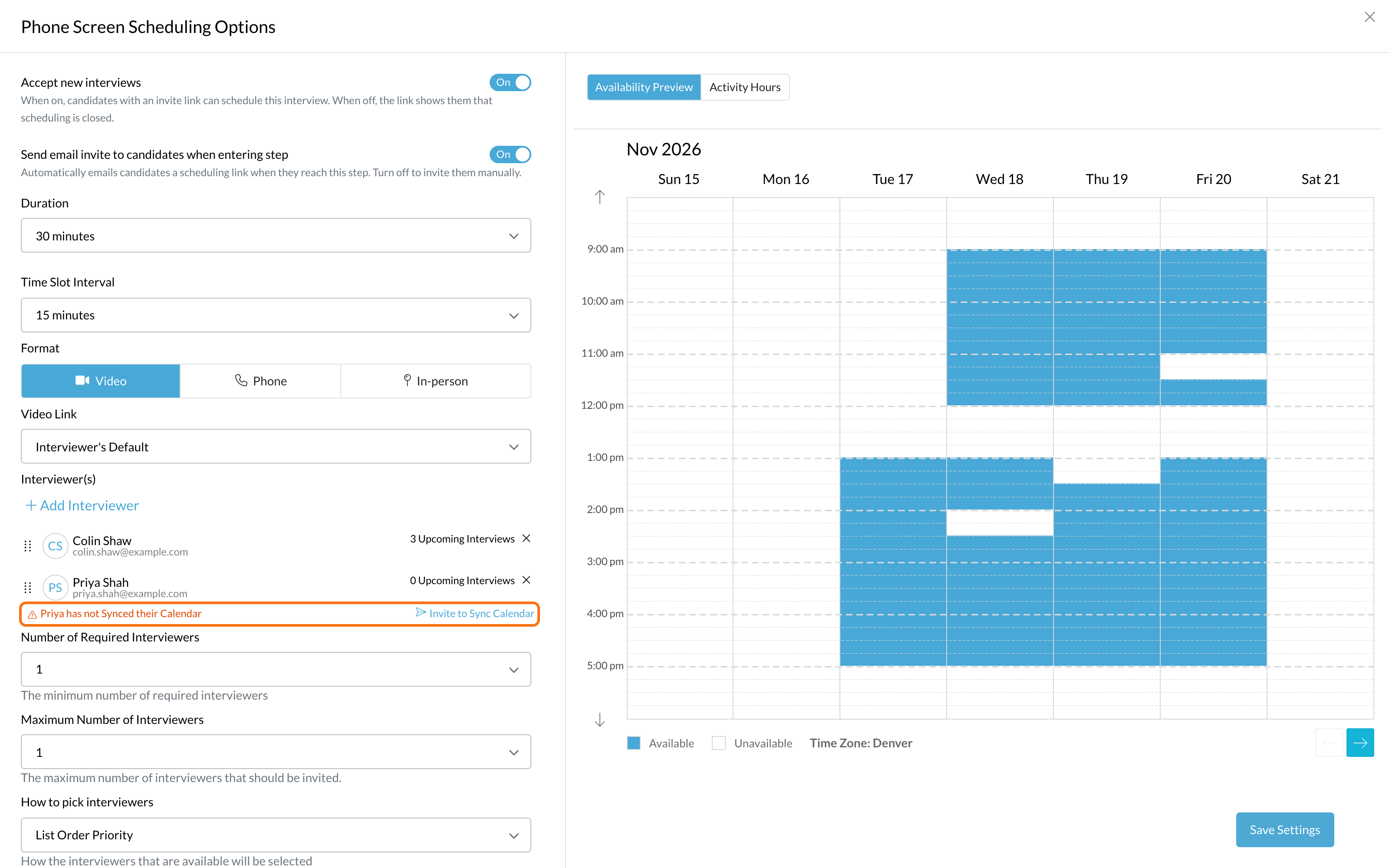
The interview's Scheduling Options now flag any interviewer who hasn't connected their calendar or set their working hours, so you can fix it before candidates find no times. The availability preview uses exactly the same rules as the candidate's page, so what you see is what candidates get.
What your team gets
- Settings that hold on every link. Turning off new bookings, turning off rescheduling and link expiry now apply to links already sent, including candidates who aren't signed in.
- Changes that reach invites already sent. Remove an interviewer or change a setting, and every invite that hasn't been booked yet follows it. Booked interviews stay as they are.
- No double booking. The time a candidate picks is checked against the interviewers' calendars at the moment they book. If it was just taken, they're asked to choose another time.
- Calendar moves sync back. When an interviewer moves the interview in Outlook or Google Calendar, Journeyfront takes the new time, reminders follow it, and the candidate is emailed the new time. Deleting it from the calendar cancels it.
- Join links and addresses that show up. Video interviews get the interviewer's default meeting link, and the confirmation email always sends, even if the link comes later. Reminders include the join link for video interviews and the address for in-person ones.
- One bad calendar no longer breaks the page. If one interviewer's calendar is disconnected, candidates still see everyone else's times.
Bugs fixed
- The Accept new interviews and Send email invite toggles now stay saved.
- Scheduling settings load even when no interviewer is attached yet.
- Declining or canceling frees the time slot right away.
- Activity hours that only block out days, like a holiday, no longer open extra days for booking.
- Cancellation emails go only to the interviewers on that interview, and no longer go out when an interview is rescheduled.
- The interview card updates right away after a change, wherever you opened it.
Getting set up
- Nothing to turn on. Accept new interviews, link expiry, request more times and activity hours are now available on every account, and your saved interview settings don't change.
- Check your interviewers. Open your interviews' Scheduling Options and look for any interviewer flagged for their calendar or working hours.
Good to know
- Rejecting, hiring or moving a candidate never cancels their interviews on its own. Cancel from the Interviews window when you need to.
- Interviewers who haven't set working hours offer no times, on the preview and for candidates, rather than a default schedule.
- Settings changes only reach invites that haven't been booked. Booked interviews are never moved or reassigned.
Learn more
- Candidate self-scheduling: booking, canceling and the Copy Link menu.
- Interview activity setup: Scheduling Options and the interviewer flags.
- Cancel or reschedule your interview: what candidates see.