

Sometimes the quickest way to a hire is to get the candidate on the calendar first. Interviews in your workflow now have their own scheduling link. Share it in a text, a job ad or a QR code at a hiring event, and people can pick a time and book on the spot, then finish the rest of their application afterward.
The same link works for brand new candidates and for people who already applied, so you can also use it to bring back candidates who went quiet.
How it works
1. Copy the link from the interview
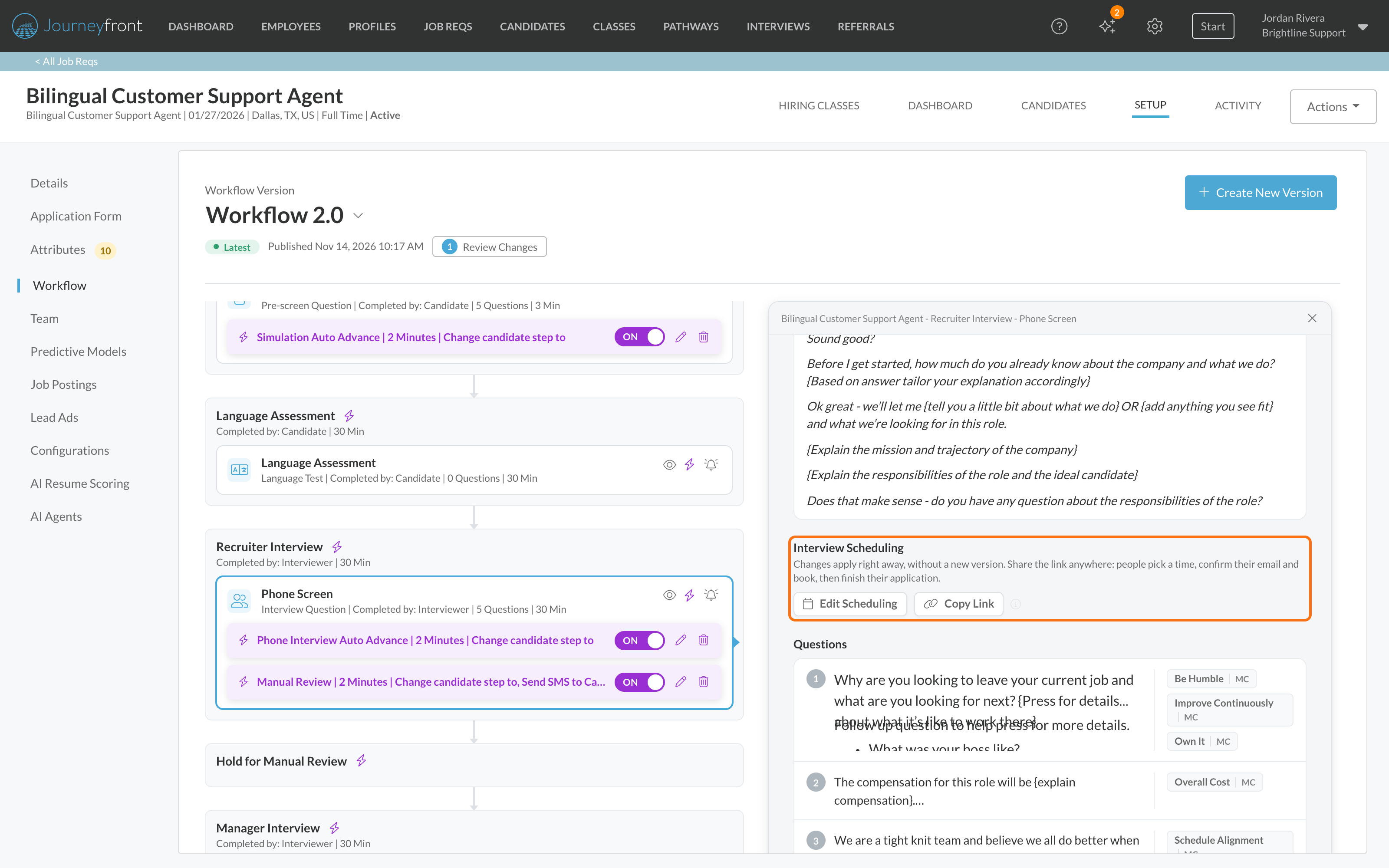
On the Workflow page, open an interview and look for its Interview Scheduling section. Copy Link puts that interview's scheduling link on your clipboard. You'll find it in the draft editor too while you work on a new version.
2. Share it anywhere, and tag where it went
Put the link wherever candidates will see it: a text message, a job ad, a QR code at a hiring event or an email to past applicants. To see which channel brought someone in, choose Generate Source Link, pick one of your sources, such as Job Fair, and copy that version. New candidates who book from it get that source on their application. Links also accept utm_source and utm_medium, just like your apply links.
3. Candidates pick a time
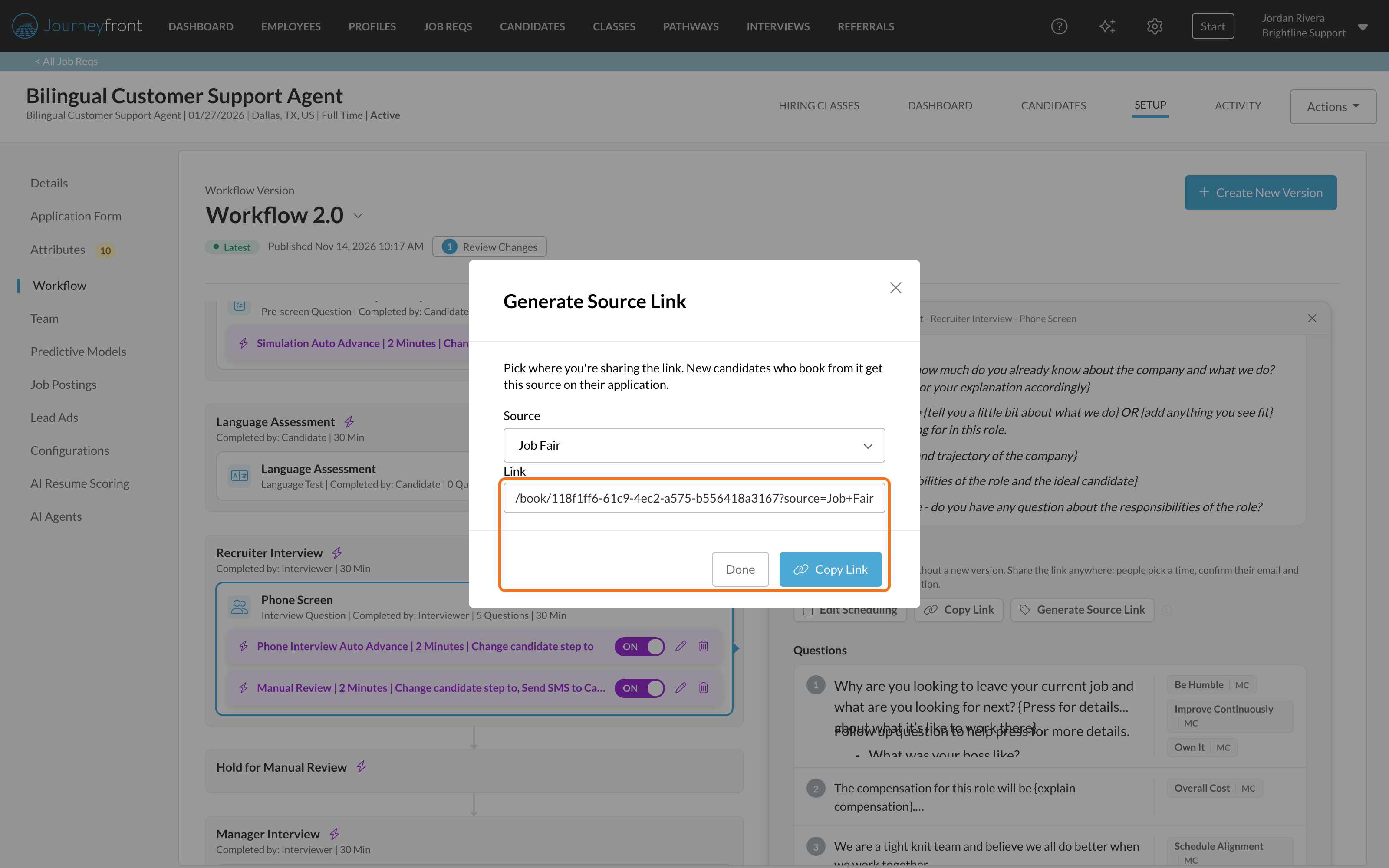
Anyone who opens the link sees the interview's open times right away, in their own time zone, with nothing to fill out first. The page works on phones and is available in English, Spanish and French.
4. They confirm their email
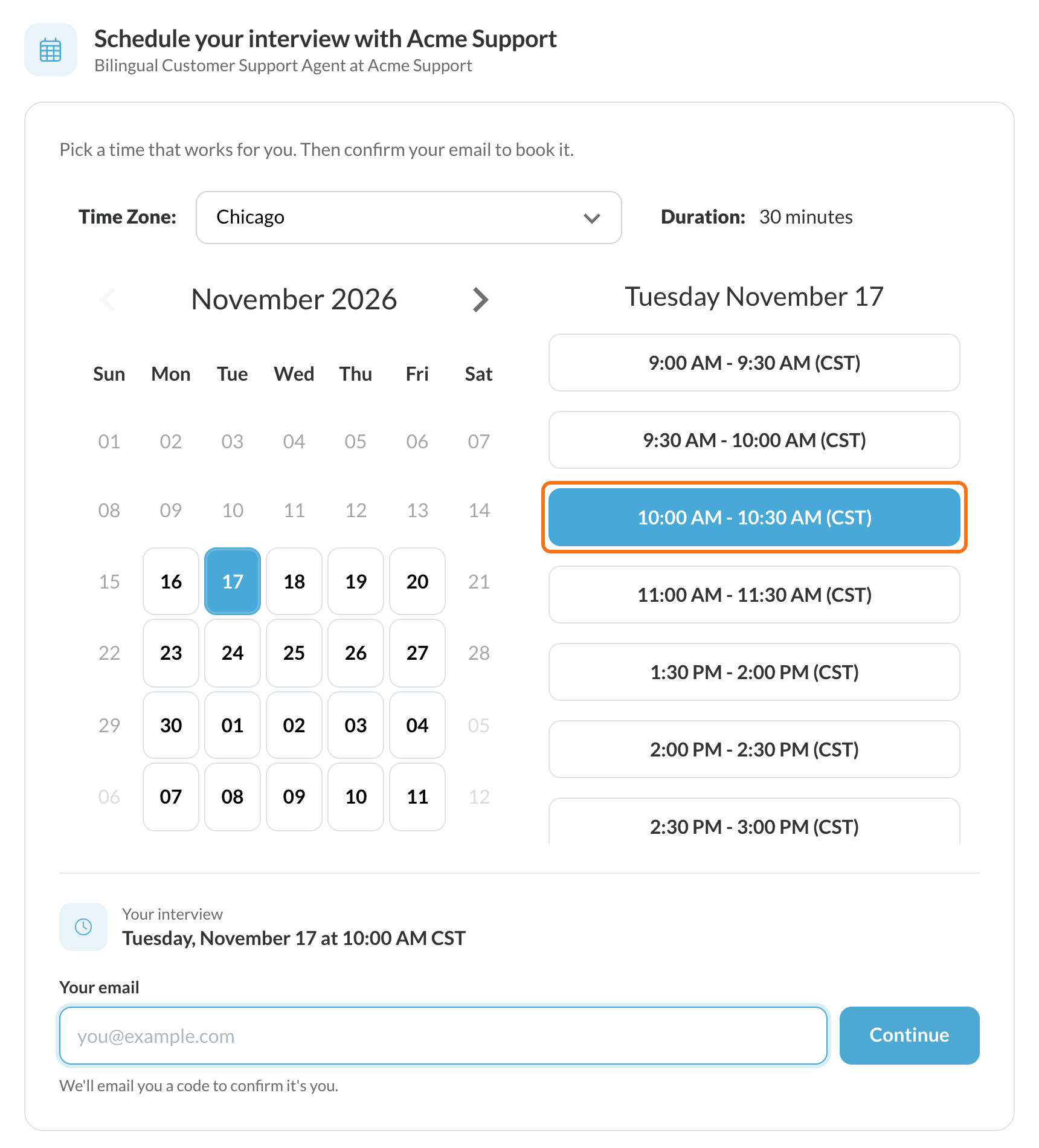
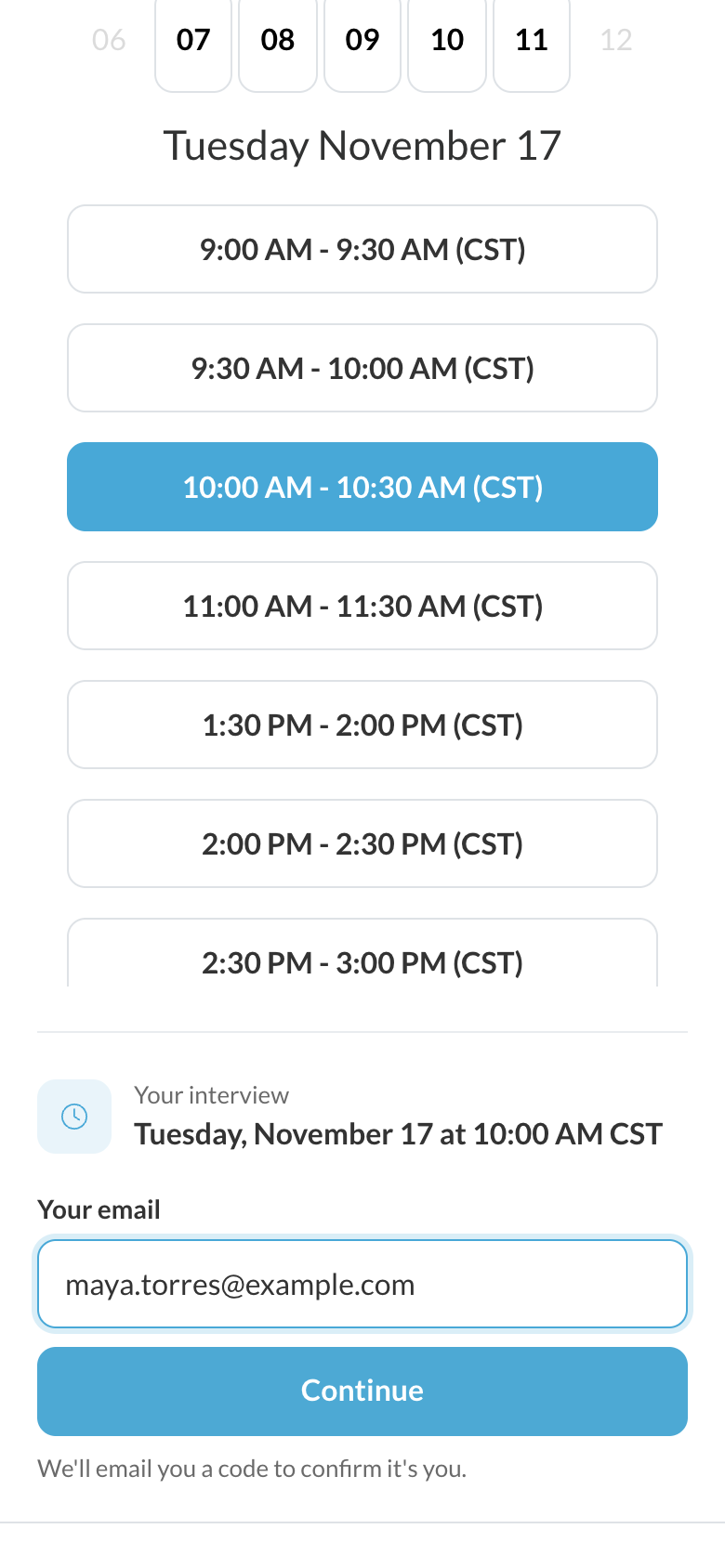
After choosing a time, the candidate enters their email and gets a 6-digit code to confirm it's really them. New people also add their first and last name. Anyone who's already signed in sees "Booking as" with their name and books with one click.
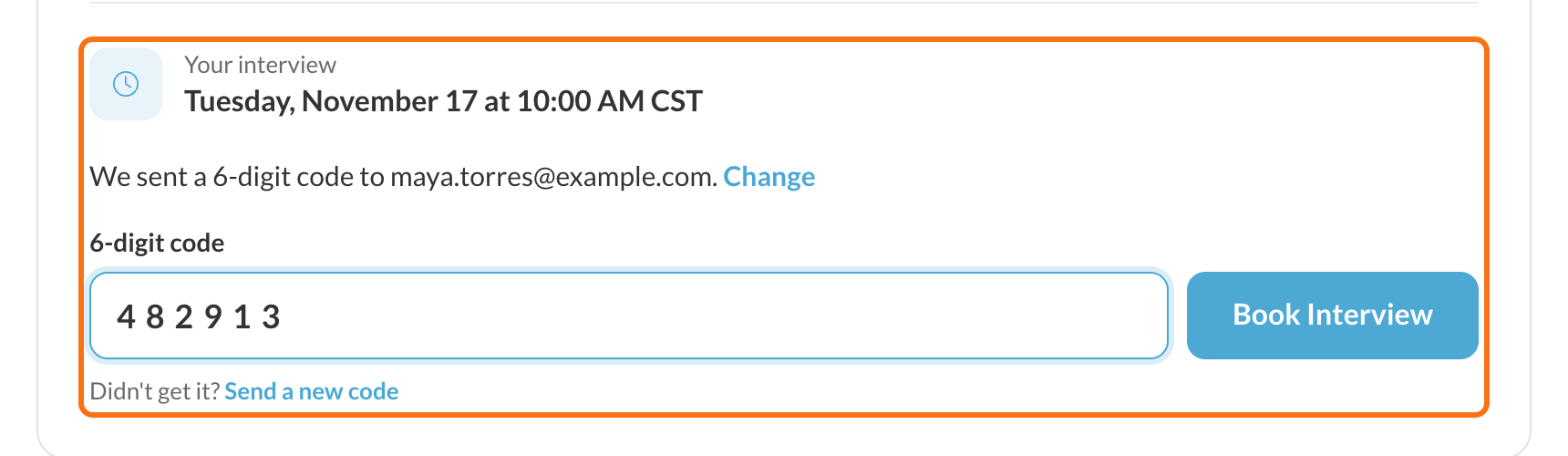
5. Booked, then on to the rest of the application
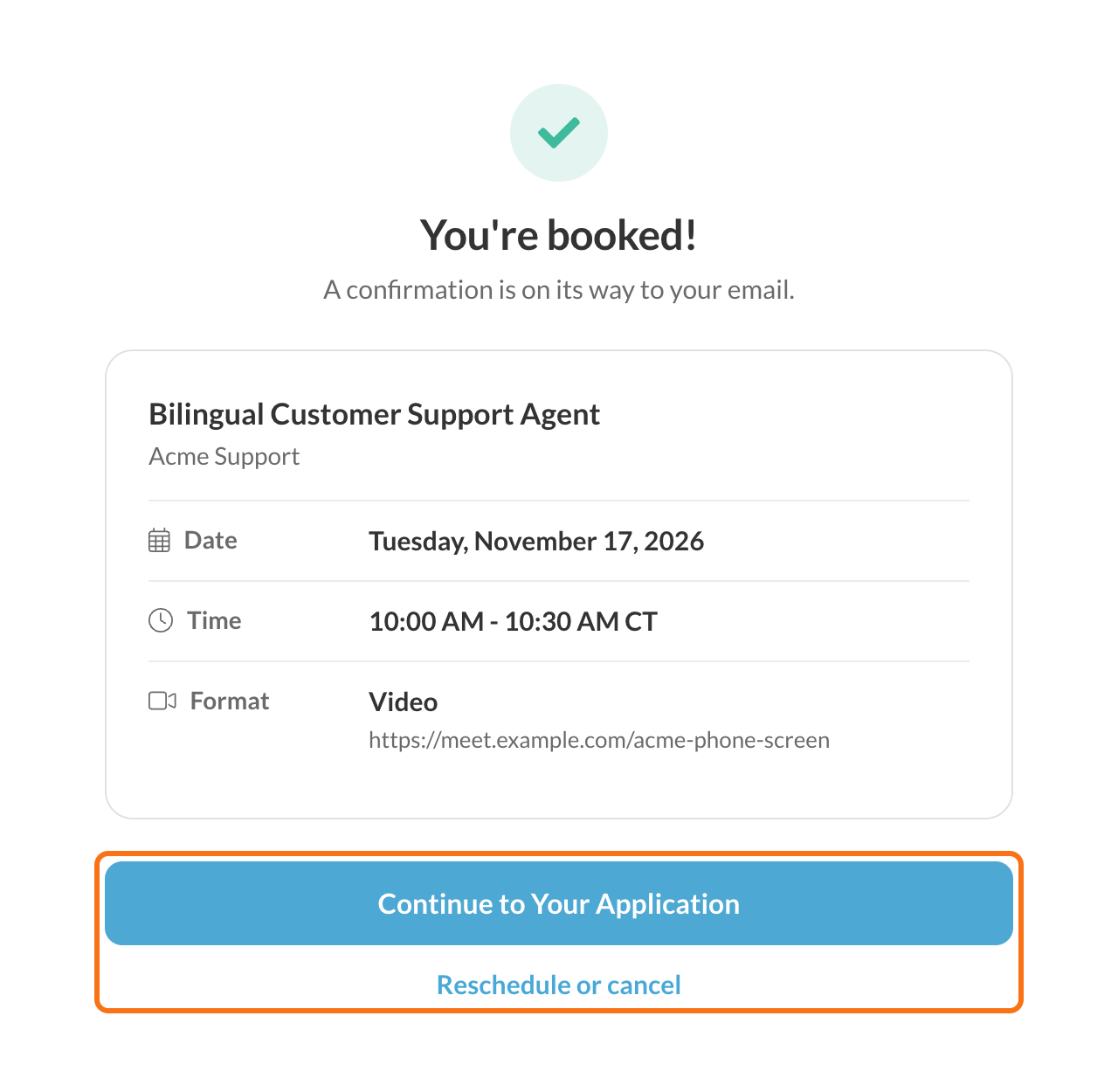
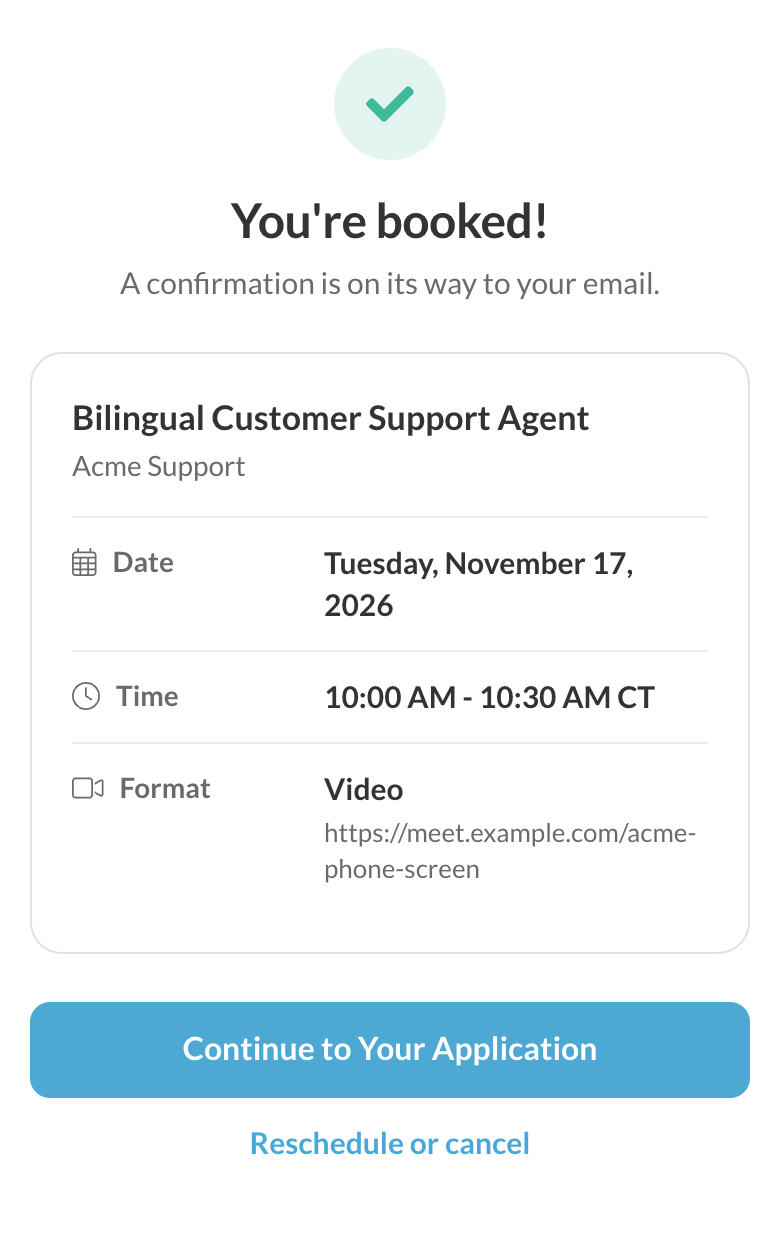
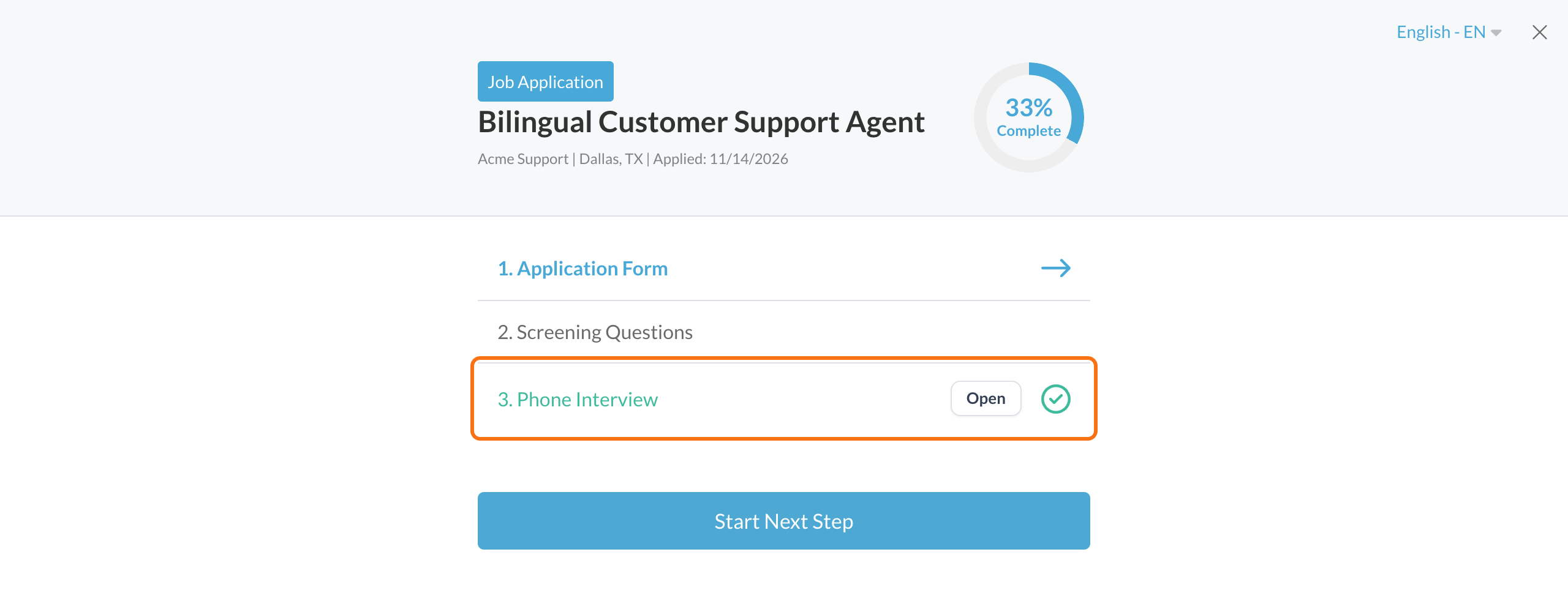
The candidate sees "You're booked!" with the interview details and a link to reschedule or cancel. Continue to Your Application takes them to the job's application in the candidate portal, with the interview already booked and their remaining steps ready to finish. The usual confirmation email and reminders go out as normal.
What your team gets
- Candidates who book first. New people get an account and an application on the job, starting on the interview's step, with Scheduling link as their source (or the source on the link you shared).
- One link for past applicants too. People who already applied are booked on their own application. They keep their place in the workflow and their original source.
- No double booking. If someone already has the interview booked, the link shows them their booking instead. If the time they picked is taken while they confirm their email, they pick another time without confirming again.
- Clear messages when booking isn't possible. Rejected applicants, and candidates whose interview a recruiter canceled, see a friendly message and a button to their application instead of the calendar.
- A way back for expired invites. When an emailed scheduling invite has expired, the candidate can choose Pick a Time to open the direct link.
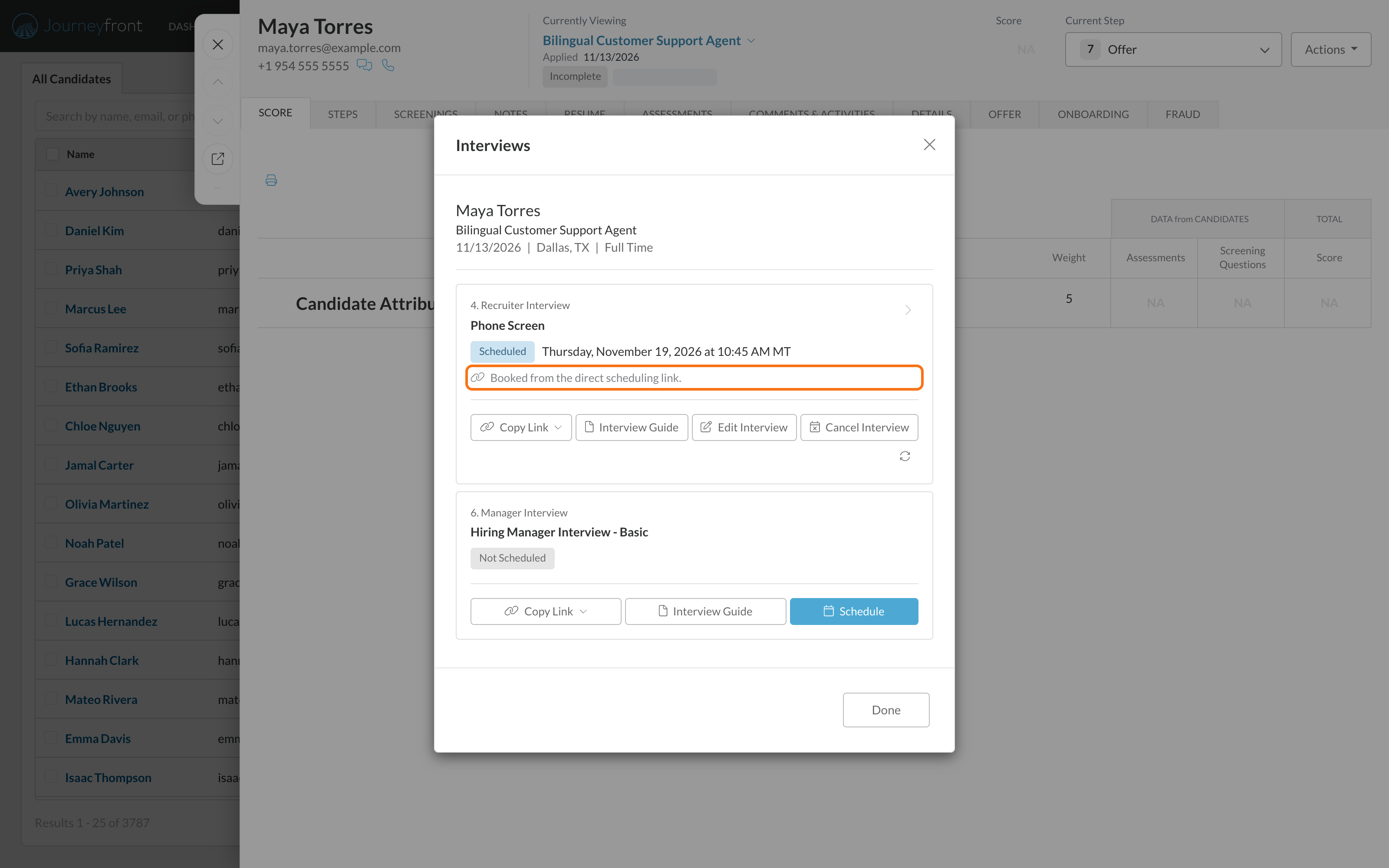
- See how the interview was booked. The interview card shows "Booked from the direct scheduling link."
Getting set up
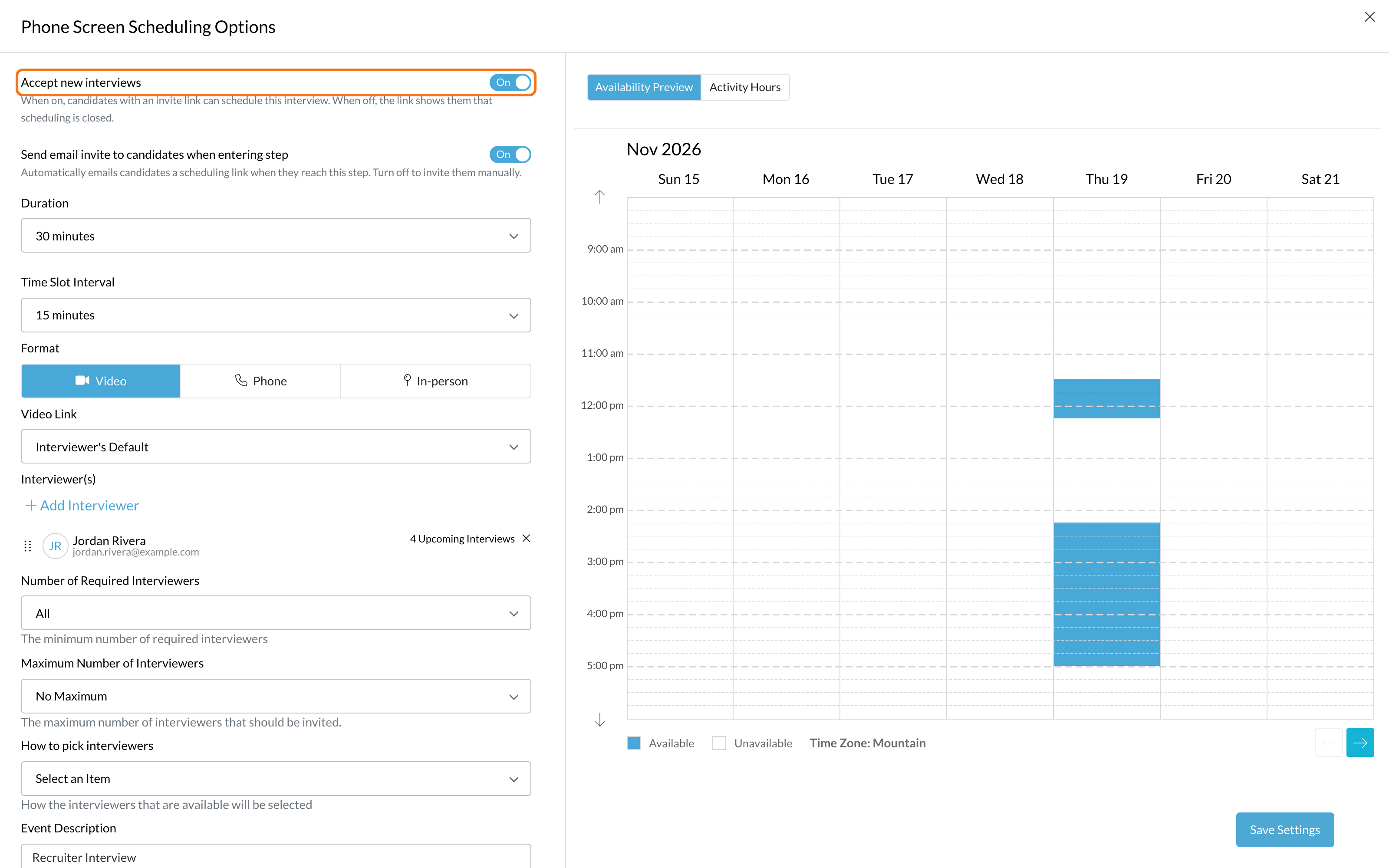
- Nothing new to turn on. The link uses the scheduling settings the interview already has. Its interviewers, hours, length, start times and minimum notice decide which times candidates see.
- Accept new interviews turns the link on and off. When it's off, the page tells people the interview isn't taking bookings right now and offers Apply to This Job, and Copy Link is grayed out with the reason.
- Edit Scheduling sits next to Copy Link. Changes to these settings save right away on any version, with no new workflow version needed.
Good to know
- The link doesn't expire. Expiration applies only to scheduling invites sent by email.
- No scheduling invite email goes out for link bookings, since the candidate has already booked.
- When you publish a new workflow version, carried-over interviews keep their scheduling settings and the same link. The link opens your live version, and people still on an older version pick from their own interview's times after they confirm their email.
- An interview you add in a draft gets a working link once that version is published.
- Interviews scheduled with the candidate's assigned user don't have a direct scheduling link.