

A job title rarely tells the whole story. The same title can mean different teams, sites or programs, so when employees sync in from your HR system, a title alone can't always say where each person belongs. Now you decide, using the fields your HR system already keeps, and every synced employee lands in the right Job Profile automatically.
How it works for your team
1. Add rules to each Job Profile
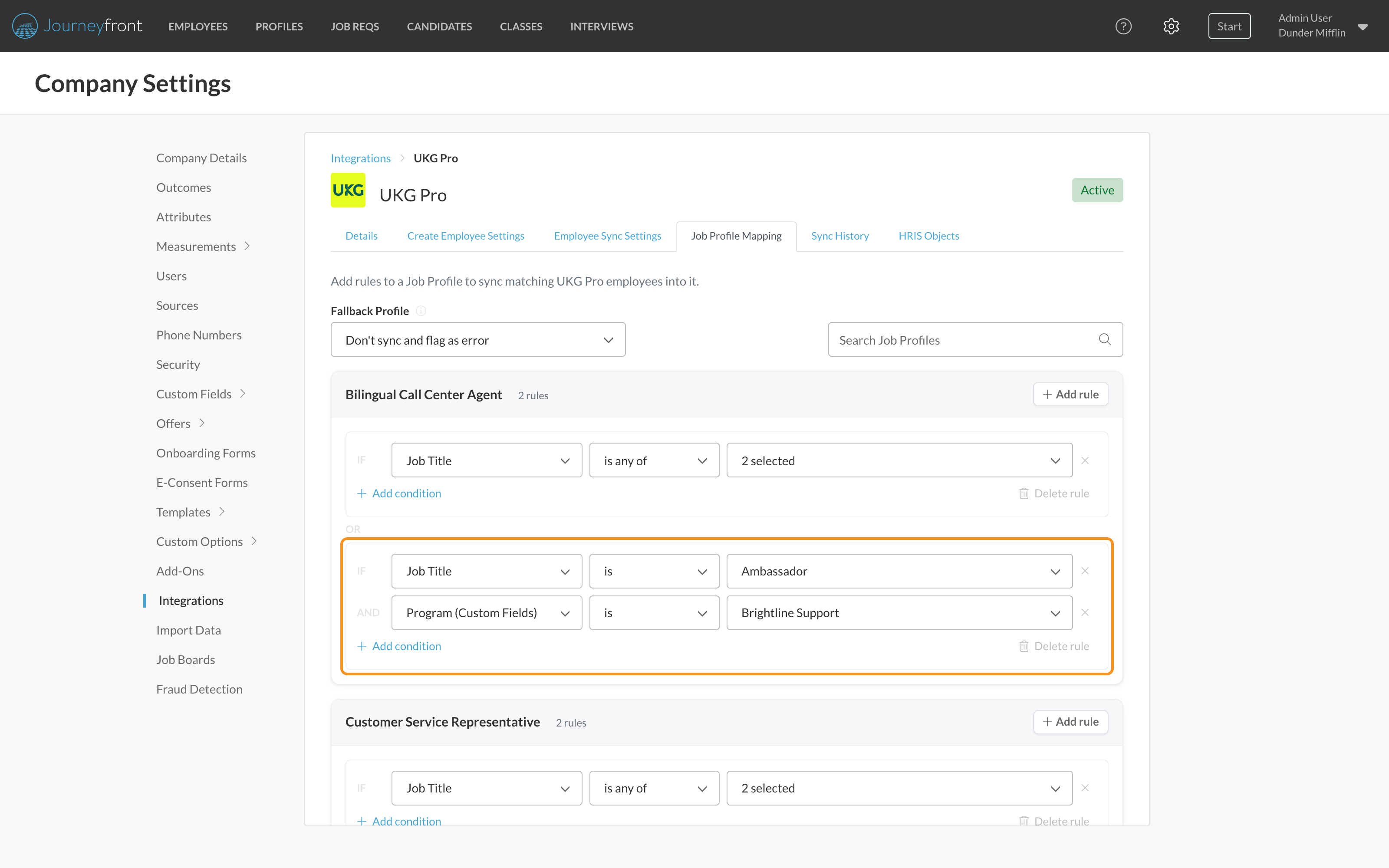
In your HR system's settings, open Job Profile Mapping. Each Job Profile has its own rules, written in plain language: pick a field, how it should match (is, is any of, contains, starts with and more) and the values. A profile can have as many rules as you need, and every condition in a rule must match.
2. Use any field from your HR system
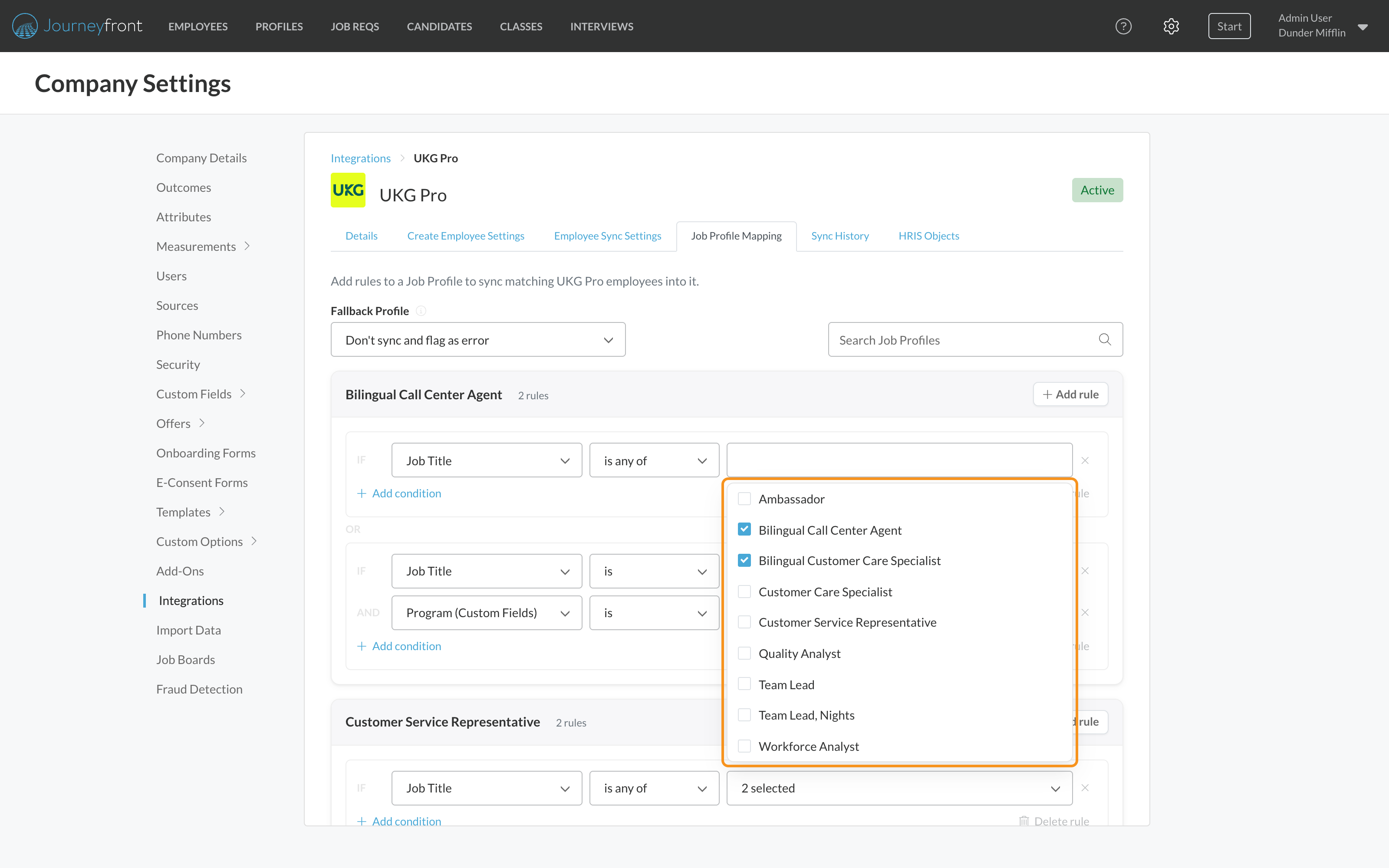
Match on job title, location, department or your custom HRIS fields. When you pick values, the list shows what's actually in your HR system, so you check the boxes you need instead of typing names from memory.
3. Catch overlaps before you save
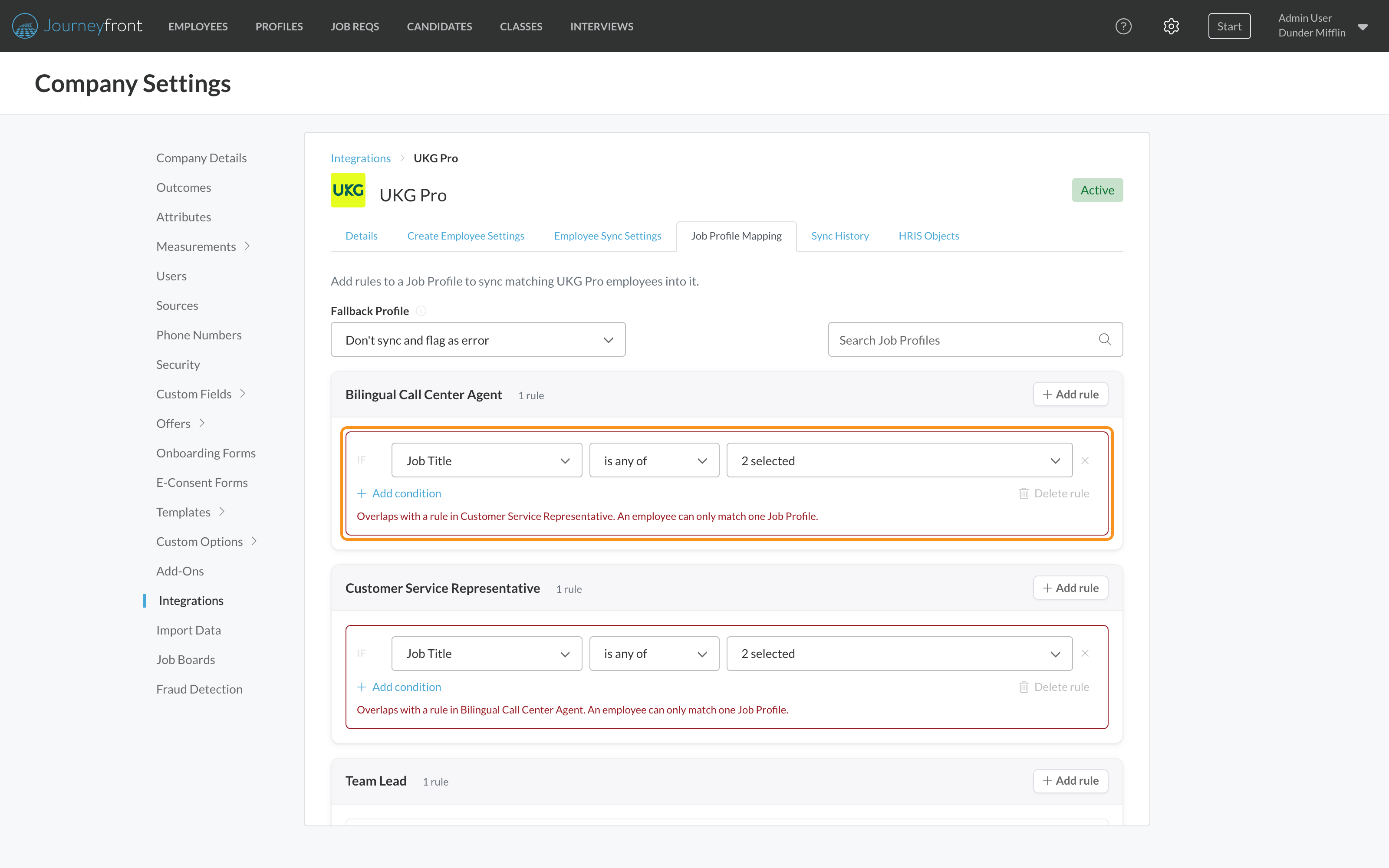
If two Job Profiles would claim the same employee, both rules are flagged and the save is stopped until you fix it. Choose a Fallback Profile for anyone no rule fits, or leave it empty and those employees are flagged for review instead of guessed.
4. Preview where everyone lands
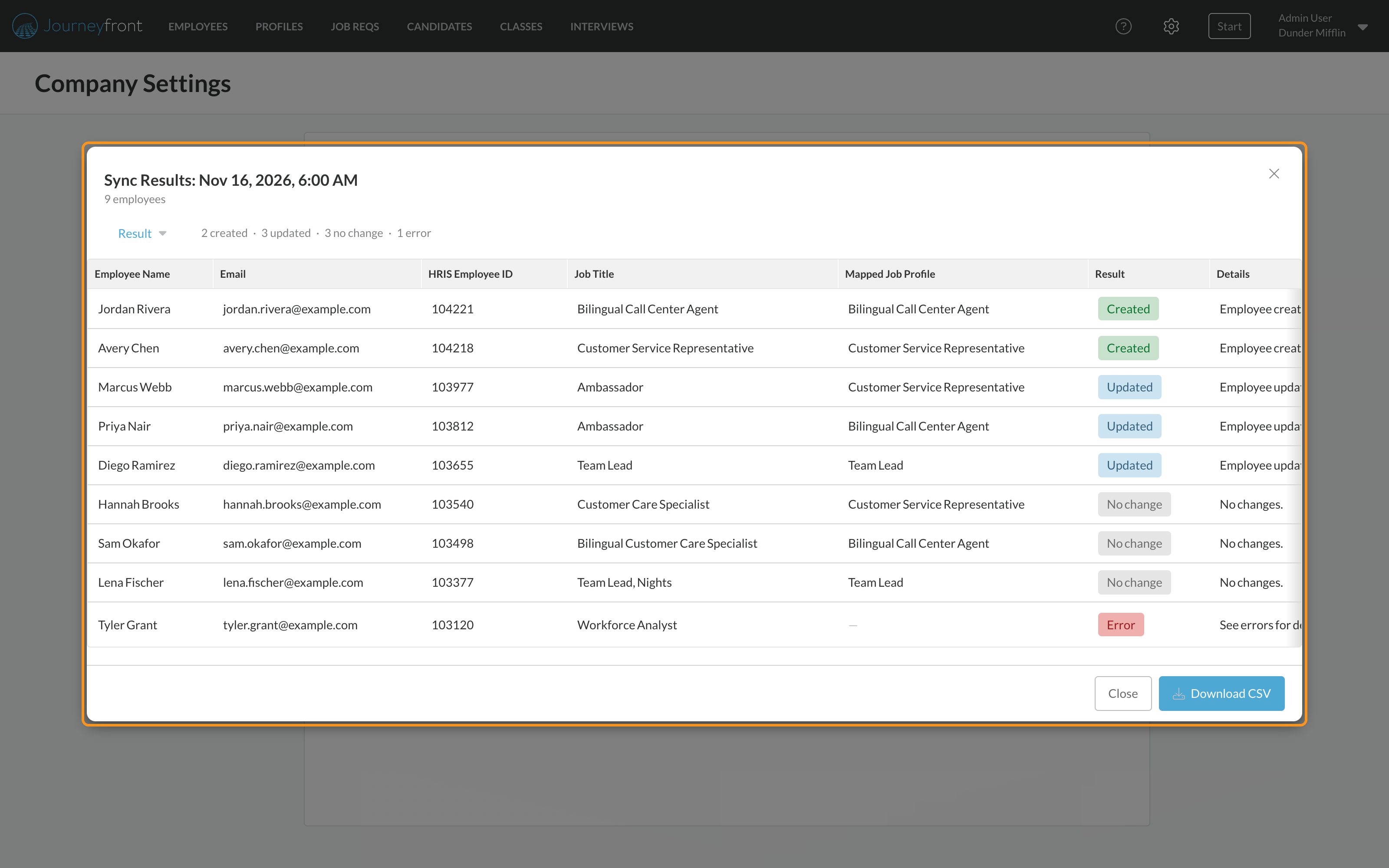
Run a preview before the sync changes anything. The results show each employee's Job Profile, and anyone who didn't match or matched two profiles is listed with the reason.
What your team gets
- The right Job Profile, every time. Employees are placed by how your HR system really organizes them, not just by title.
- Data you can trust. Tenure and hiring outcomes line up with the right program, so reports reflect how you actually staff.
- No cleanup after each sync. Overlaps and unmatched employees show up in the preview and the results, not in your reports weeks later.
- Clearer sync settings. Turn the employee sync on or off from the top of its card, set the schedule in one line, and keep related options grouped together.
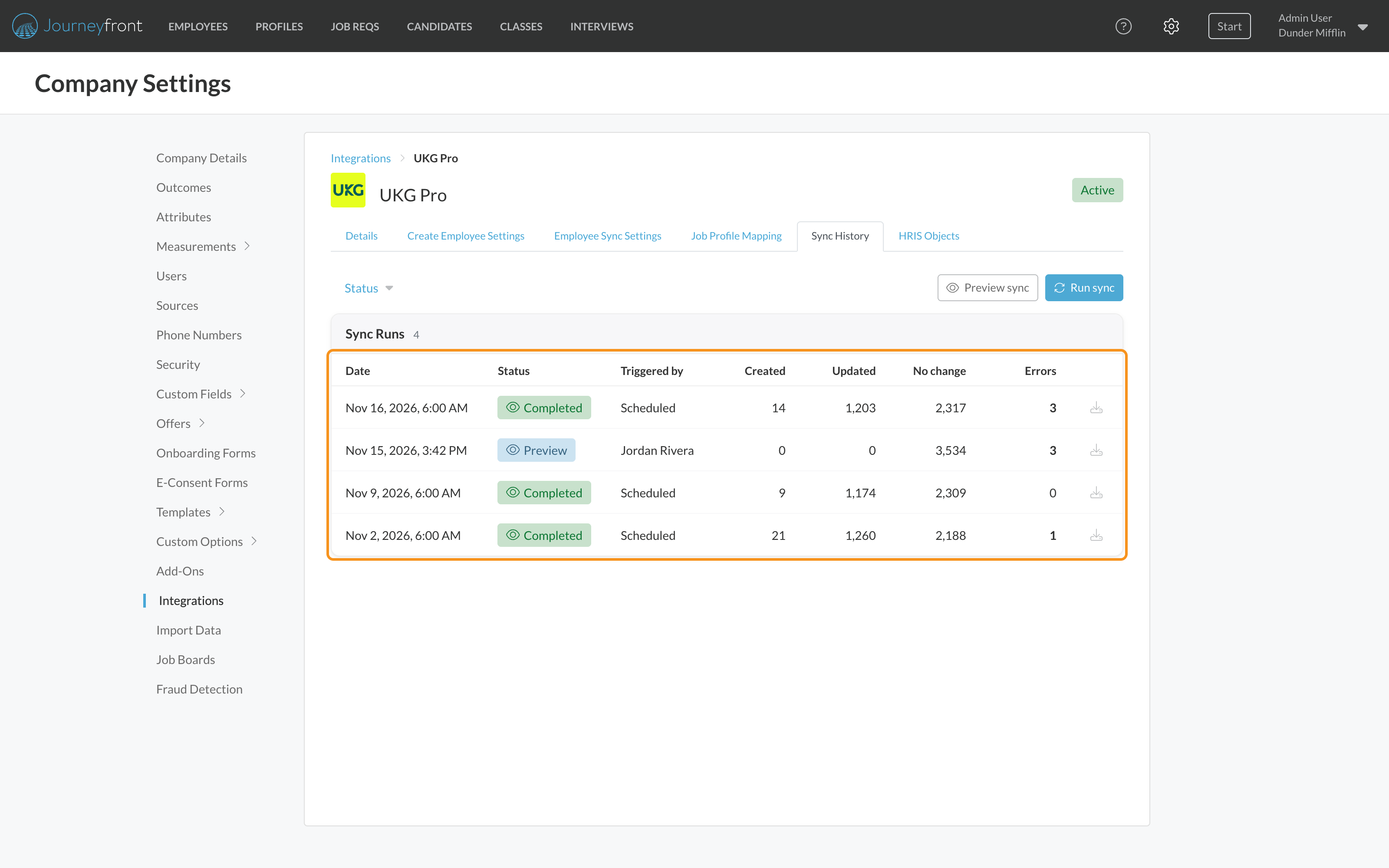
- An easier Sync History. Filter runs by status, click a run's status to see its results, and download them when you need a copy.
Getting set up
- Your existing mappings carry over. Job title mappings you already have become rules automatically, so the sync keeps working the way it does today.
- Add rules when you're ready. Go to Settings, Integrations, your HR system, then Job Profile Mapping. Run a preview after any change to check the results.
Good to know
- Every condition in a rule must match. To match one of several cases, add another rule to the same Job Profile.
- An employee who matches rules on two Job Profiles is flagged in the results, never placed by guess.