

Facebook ads bring in plenty of candidates, but many never finish applying, and a lot of them would rather chat than check email. Facebook Messenger puts that conversation in Journeyfront. Candidates can apply right in Messenger or from your lead ads, they get their application link and interview details in the chat they already use, and your recruiters answer from the Candidate Application.
How it works for your team
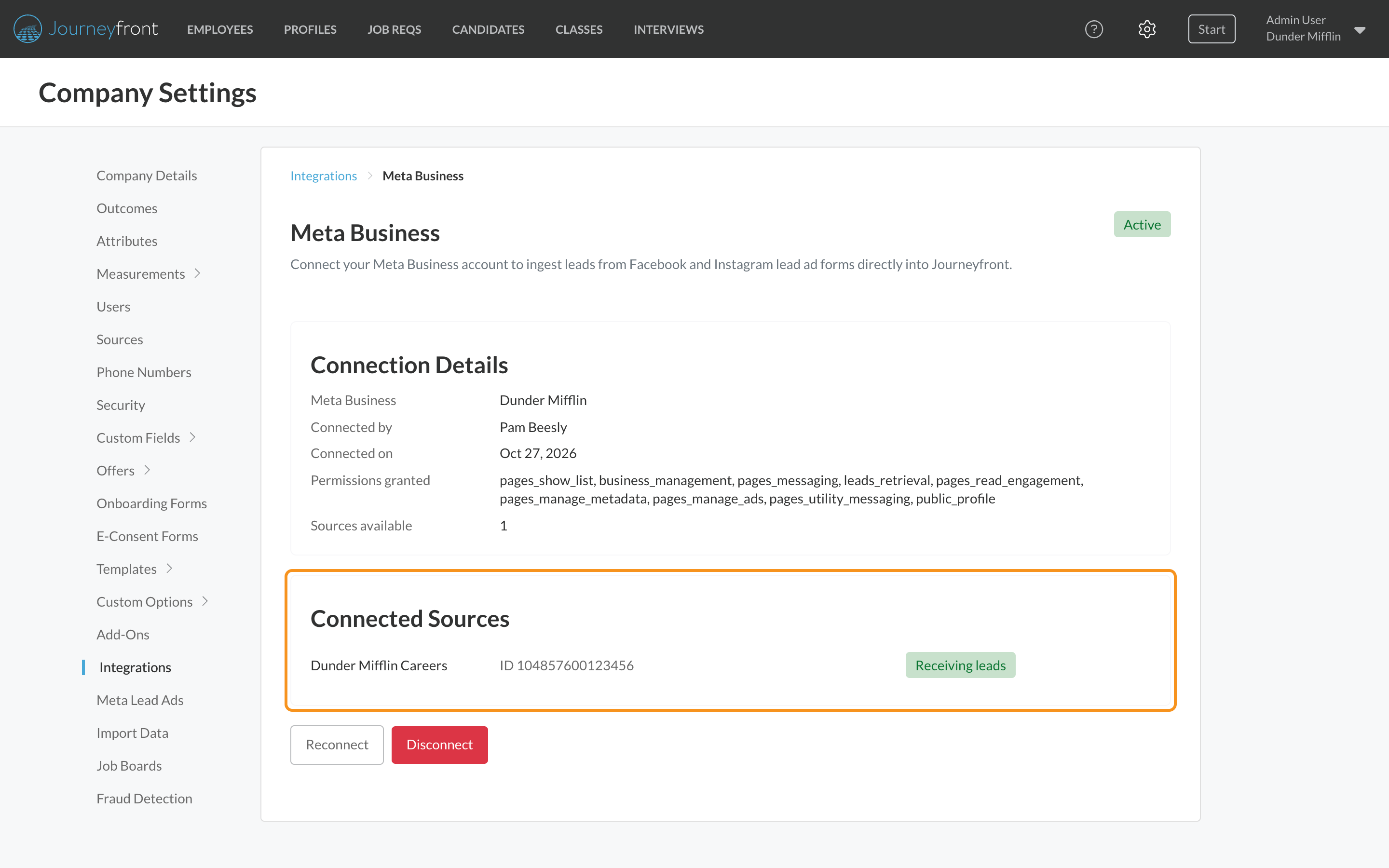
1. Connect your Facebook Page
Messenger uses the same Meta connection as Lead Ads. Once Messenger is on for your account, every connected Page receives Messenger messages, and each chat is tied to the candidate's application in Journeyfront.
2. Let candidates apply in Messenger
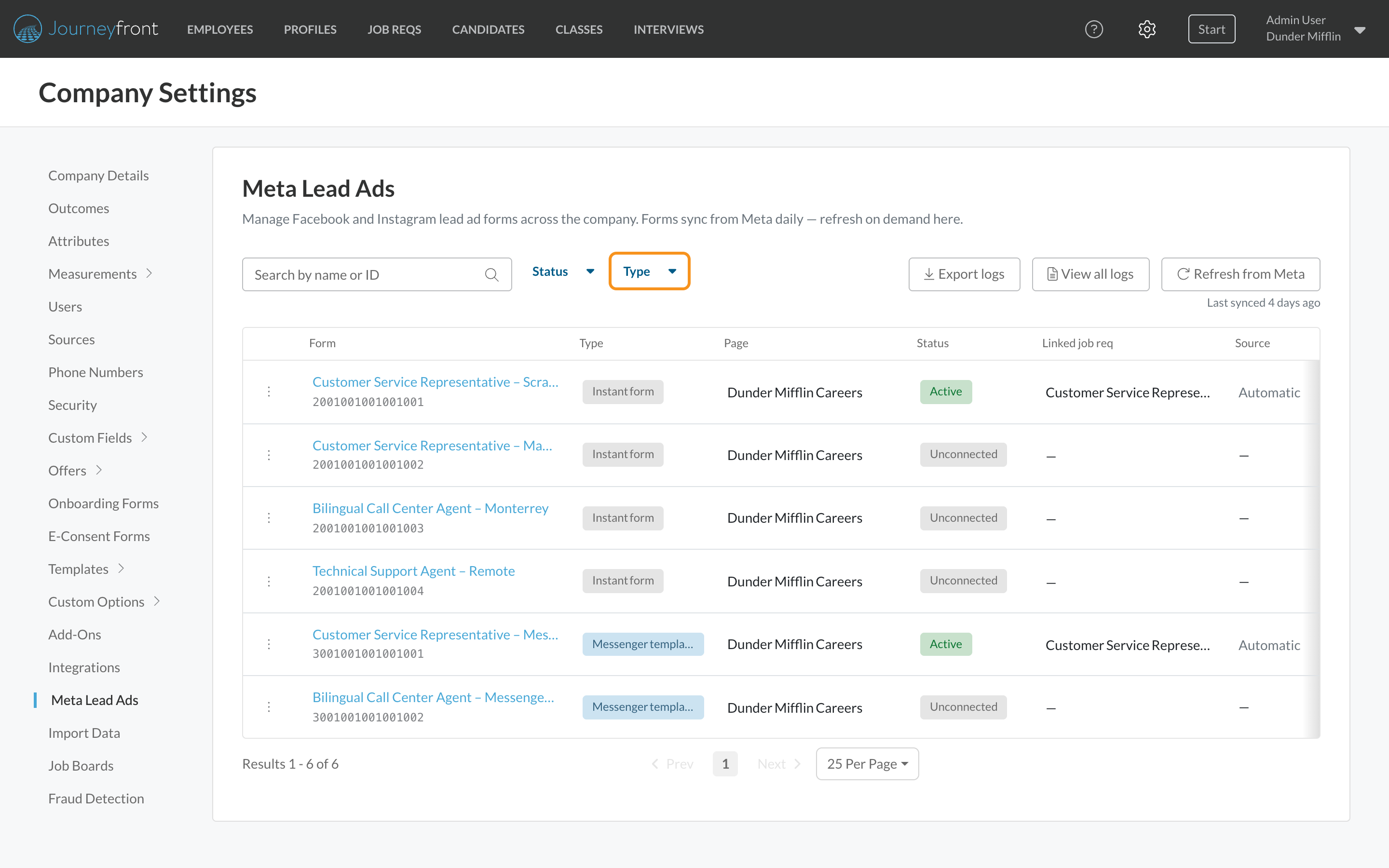
Point a Messenger ad at your Page, and its lead template asks your questions right in the chat. When the candidate finishes, Journeyfront creates their Candidate Application on the linked job req, with their answers. Messenger templates show next to your instant forms in Settings, Meta Lead Ads, where you link and map them like any lead form.
3. Send instant-form leads their application link in Messenger
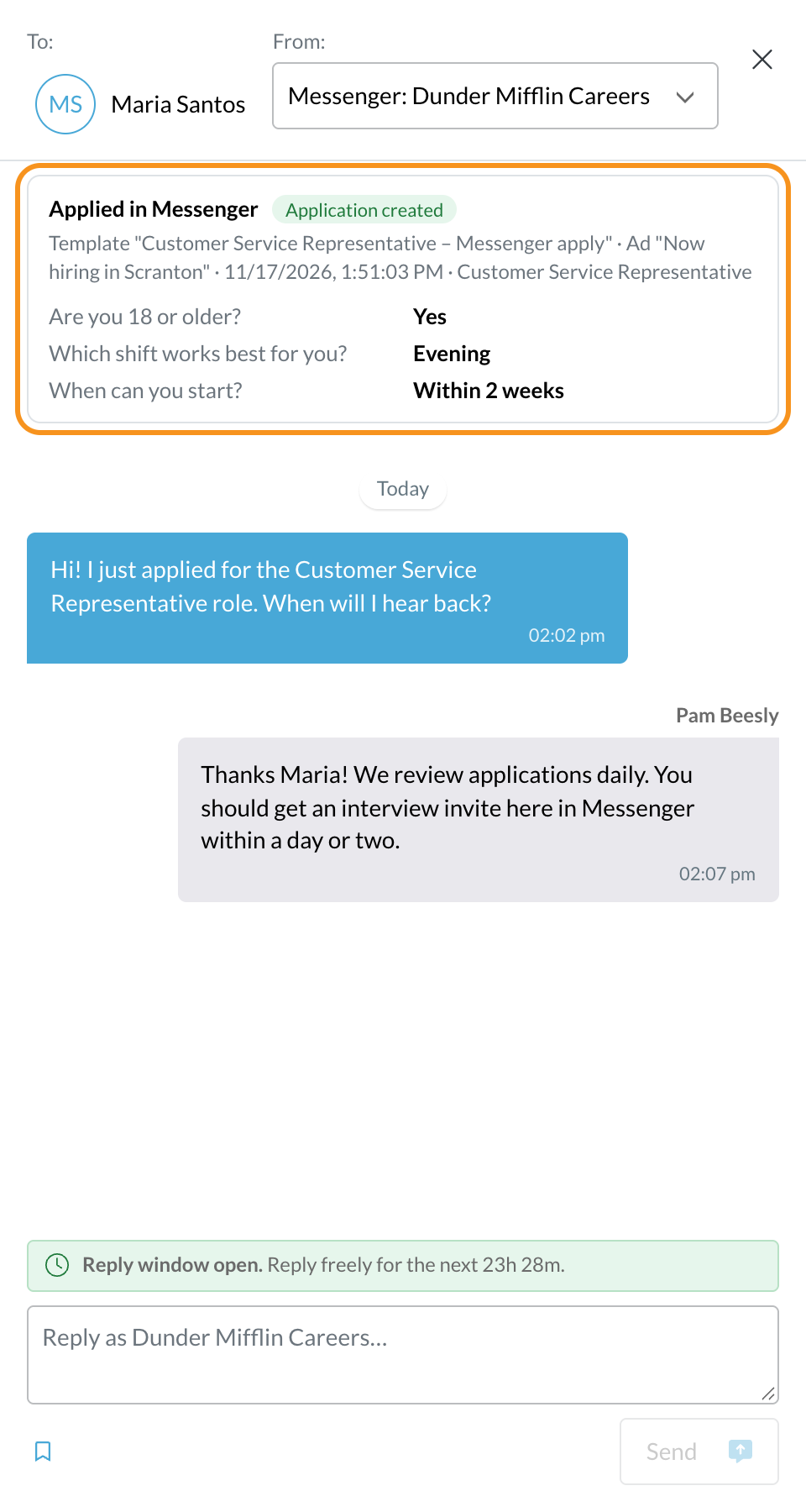
When you link a lead form to a job req, turn on the Messenger invitation. Candidates get a link to finish the application right after they submit the form. If they stop partway, Journeyfront reminds them at 12 and 20 hours.
4. Chat from the Candidate Application
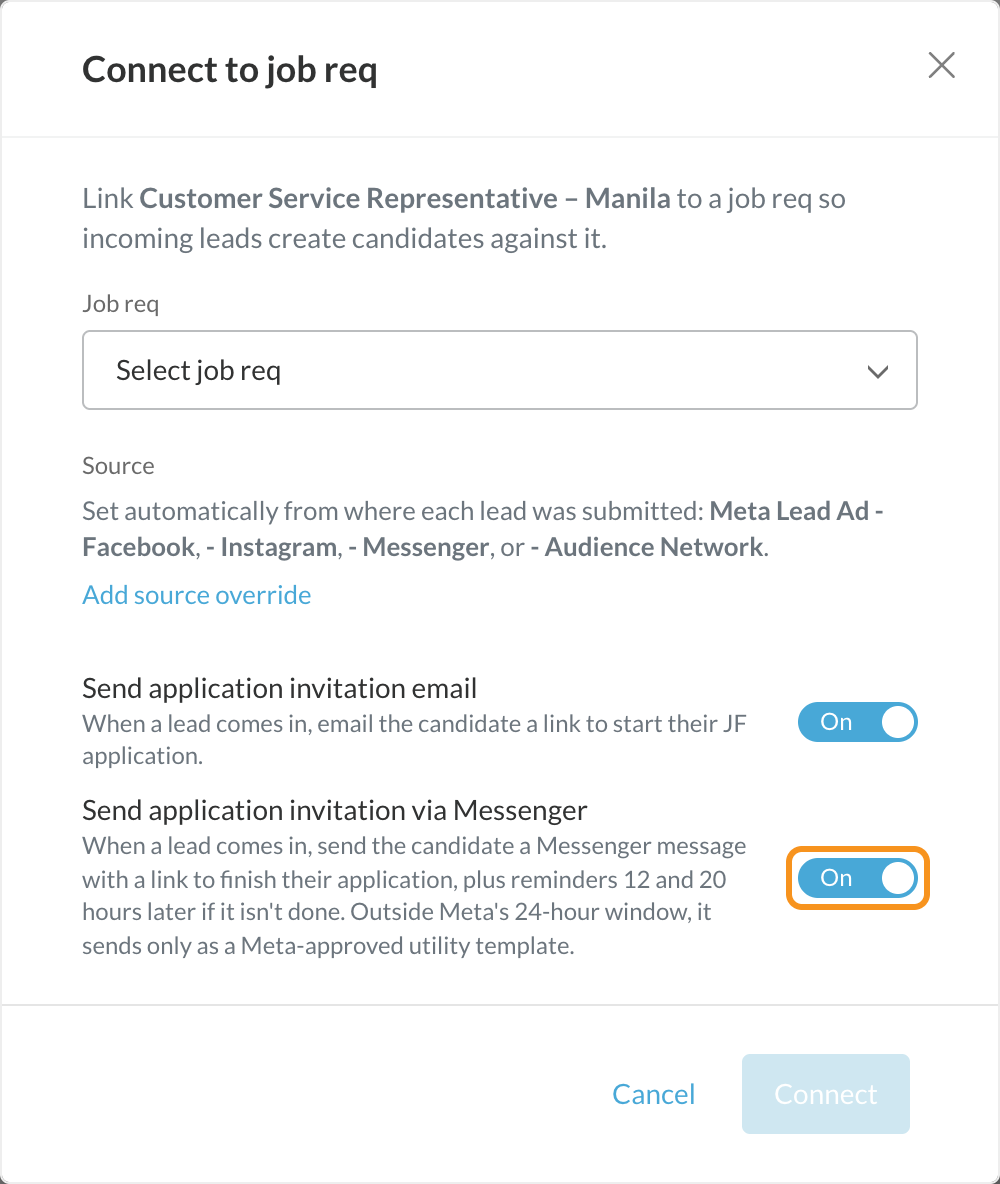
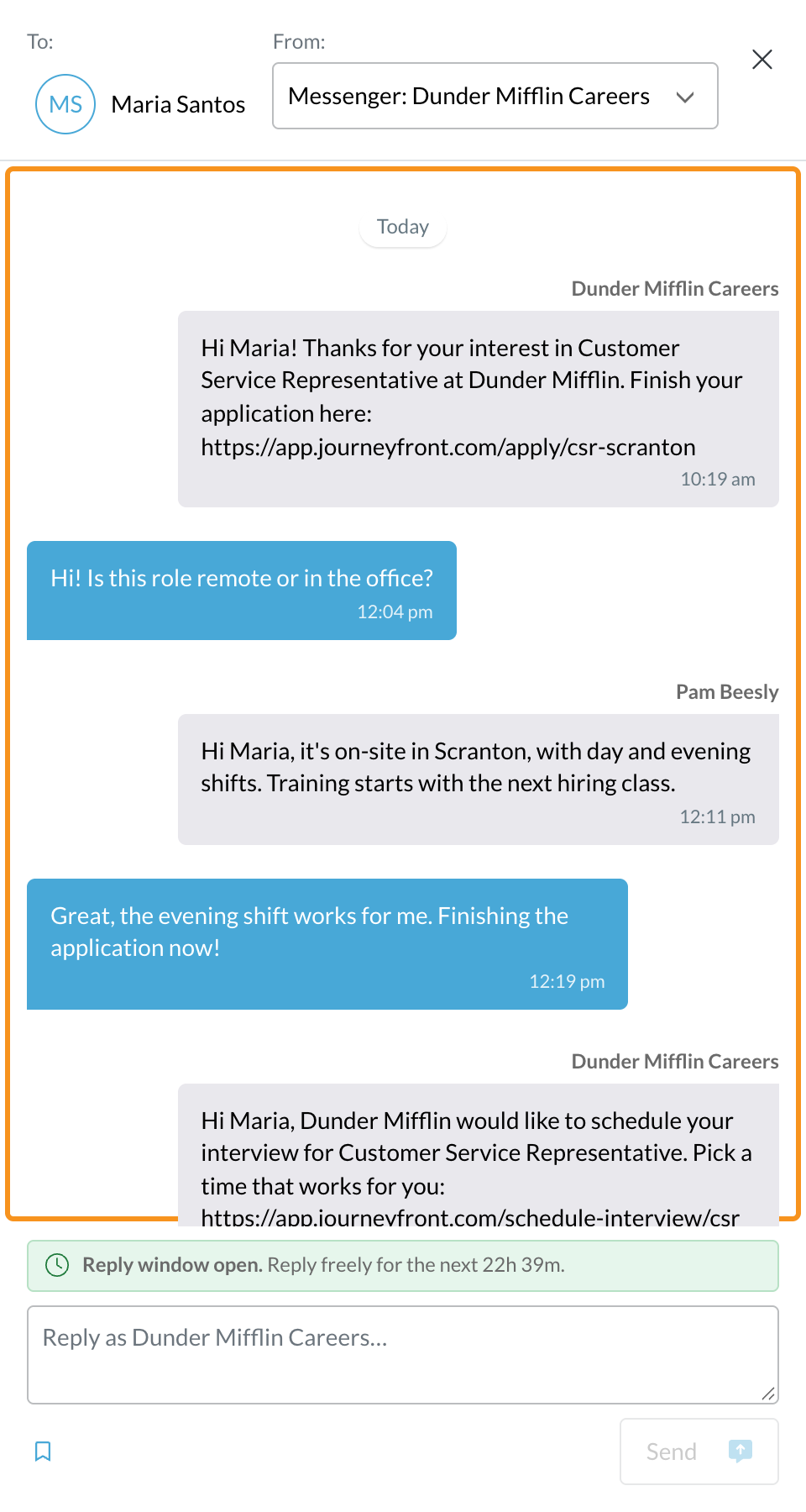
Choose Messenger and your Page in the message panel, next to texts and WhatsApp. Recruiters read and reply without leaving Journeyfront, even when the candidate has no phone number.
5. Meta's reply window, built in
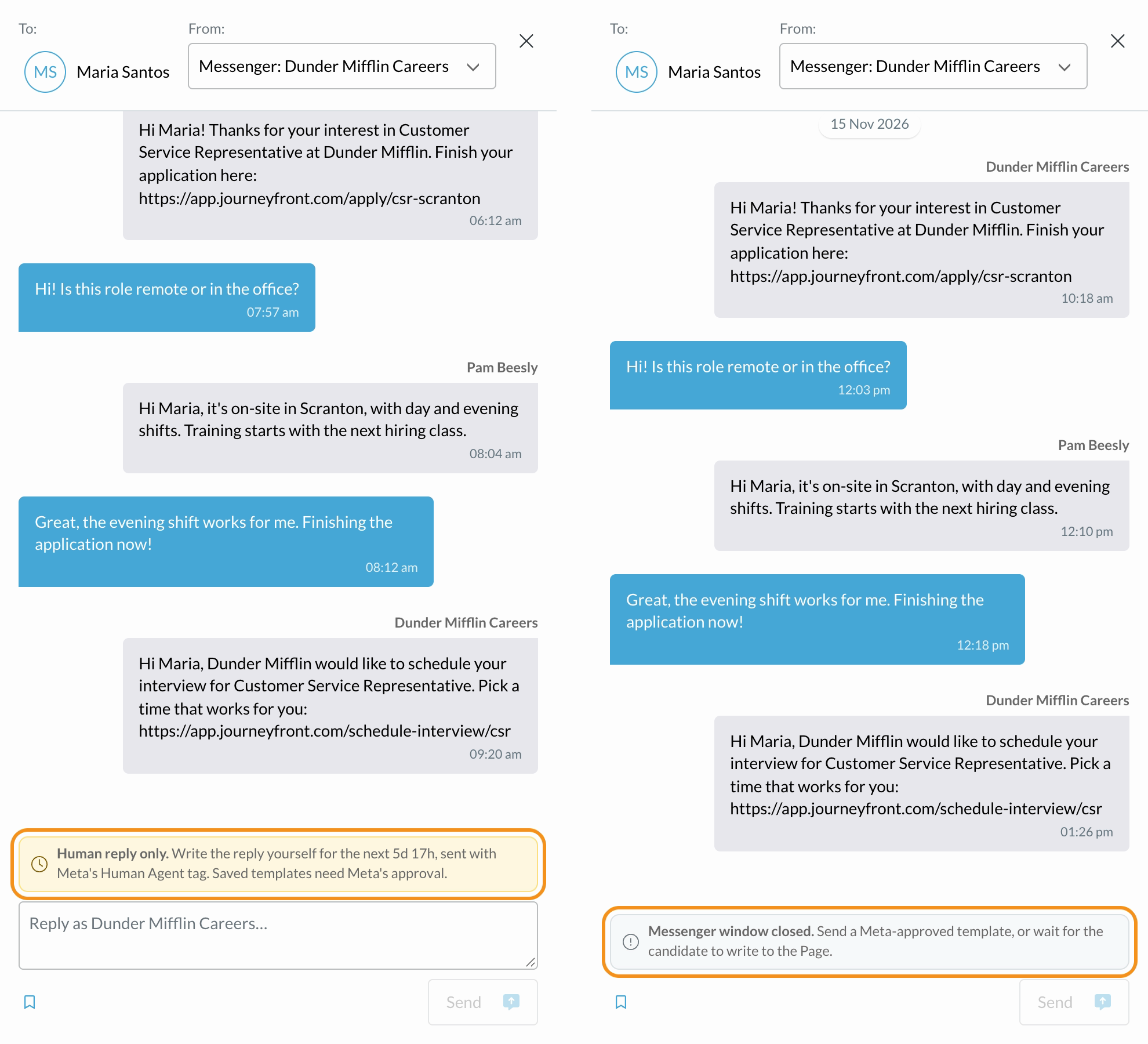
Reply freely for 24 hours after the candidate's last message. After that, you can still write your own replies for up to 7 days, and send templates Meta has approved anytime. A bar above the reply box shows which state you're in and how long is left.
6. Edit the automatic messages and get them approved
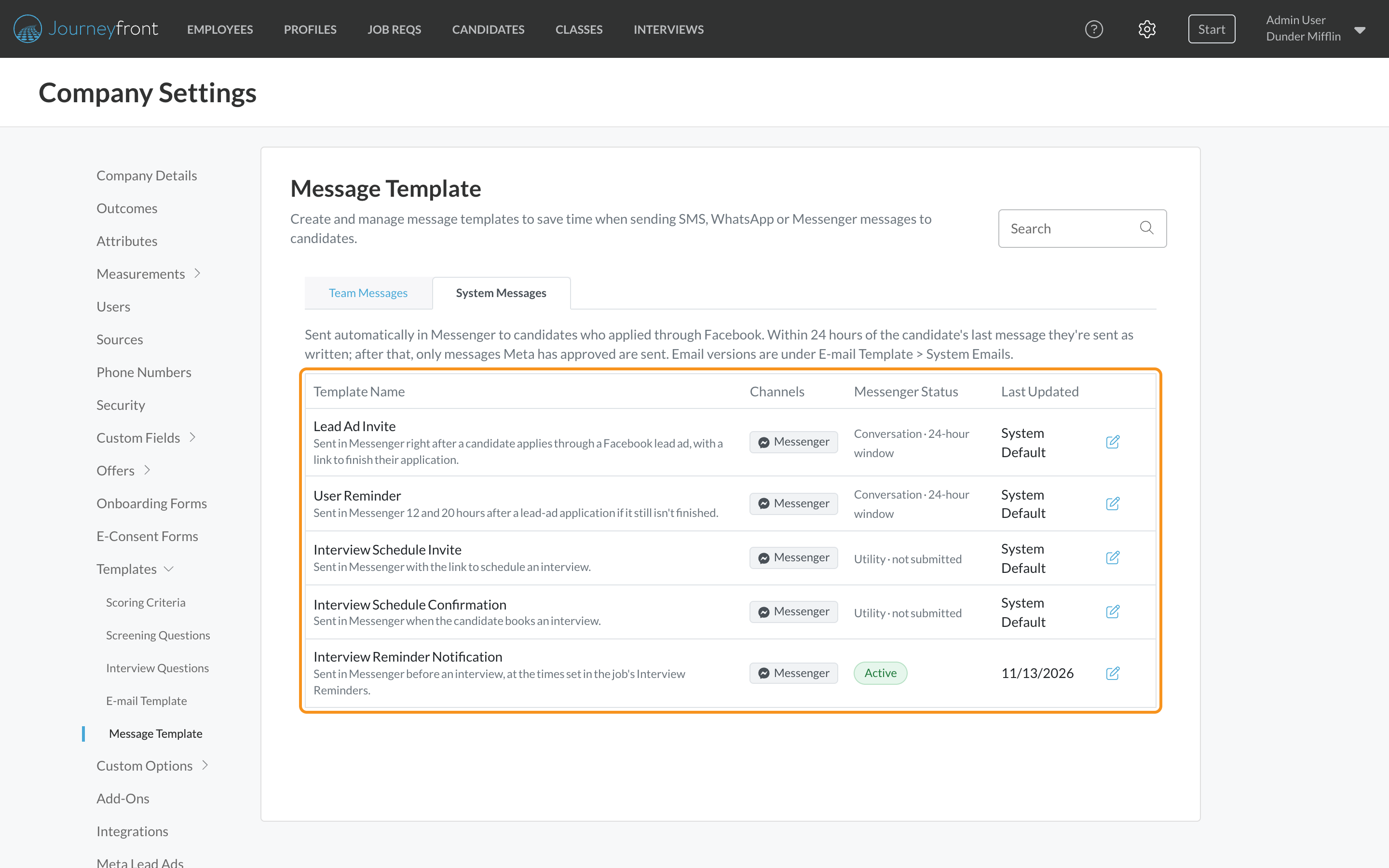
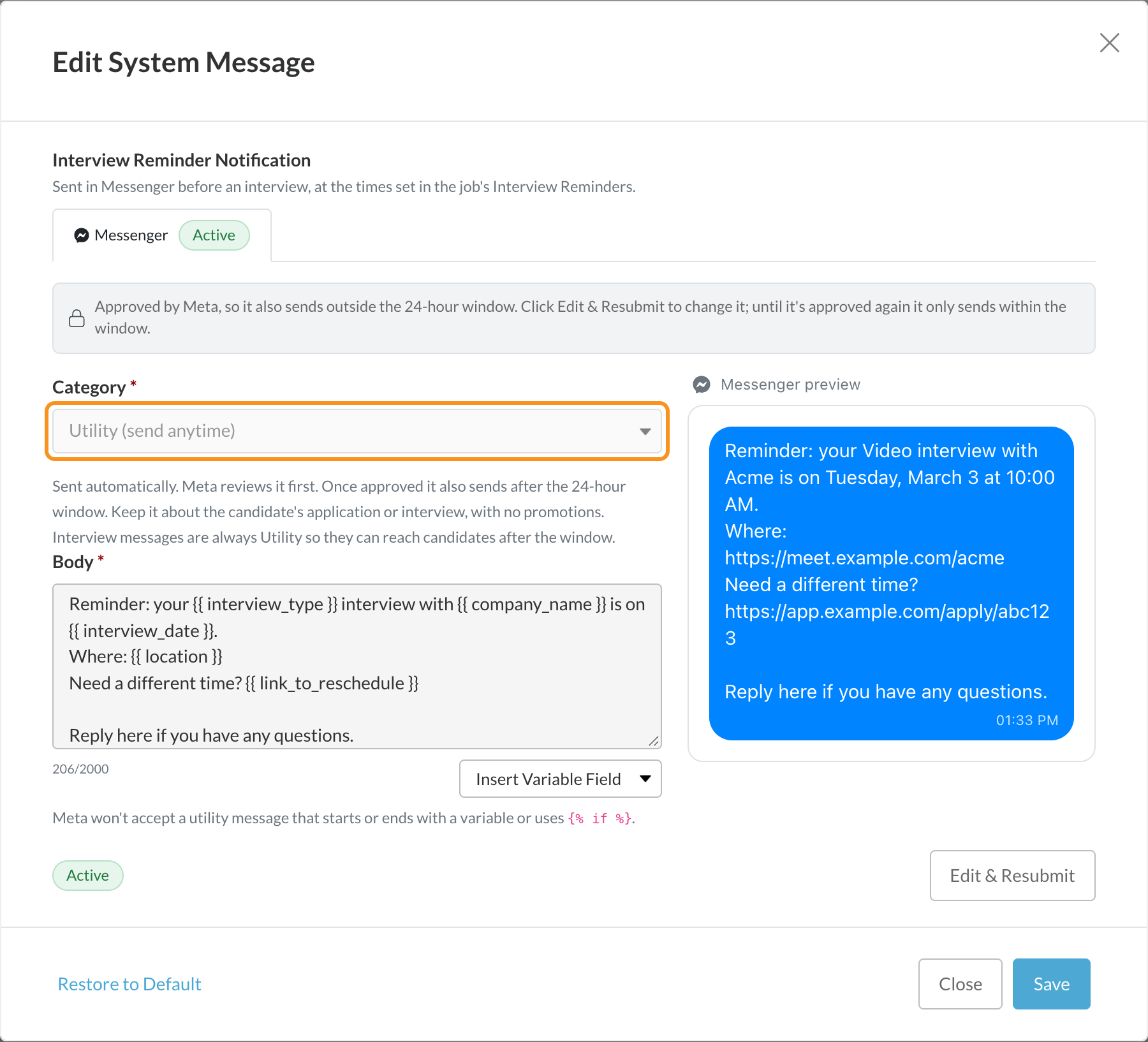
The invitation, reminders and interview messages are System Messages you can edit, just like system emails. Preview each one as a Messenger message and submit it to Meta for approval, so it can go out anytime, not only inside the first 24 hours.
7. Interview messages in Messenger
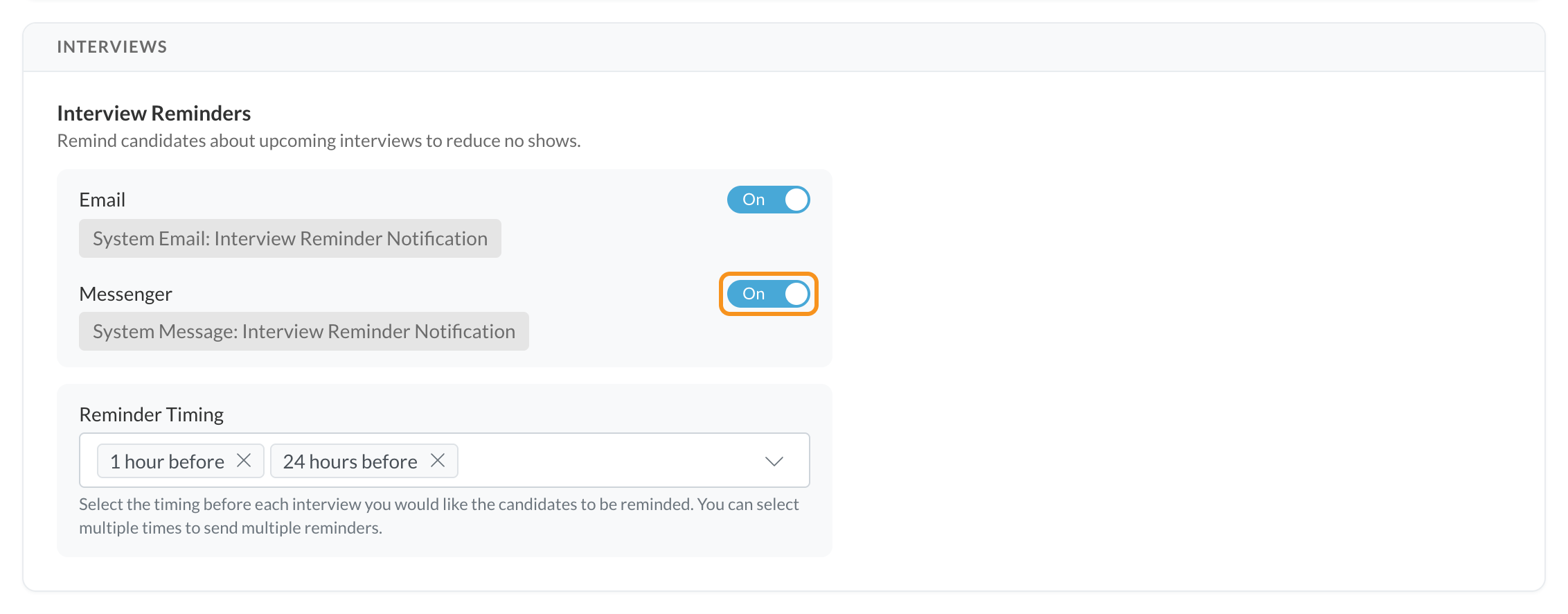
Interview invites, booking confirmations and reminders go to Messenger as well as email. Each job req has its own Messenger reminder toggle, with the same timing as your email reminders.
What your team gets
- One place for every channel. Messenger sits in the same message panel as texts and WhatsApp, on the Candidate Application.
- Unread badges and the timeline. New Messenger messages count toward the candidate's unread badge, and every message shows on the activity timeline.
- Replies from Meta's Page Inbox. Anything someone types in Meta's Page Inbox shows in Journeyfront too, labeled Sent from Meta Page Inbox.
- Messenger versions of your templates. Your message templates get a Messenger tab, and you can start from the text version.
- Follow-up status in the logs. Each lead form's logs show whether the Messenger invitation and reminders went out, and why if they didn't.
- Clean merges. When you merge duplicate candidates, their Messenger conversations move to the record you keep.
Getting set up
- Turn it on. Messenger needs Meta Lead Ads, and Journeyfront turns it on for your account. Ask your Customer Success Manager.
- Approve the Messenger permission. If your Meta connection was set up before Messenger was on, reconnect it and approve every permission.
- Link your forms and templates. Link each lead form and Messenger template to a job req, and turn the Messenger invitation on for the forms you want.
- Submit your automatic messages. Open each System Message, especially the interview messages, and click Submit for Approval so it can go out after the first 24 hours.
Good to know
- Messenger messages go out in addition to your system emails, not instead of them.
- You can reach candidates who message your Page, or who apply through a Messenger ad or a lead ad instant form. There's no bulk Messenger sending.
- Messages Meta approves in advance are about applications and interviews. They can't be promotional.
- Links sent in Messenger expire after 7 days.
- A Facebook Page can use Messenger in only one Journeyfront account.
- If another app is handling a conversation on your Page, Journeyfront doesn't send automatic messages in it.