

When you hire at volume, interviews are spread across dozens of calendars. Seeing the team's day means opening each interviewer's calendar, and a disconnected calendar or missing working hours only shows up when candidates find no times to book.
Interview Calendar puts every interview you can see in one place, as a calendar or a table. You can see when each interviewer is free, move an interview by dragging it, and log no-shows. Admins also get a new Interviewers tab and availability templates to keep every interviewer bookable.
How it works
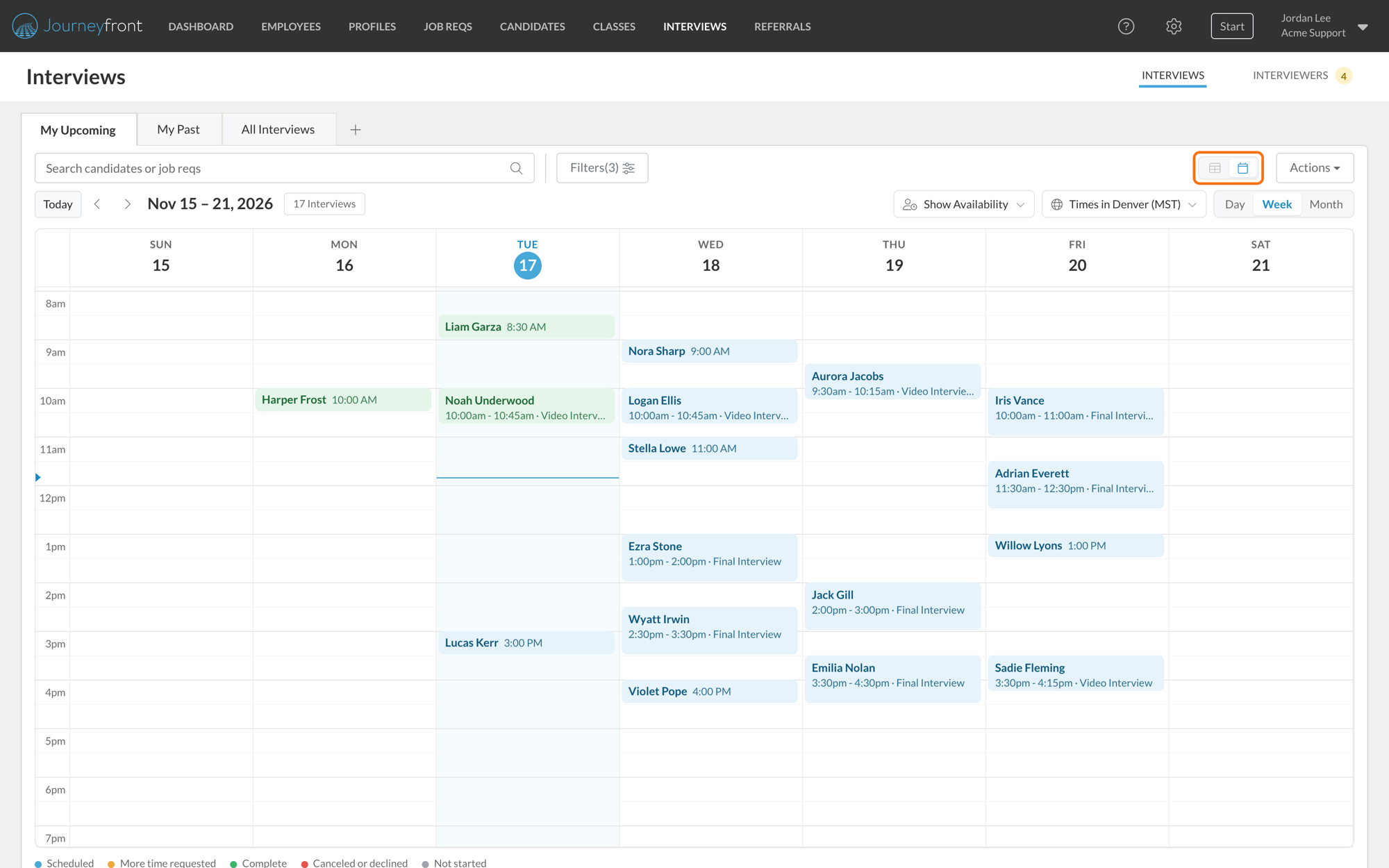
1. See the week
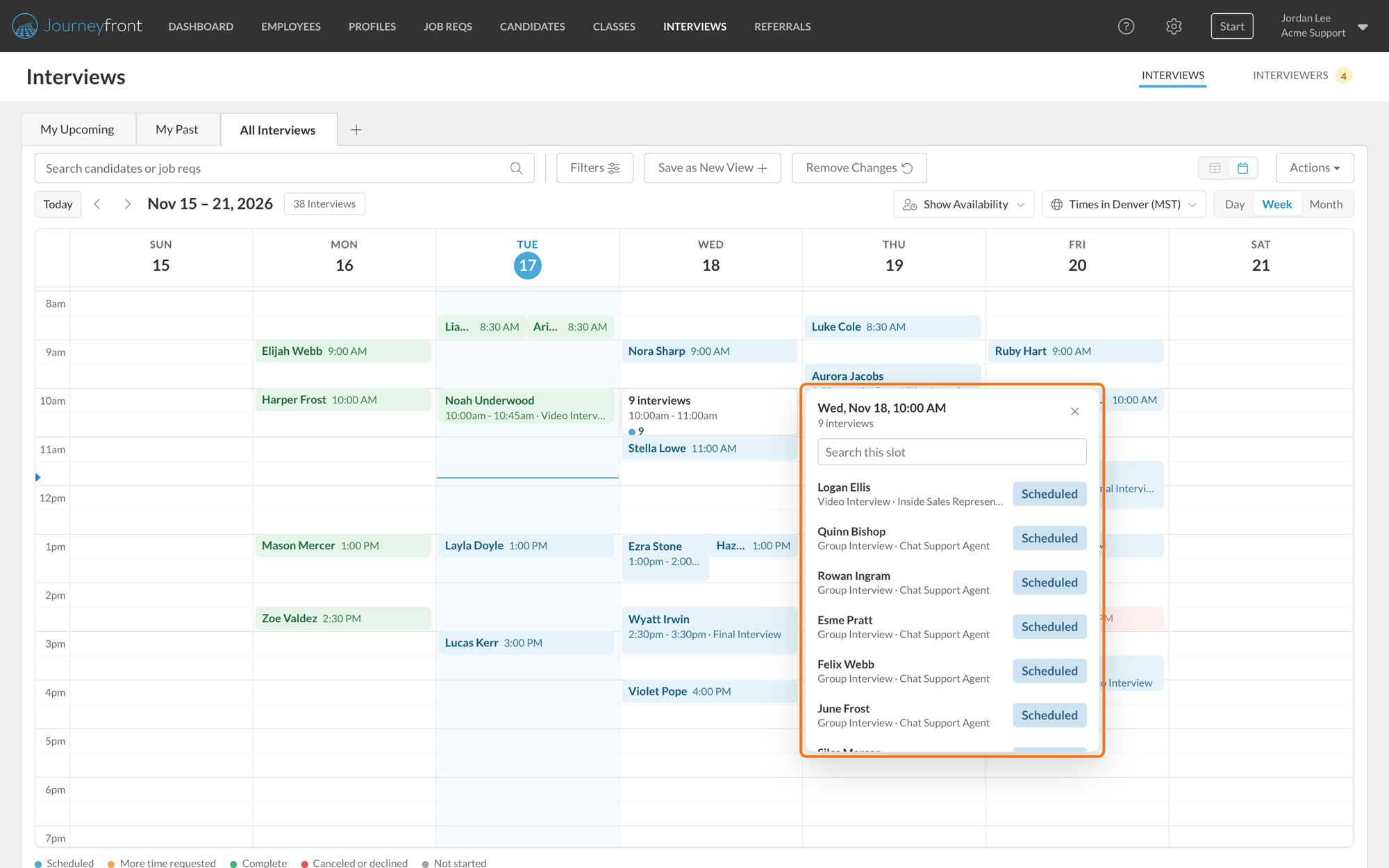
Open Interviews and My Upcoming opens as a calendar week. Switch between Day, Week and Month, and each interview is colored by its status. When several candidates are booked at the same time, like a group interview at a hiring event, they show as one entry such as "9 interviews" that lists everyone in the slot. To see another site's day in its own hours, pick its time zone.
2. See when each interviewer is free
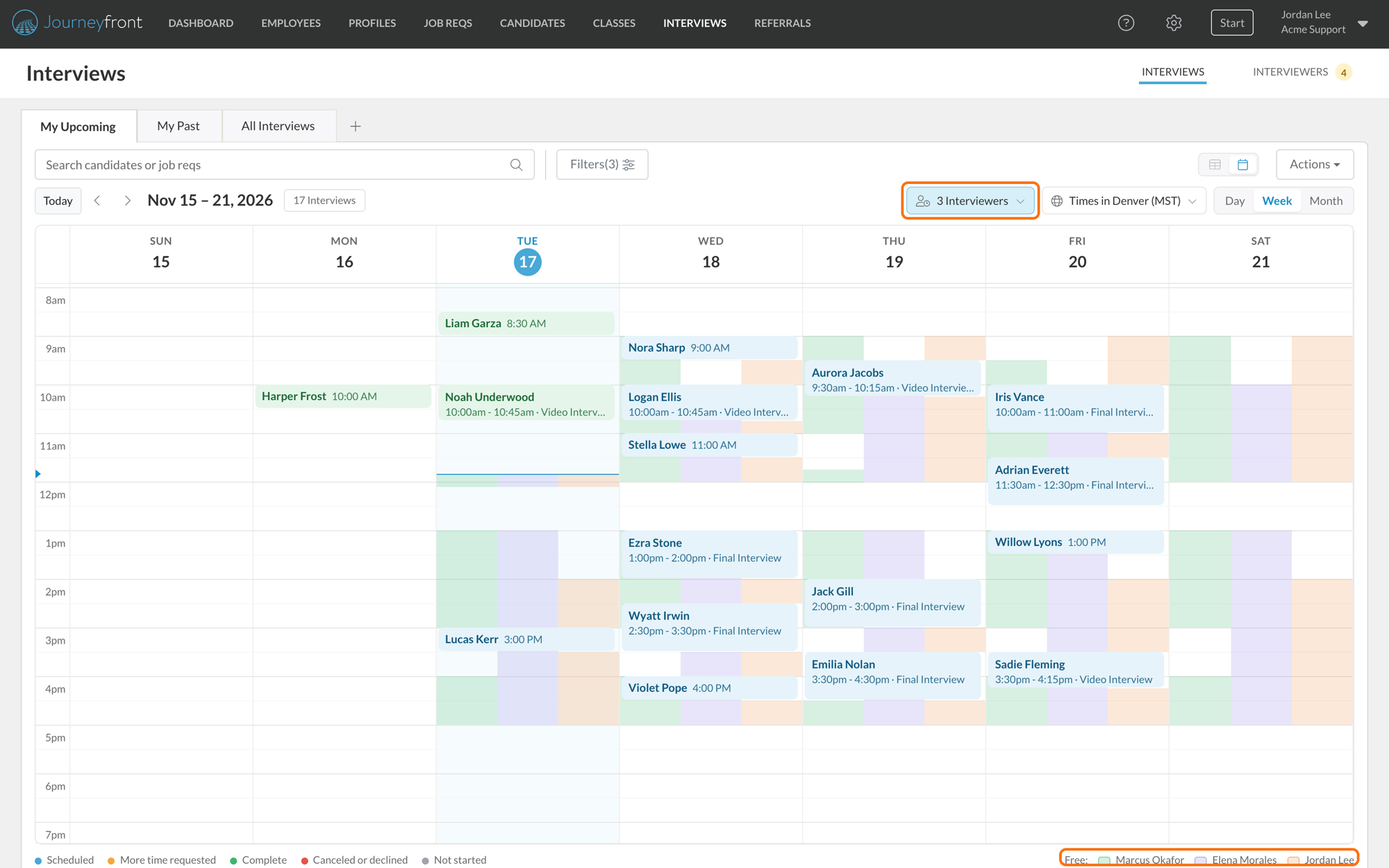
Click Show Availability and pick up to five interviewers. Each person's free time shows in their own color, side by side in every day, so where all the colors are filled in, everyone is free. Free time comes from each interviewer's working hours and connected calendar.
3. Drag an interview to a new time
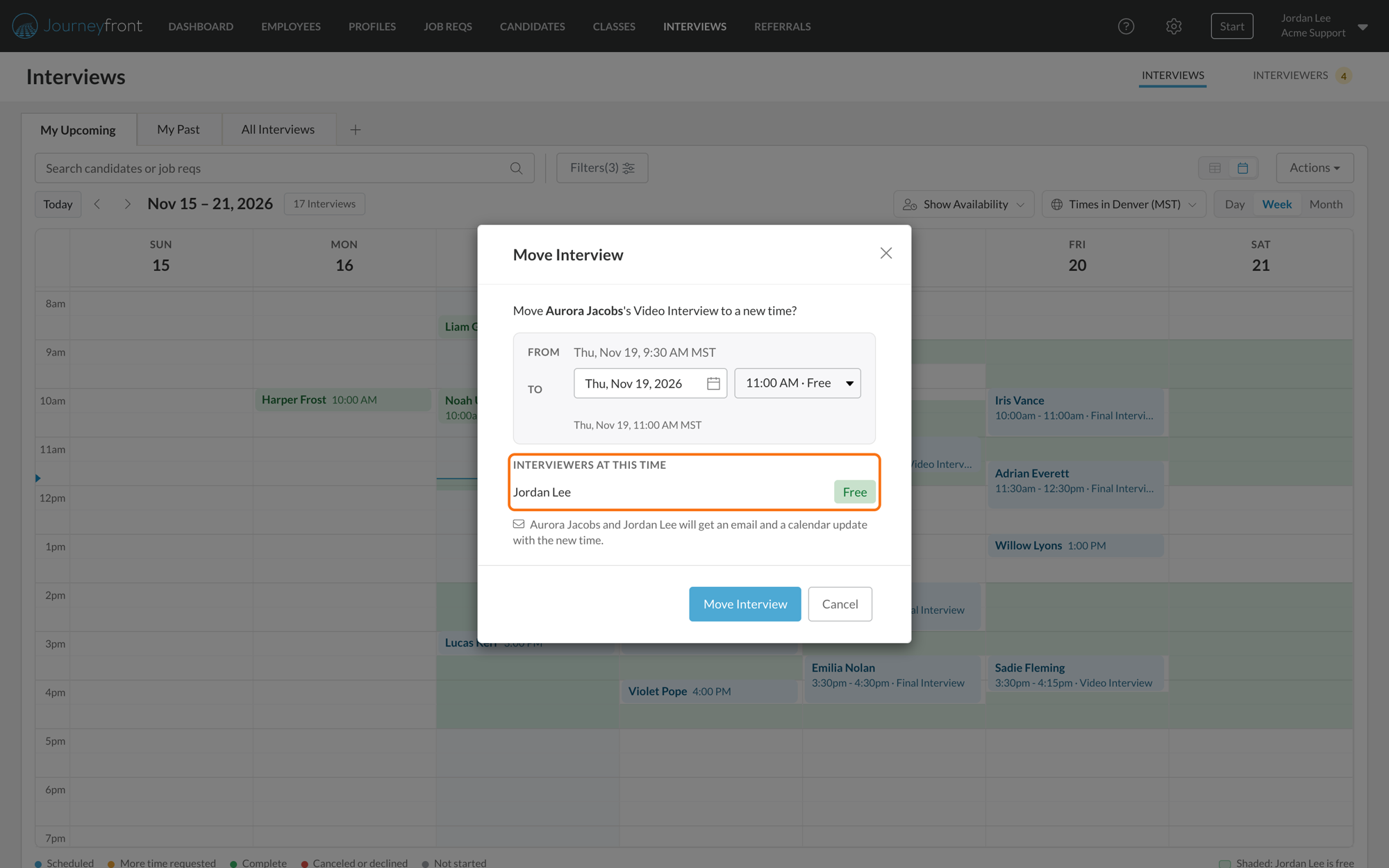
Drag an interview to a new time and the Move Interview window shows whether each interviewer is free then. You can change the day or time right there. When you confirm, the calendar event moves and the candidate and interviewers get an email and a calendar update.
4. Work from a list
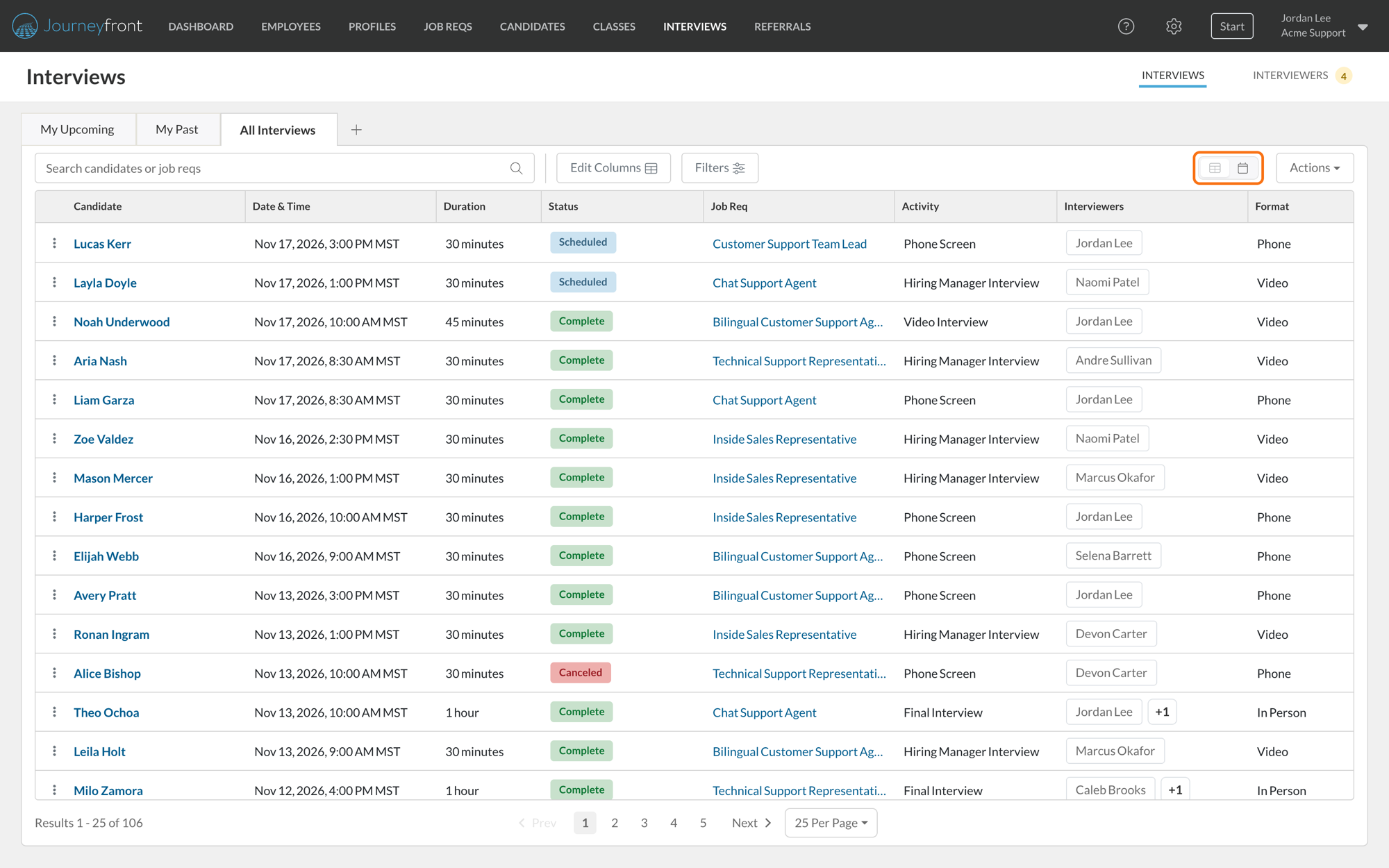
Prefer a list? The same interviews show as a table, with saved views just like Candidates and Classes, so each team can keep its own view and share it. Filter by interviewer, job req, status, date and more, add the columns you need and export. Click any interview to see its details, each interviewer's guide status and a timeline from invite to interview.
5. Log no-shows
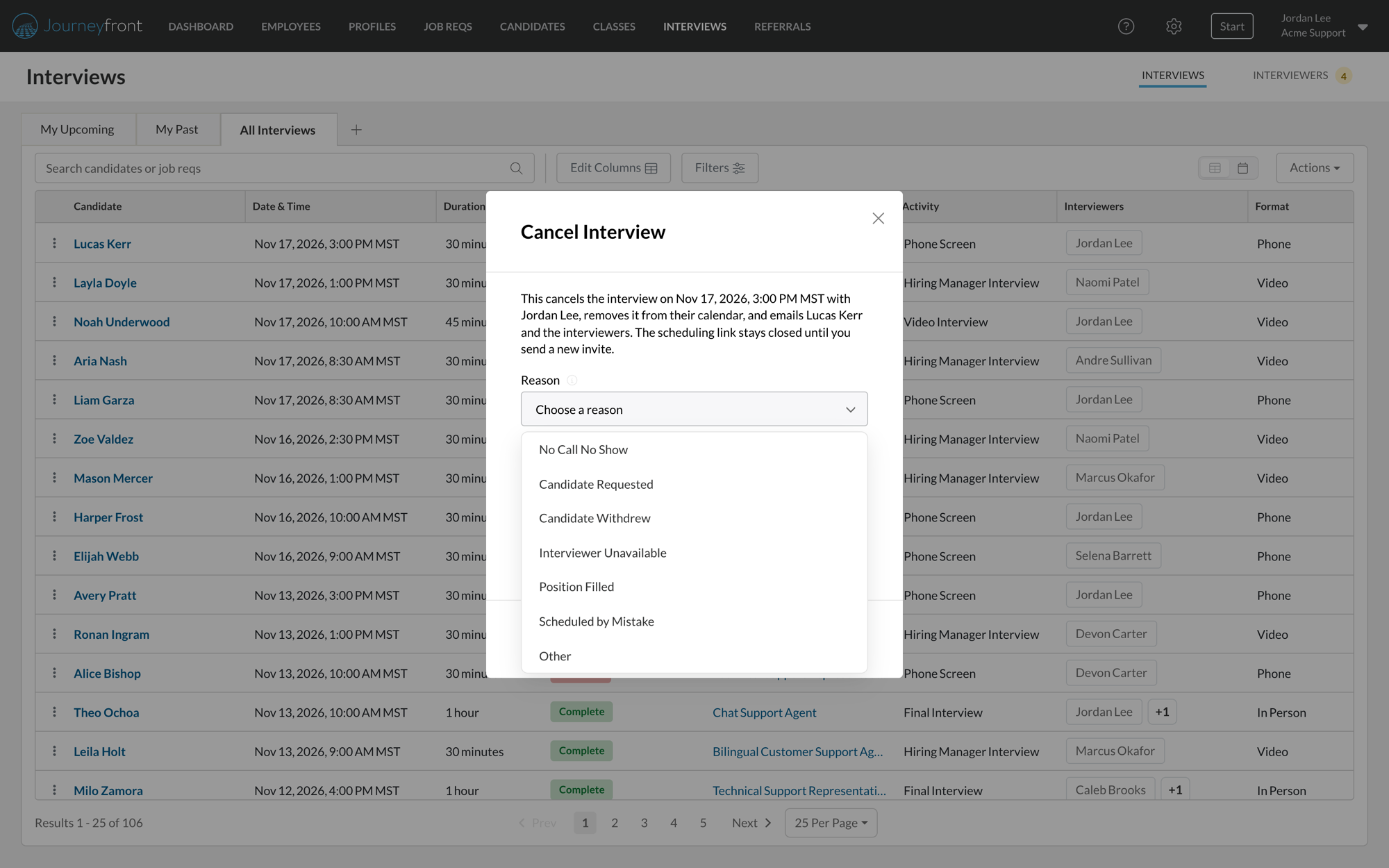
Canceling an interview now asks for a reason, including No Call No Show. Once an interview's start time has passed, No Call No Show is picked for you, nobody is emailed, and the interview stays on the day it was missed. Then see every no-show in one list, ready to export.
6. Keep every interviewer bookable
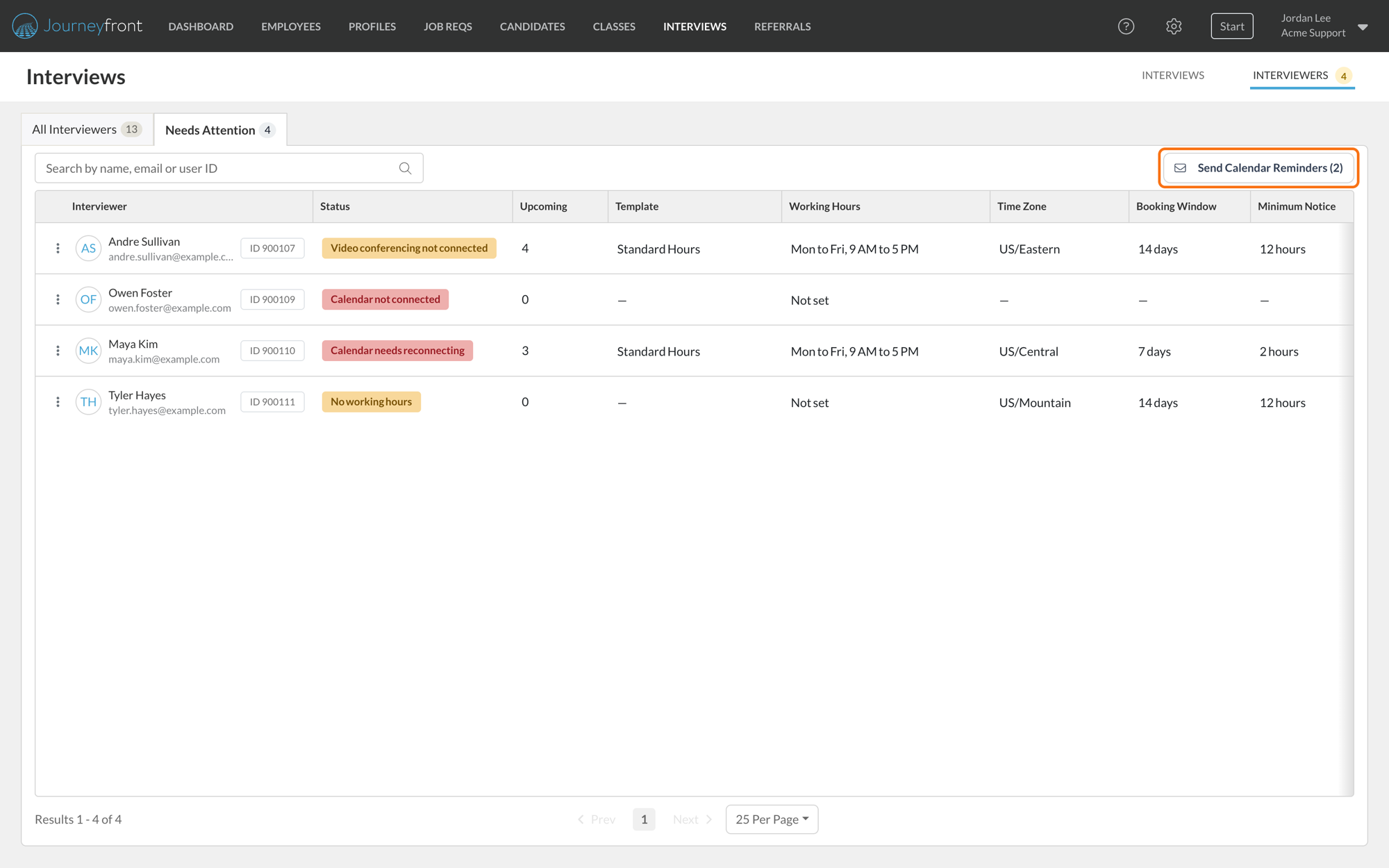
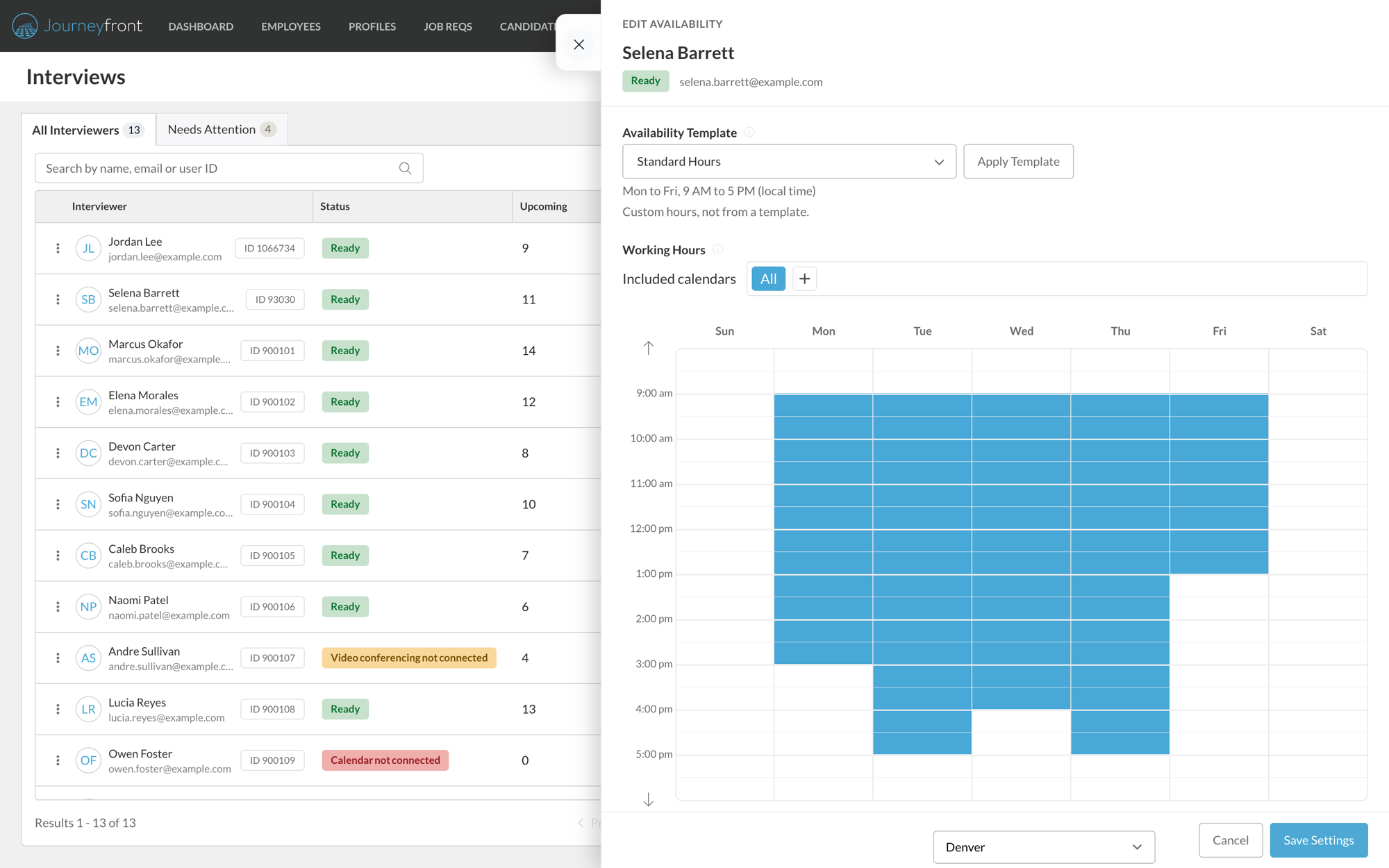
The new Interviewers tab lists everyone who interviews, with their working hours, template and upcoming interviews. Needs Attention flags anyone whose calendar isn't connected, needs reconnecting, or who has no working hours. Send calendar reminders to everyone who needs to connect at once, or open an interviewer and set their availability yourself.
7. Set hours once with availability templates
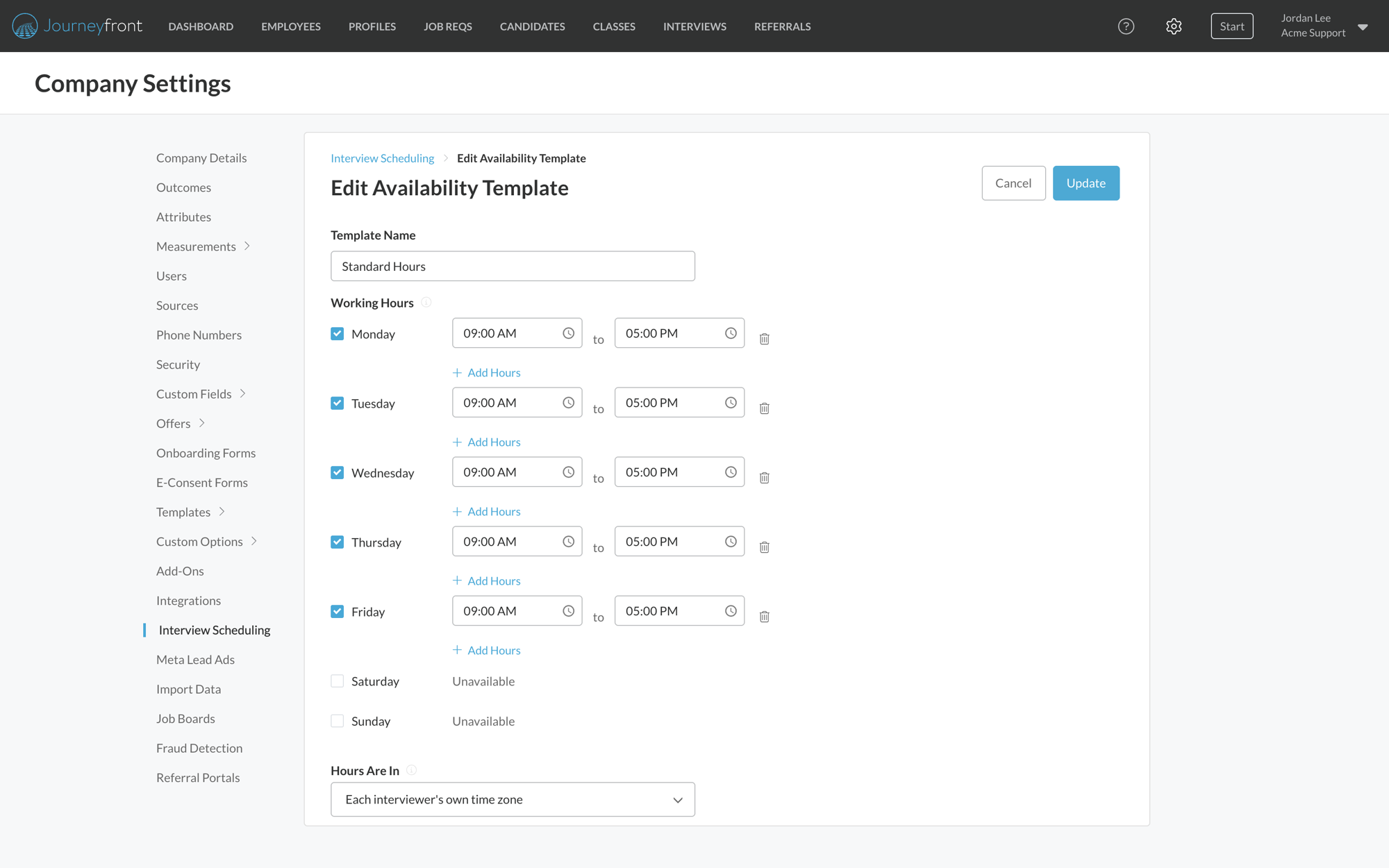
Availability templates hold working hours and booking settings for a region or shift, including overnight hours and a fixed time zone for teams covering another region's hours. Interviewers pick their template right after connecting their calendar, and when a template's hours change, you can update everyone on it in one save.
What your team gets
- One calendar for the team. Every interview on your job reqs by day, week or month, with the same search and filters as the table.
- Readable hiring events. Group interviews fold into one slot you can open and search.
- Any time zone. See another site's day in its own hours.
- Interviewers can move their own interviews. Someone booked on an interview can drag it to a new time, even if they aren't on the job req's hiring team.
- No-shows you can count. No Call No Show is a standard cancel reason, kept on the day the interview was missed.
- Calendar health kept current. When an interviewer's calendar or video service disconnects, it shows on the Interviewers tab and they get one email with a link to reconnect.
- Your own setup in one place. Your calendar connection and working hours now live in Personal Settings, under Calendar and Availability.
Getting set up
- The Interviews page updates for everyone. There's nothing to turn on.
- Two new role permissions. View All Interviews lets someone see every interview in your account, and Manage Interviewers opens the Interviewers tab and availability templates. Roles with All Job Req Access get both.
- Create your templates. Add one availability template per region or shift in Settings, under Interview Scheduling, then mark one as the Default.
Good to know
- What you see follows your access: with All Job Req Access or View All Interviews you see every interview, otherwise the interviews on job reqs you're on the hiring team for, plus the ones booked with you.
- Show Availability takes up to five people and shows free time in Day and Week. Others see whether an interviewer is free or busy, never what's on their calendar.
- Moving an interview keeps its length. Canceled and complete interviews can't be moved, and a time when an interviewer has another interview is blocked.
- Canceling after an interview's start time emails nobody and leaves the event on the calendar.
- Exports include up to 10,000 interviews.