

Your candidates already apply and take their assessments in the Journeyfront application portal. Now the steps closest to a hire are there too. Interviews and offers show up in the same list as everything else, so candidates who are ready to move forward can schedule, sign and start onboarding without hunting through their email.
How it works for candidates
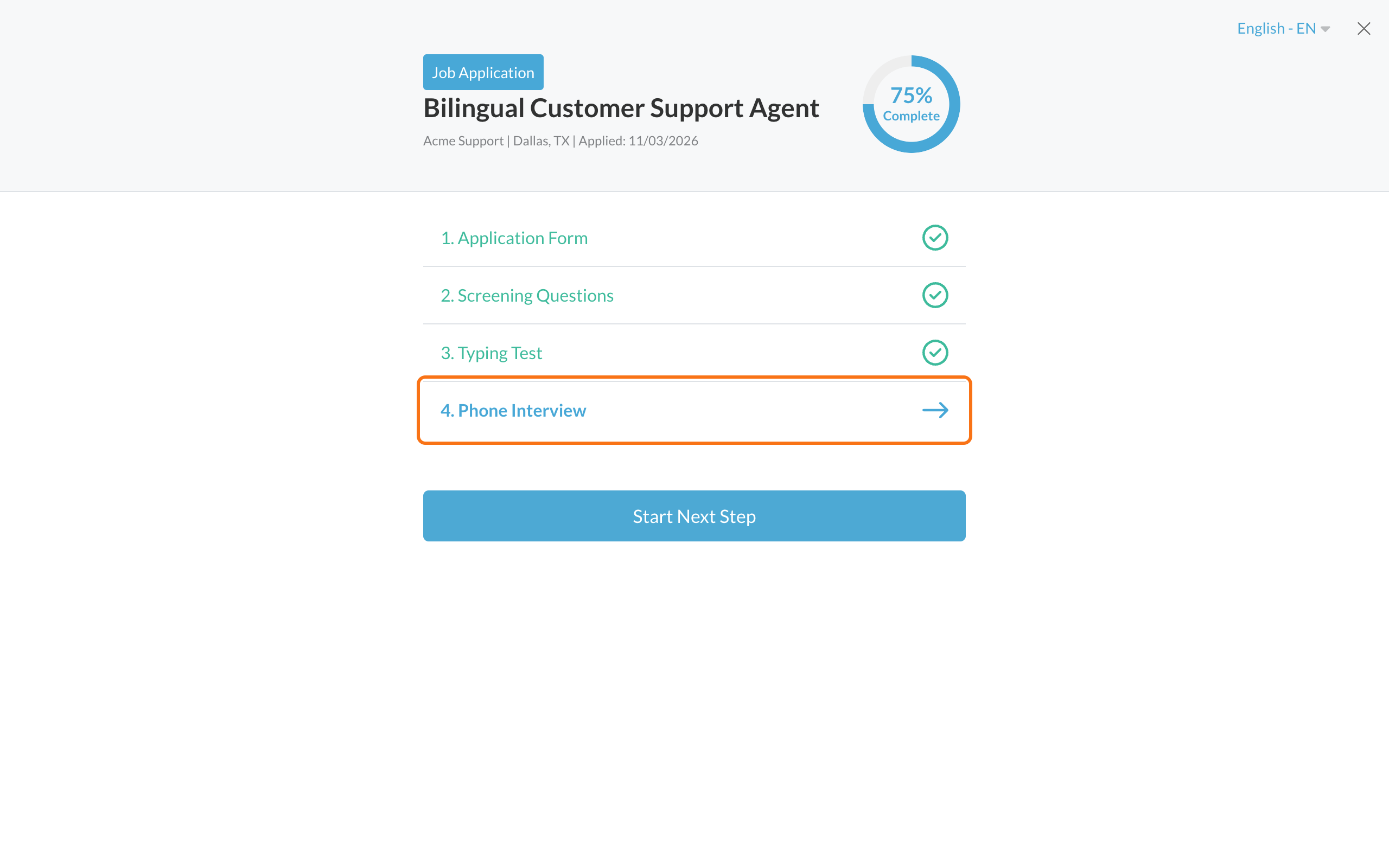
1. Schedule the interview right after the assessments
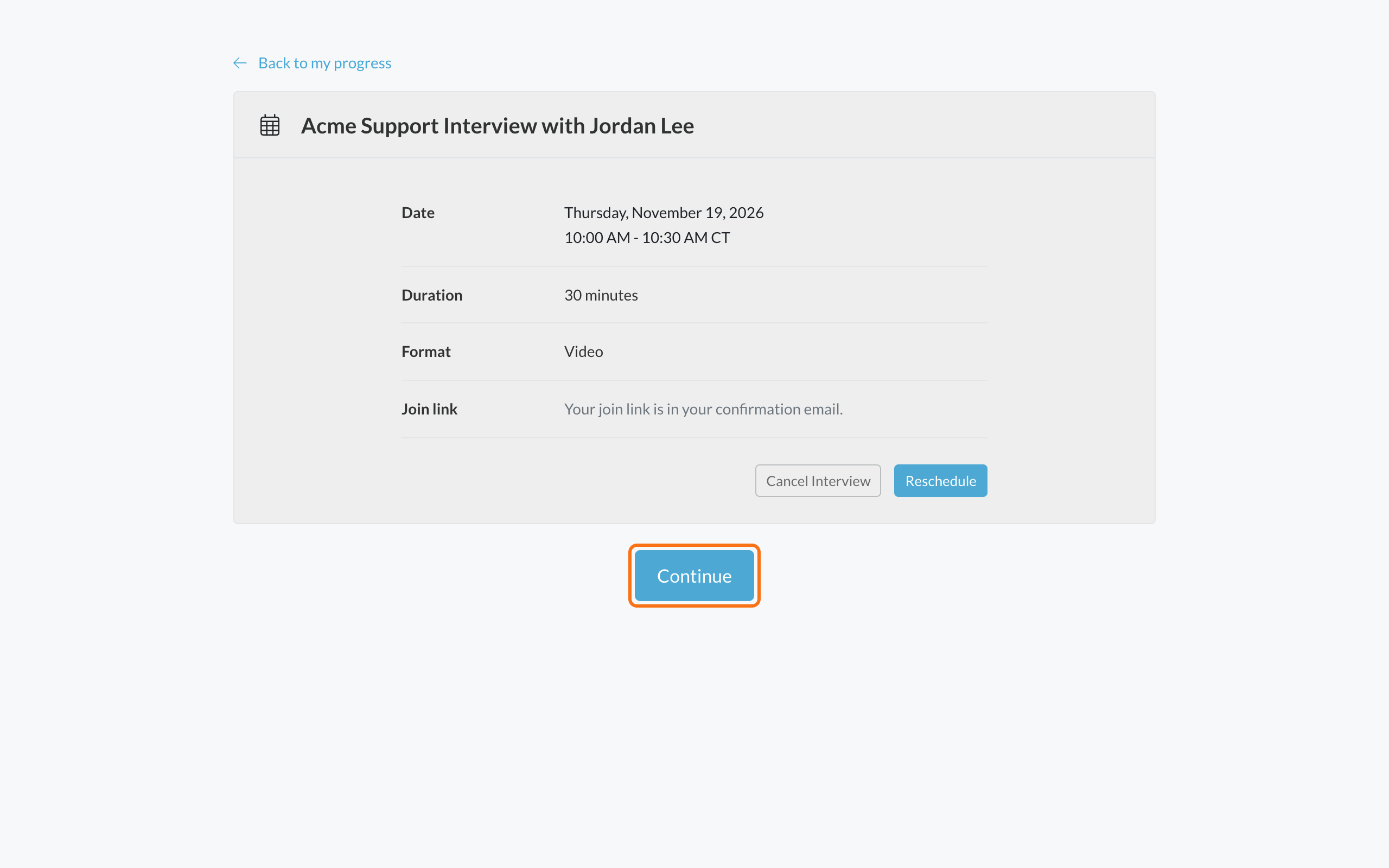
When a candidate is invited to interview, the interview appears in their application as their next step. Pair it with an automation rule that moves candidates who score well on your pre-screen and assessments to your interview step, and they can book a time right after they finish, in the same place. When they're done, Continue takes them back to their list, and the interview shows a green check.
2. Read, sign and download the offer on the page
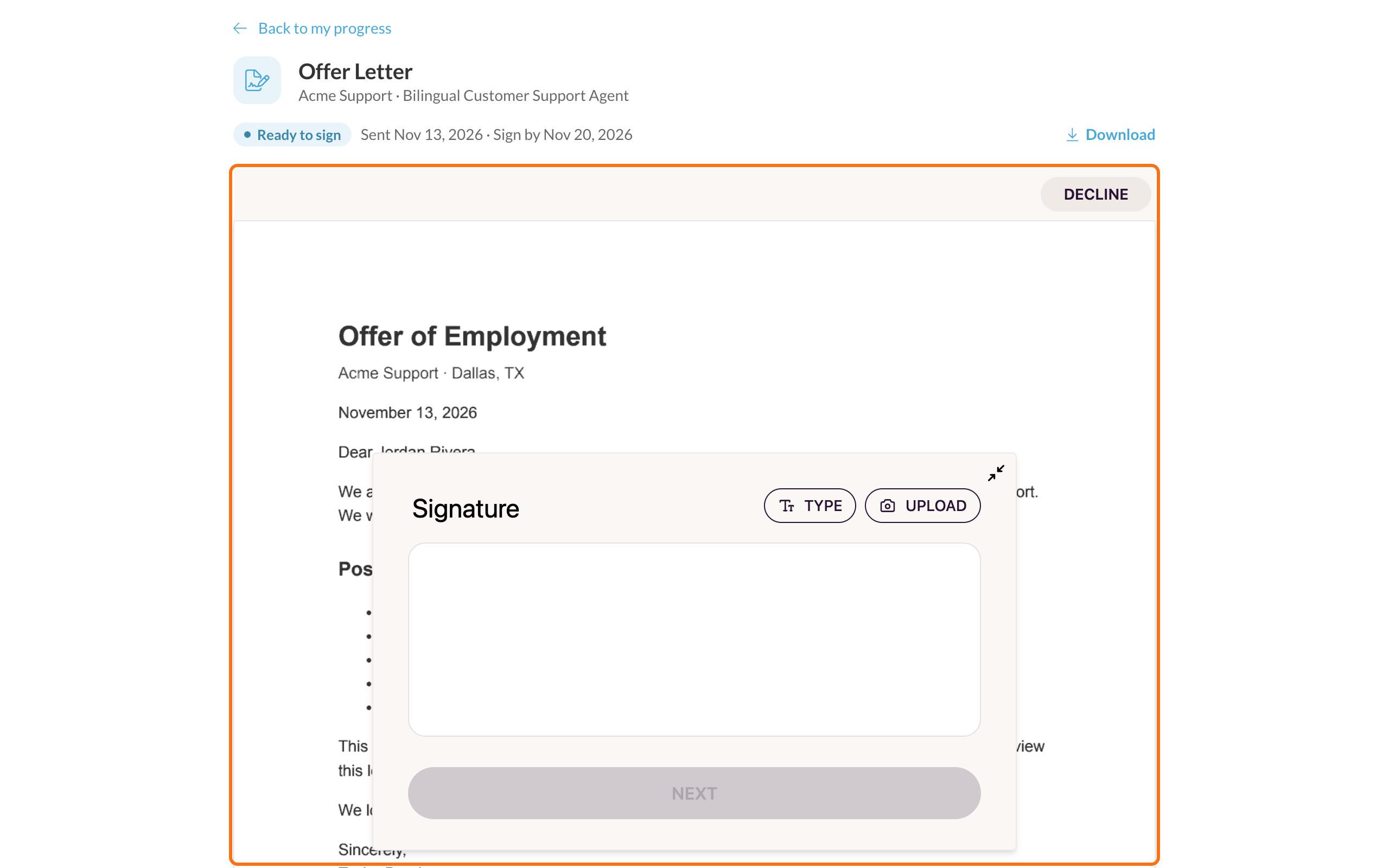
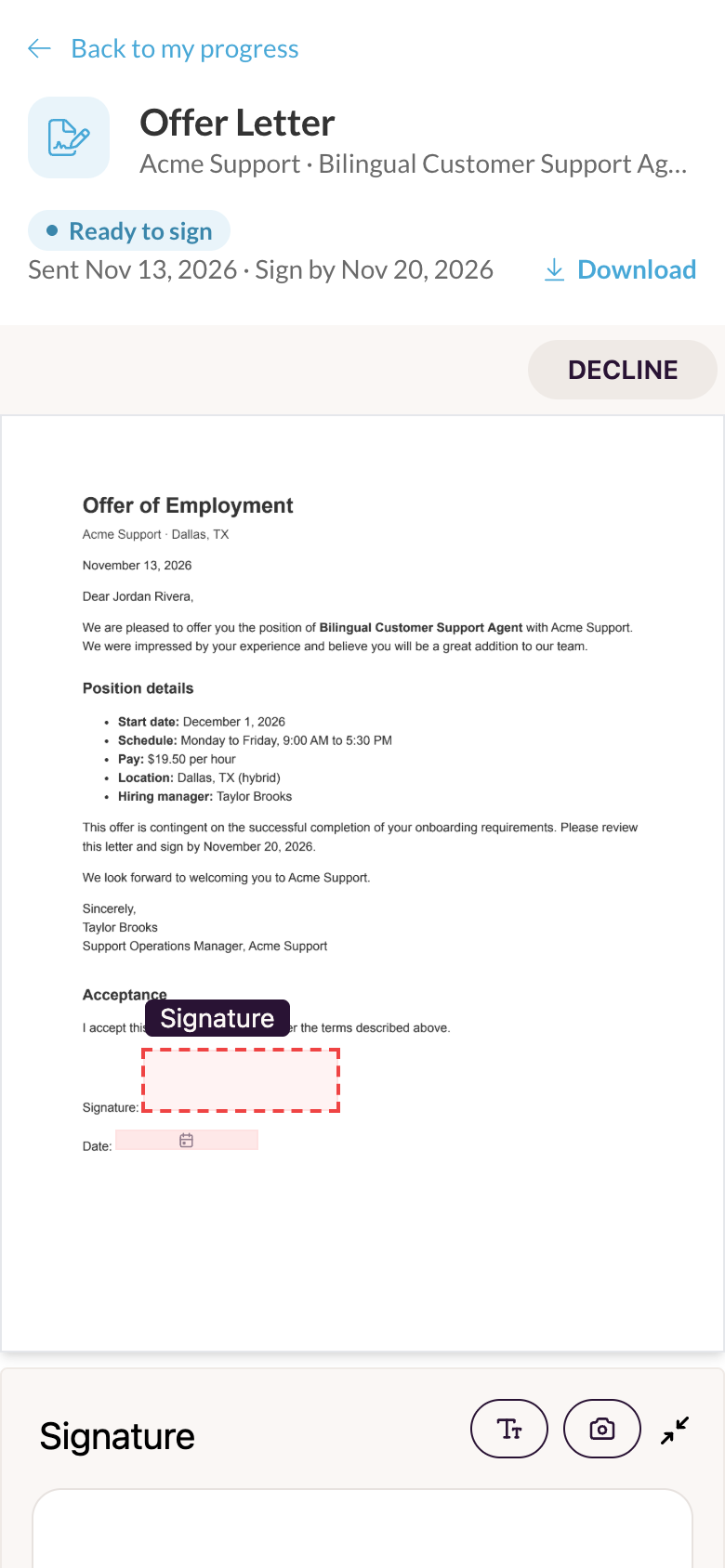
When you send an offer for e-signature, it appears in the candidate's application as soon as it's their turn to sign. The offer opens right on the page with the letter, the date it was sent and the sign-by date. Candidates can read it, sign it and download a copy without leaving the portal, and it works on any device, including their phone. If someone at your company signs after them, the page shows that it's waiting on you.
3. Go straight into onboarding
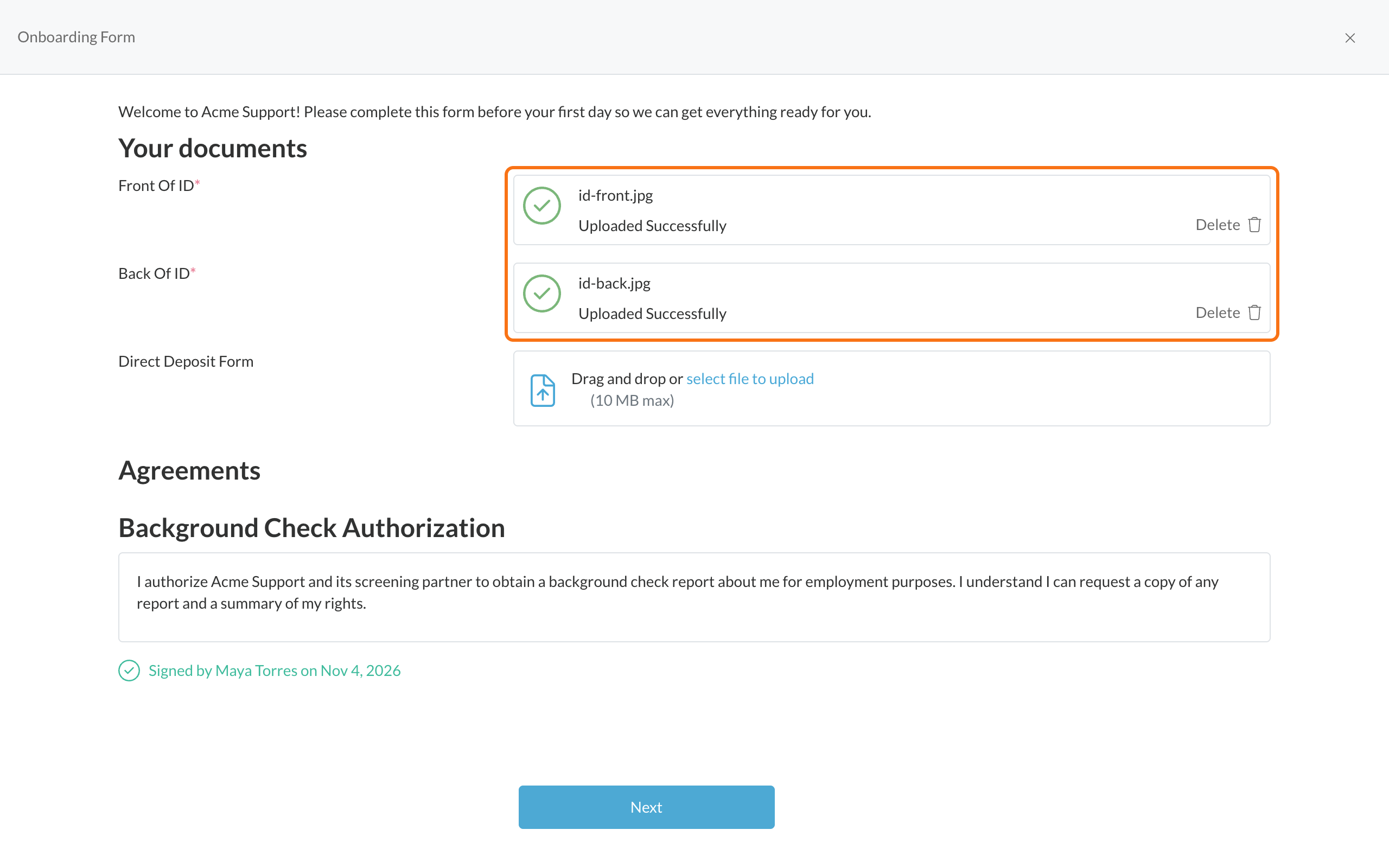
Once the offer is signed, candidates can move right into their onboarding forms in the same application to share their new hire details and upload the documents you need.
What your team gets
- Fewer stalled candidates. Candidates no longer need to find an email to take the next step, so it's easier to keep them moving from assessment to start date.
- Progress that counts every step. The candidate's percent complete includes interviews and offers, so it never says they're done while something is still waiting on them.
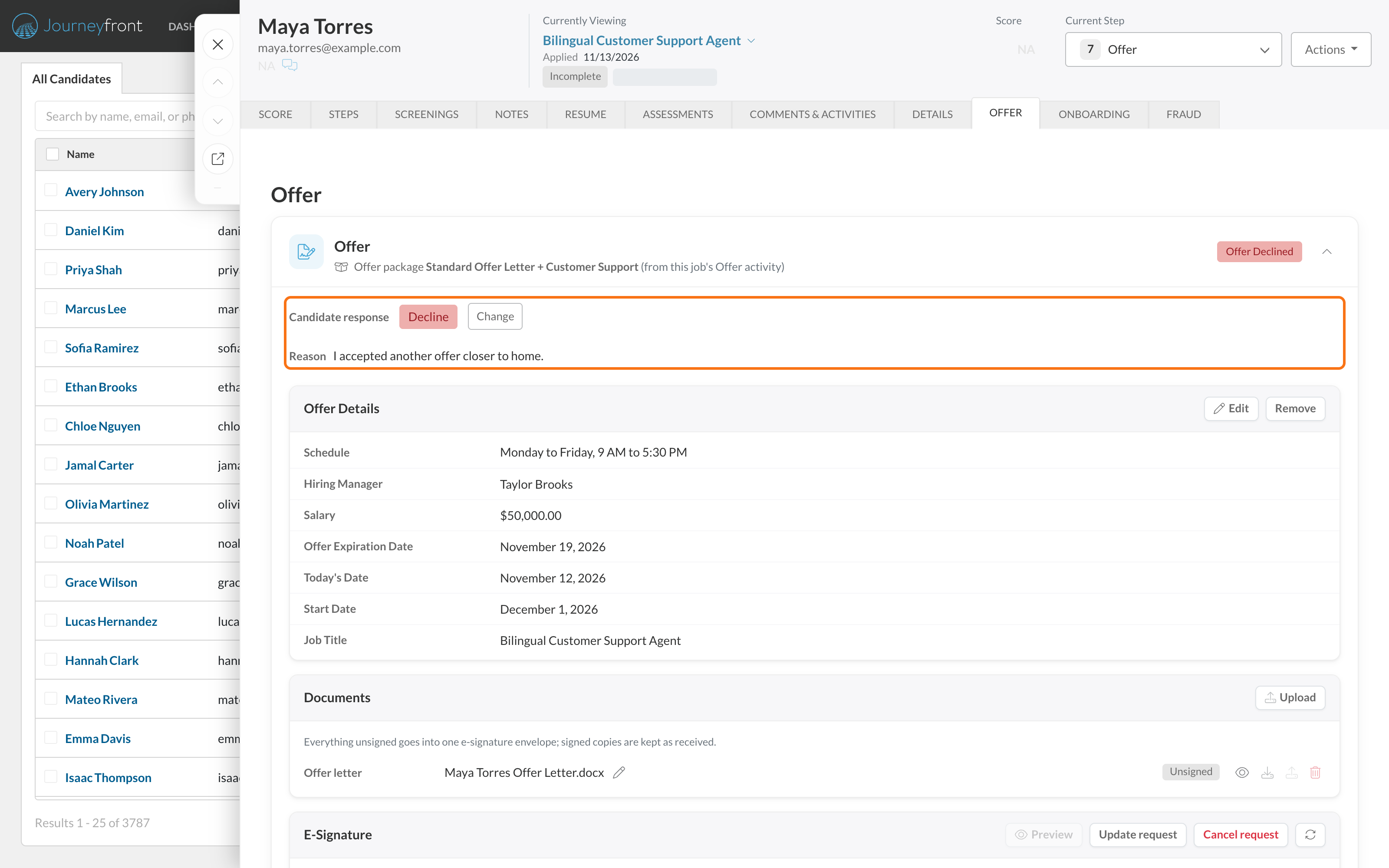
- Decline reasons on the offer. If a candidate declines, the reason they gave shows under Candidate response on the offer, and it's saved in their activity history. To try again, update the offer and send it with Update request.
- A quick fix if anything looks out of sync. A small refresh icon on the interview and offer brings the candidate's portal up to date if it ever shows something different.
Getting set up
- Nothing to turn on. Interviews appear once a scheduling invite is sent or you book a time for the candidate. Offers appear once they're sent for e-signature.
- To let candidates schedule right after their assessments, add an automation rule with a score condition that moves them to your interview step, and set that step's interview to send its scheduling invite automatically.
- To send candidates straight to onboarding after the offer, move them to your onboarding step. Onboarding forms are sent automatically when they enter it.
Good to know
- Your emails don't change. Candidates still get the same interview and offer emails, and can use either the email or their application.
- Interviews that only use an interview guide, and offers that aren't sent for e-signature, don't appear in the portal.
- Invites and offers sent before this update don't show up in the portal. Sending one again adds it.