

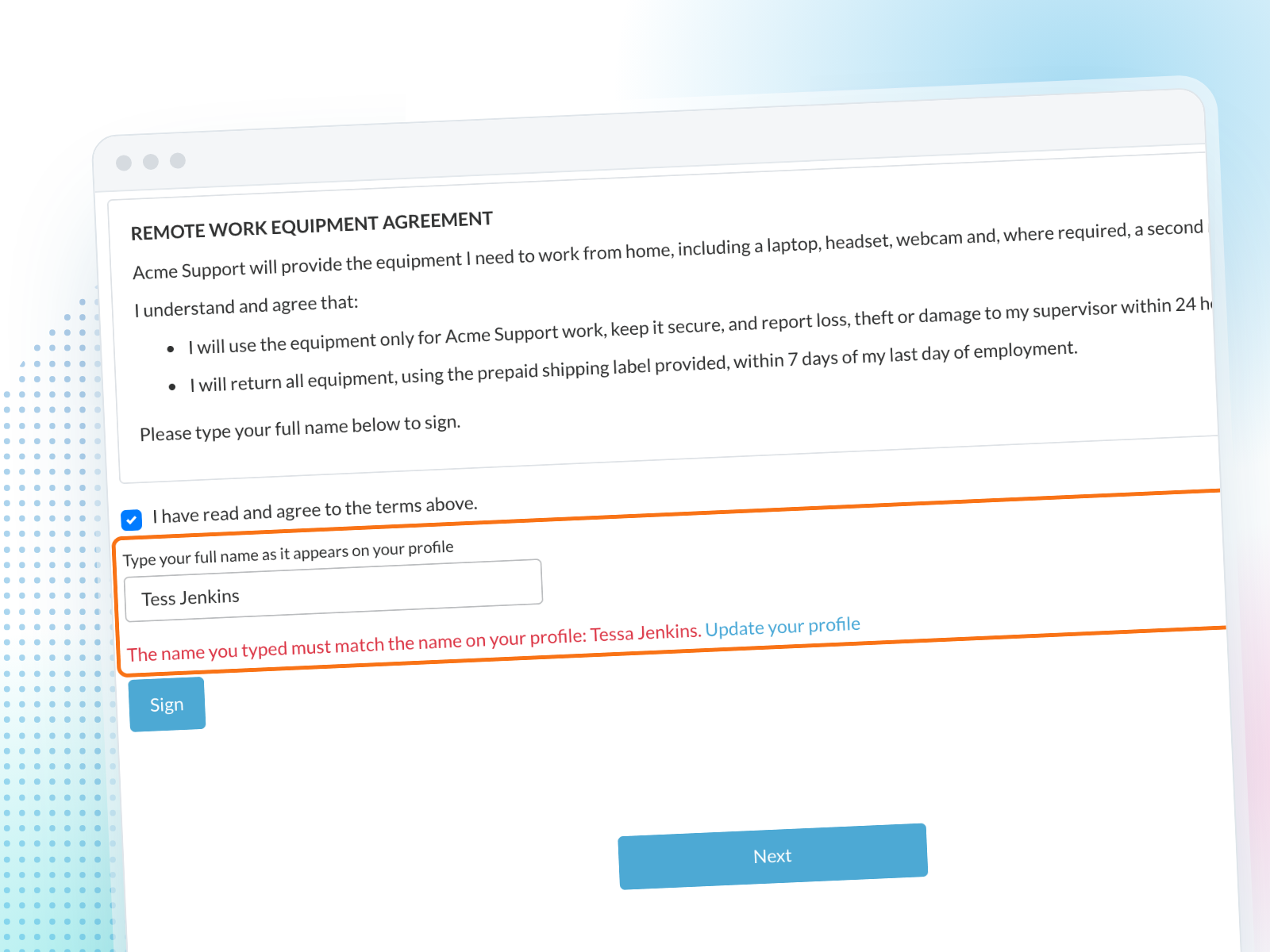
E-consent forms let candidates sign by checking a box and typing their name. Until now, any typed name was accepted, so a signature could carry a nickname, someone else's name or a name that was simply made up. Now you can require the typed name to match the name on the candidate's own profile, so every signature is clearly theirs.
Candidates still type their name to sign. Journeyfront checks it before the signature is saved, and tells the candidate exactly what to fix if it doesn't match.
How it works
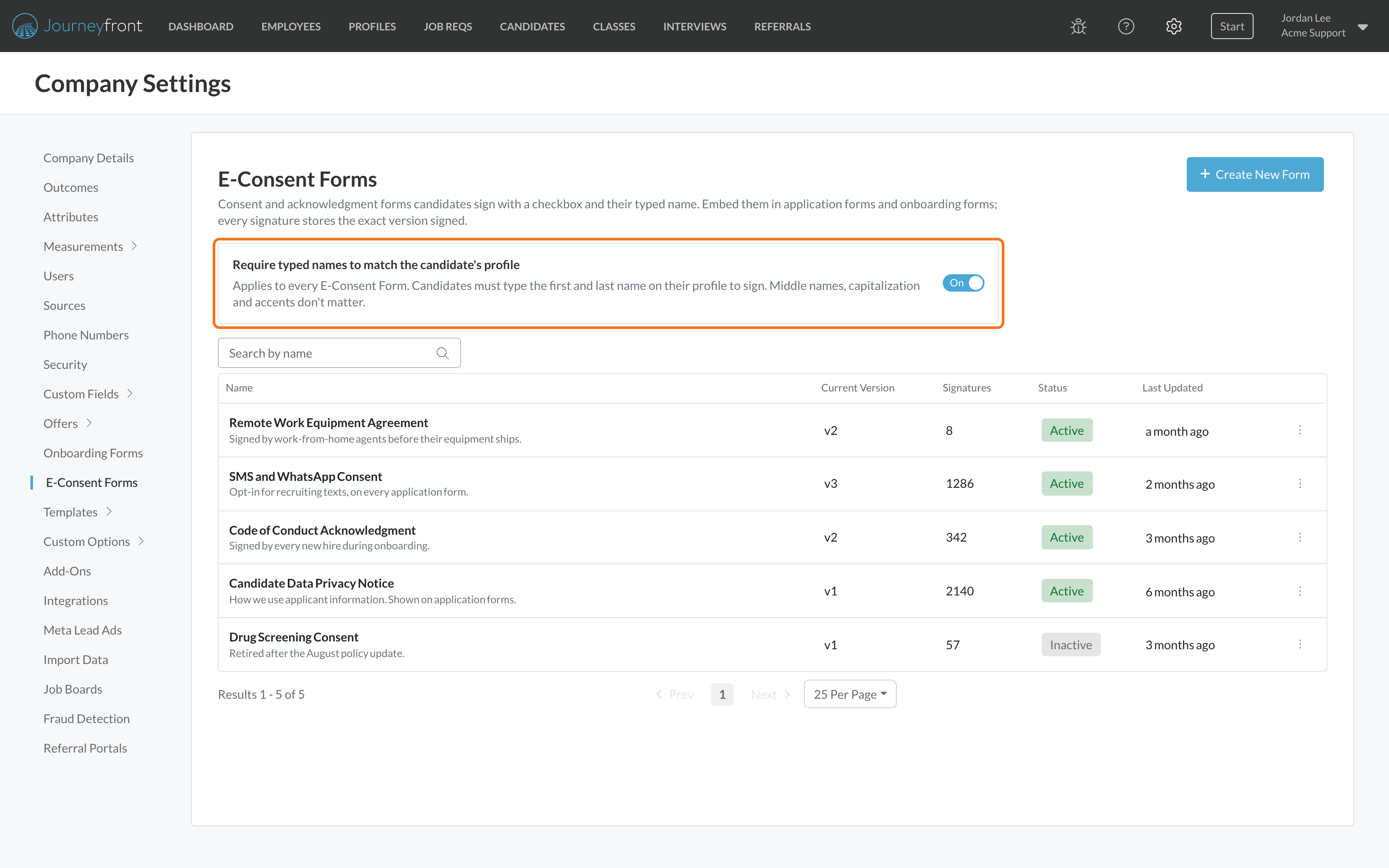
1. Turn it on for your account
Go to Settings, then E-Consent Forms, and switch on Require typed names to match the candidate's profile. It saves right away and applies to every e-consent form in your account.
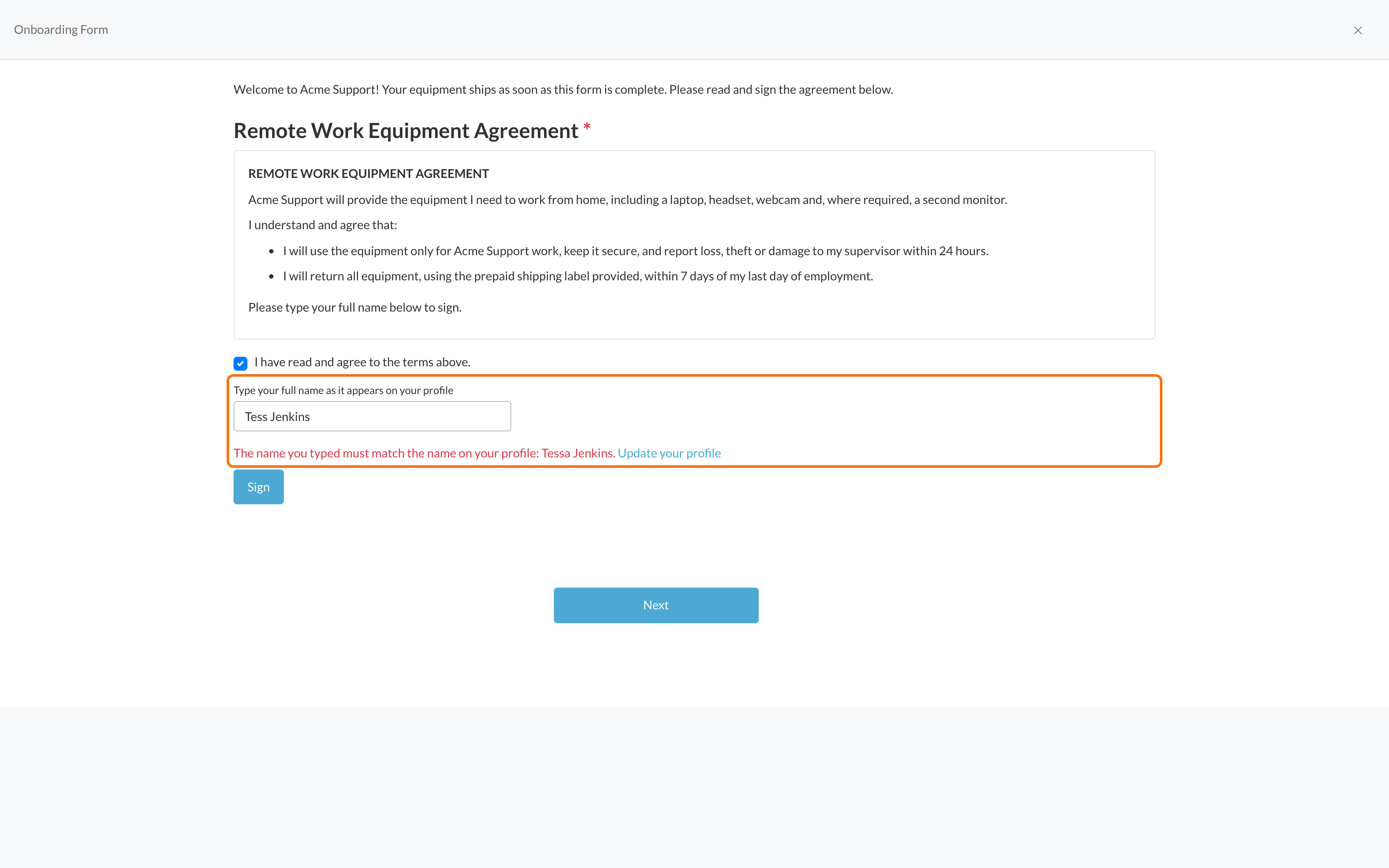
2. Candidates type the name on their profile
The name box asks candidates to type their full name as it appears on their profile. The check is strict about who is signing and forgiving about how the name is written: capitalization, accents, punctuation and extra spaces don't matter, middle names are fine, and so is a Jr or III the profile leaves off. "Maria Santos Reyes" signs for Maria Reyes.
3. A mismatch is caught before it's saved
If the name doesn't match, the signature isn't saved. The candidate sees the name on their profile and an Update your profile link, which opens in a new tab so they don't lose the answers they've already entered. Once the names match, they sign as usual.
What your team gets
- Signatures that belong to the candidate. A signature can't be saved under someone else's name or a made-up one.
- A stronger record. The typed name matches the account the candidate signed from, alongside the date, time and exact version of the form that every signature already keeps.
- Fewer stuck candidates. The message shows exactly what to type, and candidates can correct a wrong name on their profile themselves.
- In your candidates' language. The prompt and the message appear in English, Spanish and French.
Getting set up
- One switch. Admins with Company Settings access, or users with the E-Consent Forms permission, turn it on under Settings, then E-Consent Forms. It stays off until you turn it on.
Good to know
- The setting applies to every e-consent form in your account.
- Only new signatures are checked. Signatures collected before you turn it on stay as they are.
- Every signature record keeps the name exactly as the candidate typed it.
- If a candidate's profile is missing a first or last name, they can still sign.