

Good interviews start with knowing who you're talking to. Until now, interviewers had to leave the interview guide, or ask a recruiter, to check a candidate's resume or contact details. Now both open right beside the questions, so interviewers can ask about real experience and keep the conversation moving.
Admins also get a new way to give interviewers context: they can let interviewers who aren't on the job req view, or edit, the details of the candidate they're interviewing, without opening up the whole job req.
How it works for your team
1. Open the resume beside the interview guide
On the right edge of the interview guide, click the file icon. The candidate's resume opens in a panel next to your questions, as they uploaded it. PDFs and Word documents show right in the panel.
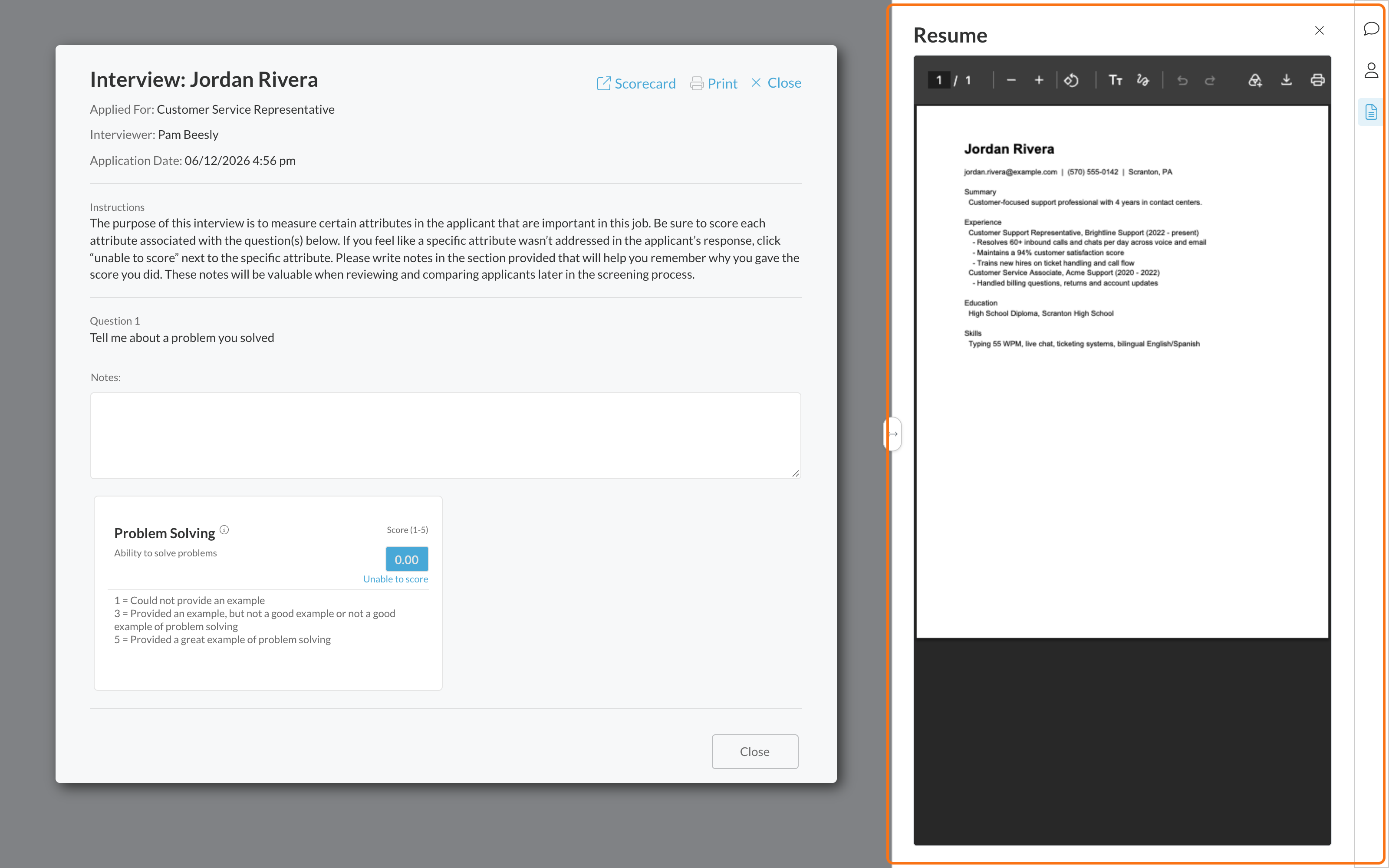
2. Check or update the candidate's details
Click the person icon to see the same details you'd find on the candidate's application: application details, custom fields, job req details and more. Learn a new phone number or a corrected detail during the interview? Update it right there, and it saves just like it does on the application.
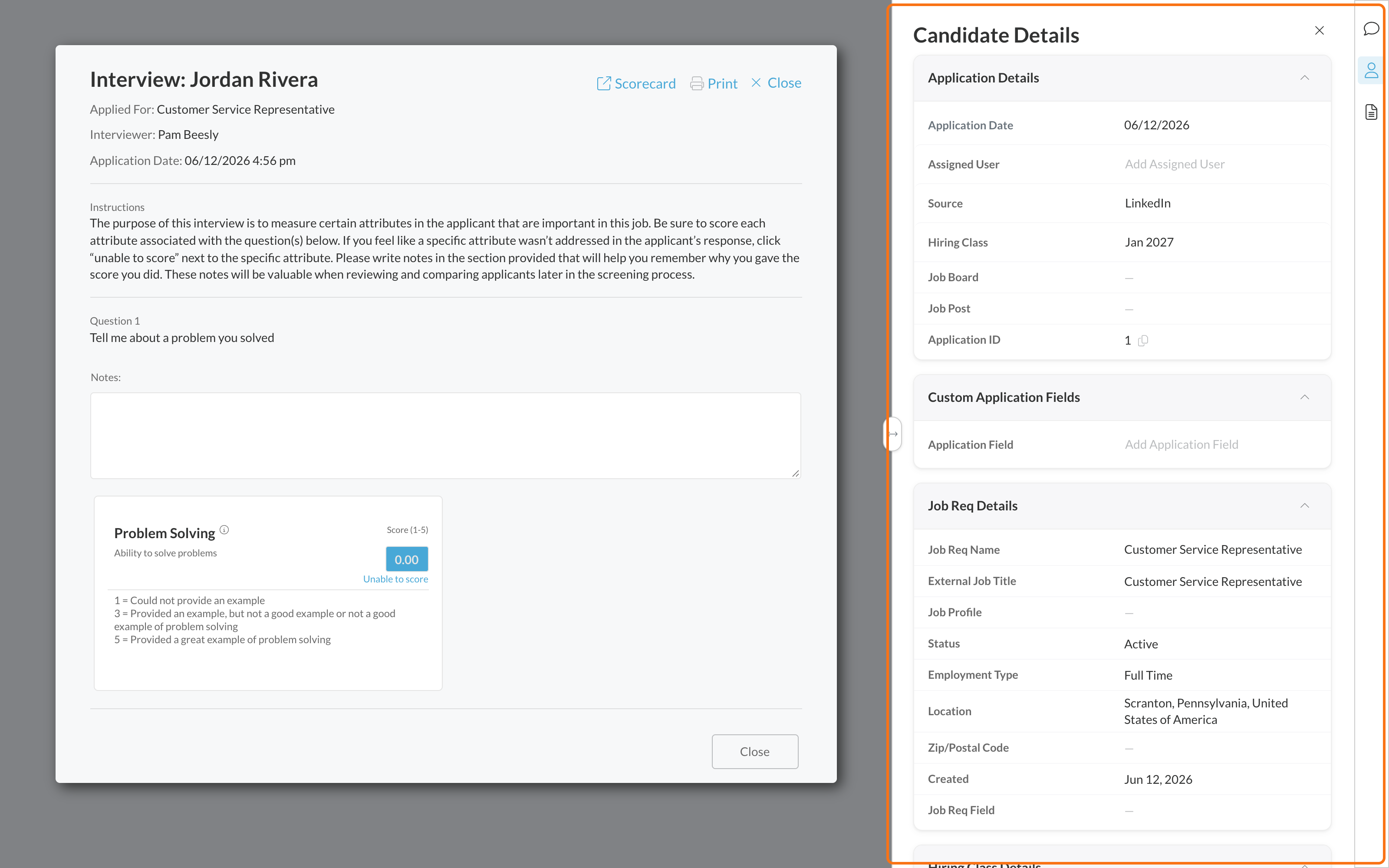
3. Choose who sees candidate details
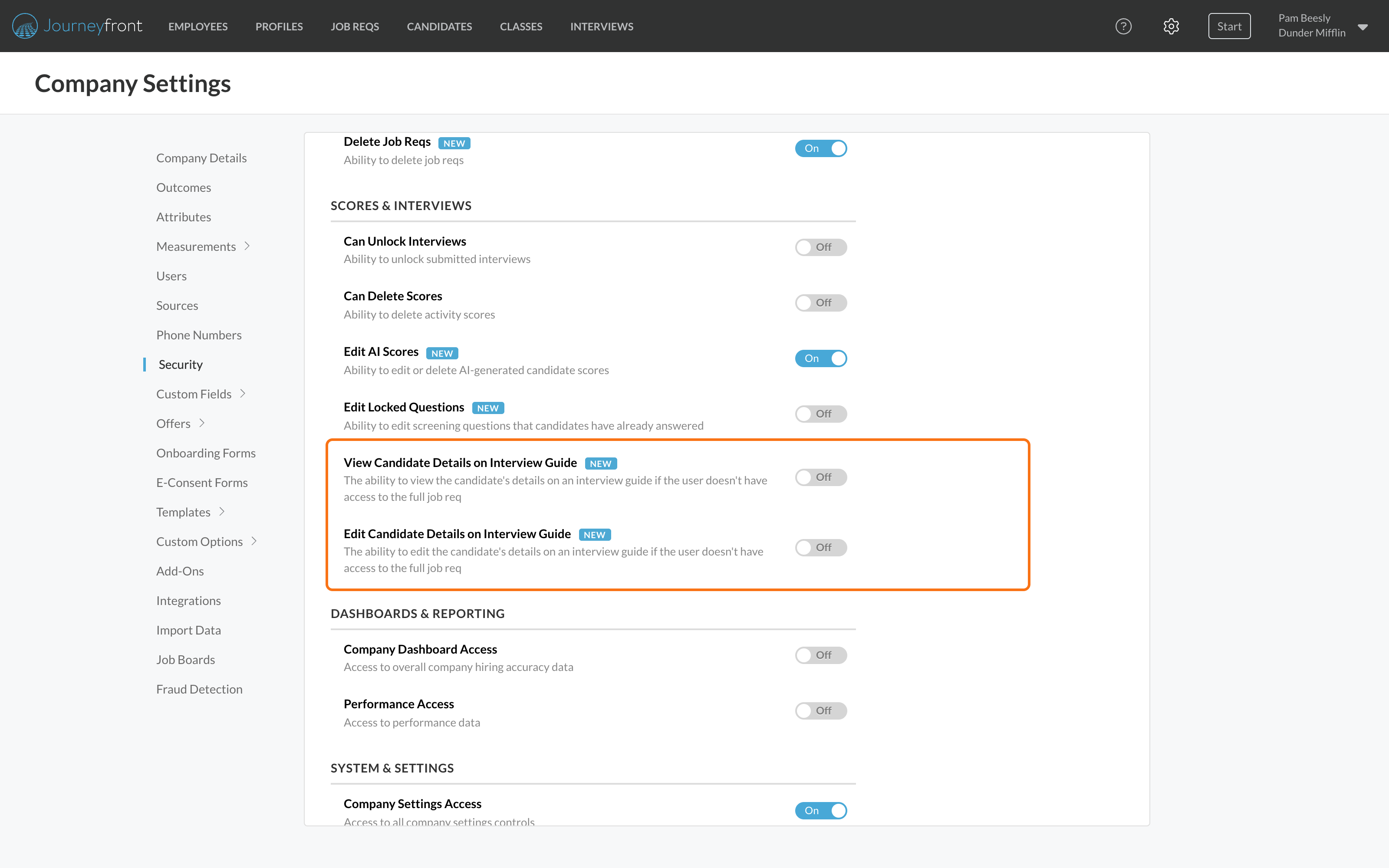
Anyone with access to the job req can always see and edit candidate details in the guide. For interviewers who aren't on the job req, admins turn on View Candidate Details on Interview Guide or Edit Candidate Details on Interview Guide in their security role.
What your team gets
- Better questions. Interviewers can ask about real experience from the resume instead of starting from scratch.
- Fewer tabs mid-interview. Resume, details and comments all open beside the questions, one panel at a time.
- Cleaner records. Fix contact info or other details the moment you learn them, without hunting for the application afterwards.
- Context for panel interviewers. Hiring managers and panel interviewers can see the candidate's details without being added to the whole job req.
- Room to work. Drag a panel wider or narrower to fit your screen, and Journeyfront remembers the width you pick.
Getting set up
- Resume and details for your recruiters: nothing to turn on. Anyone with access to the job req sees both panels.
- Interviewers outside the job req: go to Company Settings, then Security, open their role and turn on View or Edit Candidate Details on Interview Guide under Scores and Interviews.
Good to know
- Both new permissions are off for every role until an admin turns them on, so nobody sees details they couldn't see before.
- Interviewers outside the job req see details only for the candidate they're interviewing, and only in the interview guide.
- Turning on Edit also turns on View.
- The resume panel shows to anyone who can open the interview guide.
- Nothing changes on the candidate's application itself.